> ## Documentation Index
> Fetch the complete documentation index at: https://www.plain.com/docs/llms.txt
> Use this file to discover all available pages before exploring further.
# MCP server
> Connect Claude Code, Cursor, or any MCP client to your Plain workspace over the Model Context Protocol.
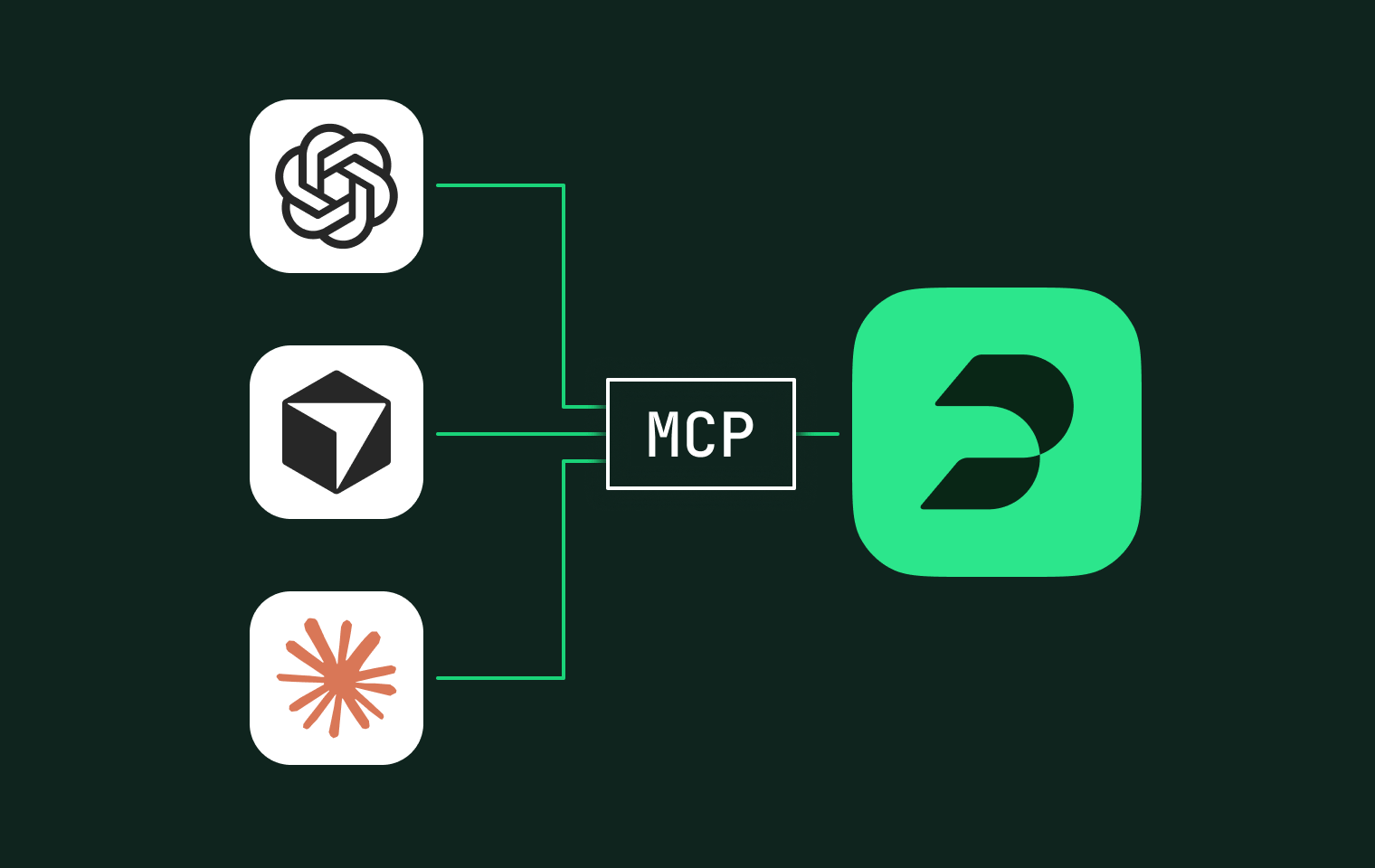
MCP (Model Context Protocol) is an open standard that lets AI tools connect to external platforms. The Plain MCP server at `https://mcp.plain.com/mcp` lets tools like Claude, ChatGPT, and Cursor work with your support data directly.
You authenticate with your existing Plain account, so the MCP server has the same permissions as your user. No API keys needed.
 ## Setup
### ChatGPT
To use the Plain MCP in ChatGPT you will have to create an app, but first you may need to enable Developer Mode in **Settings** → **Apps** > **Advanced settings**.
To add Plain's MCP as an app:
1. Go to **Settings** → **Apps**
2. Click **Create app,** Name it "Plain" and enter the URL `https://mcp.plain.com/mcp`
3. Set authentication to **OAuth**, then click **Create** and complete the login flow.
## Setup
### ChatGPT
To use the Plain MCP in ChatGPT you will have to create an app, but first you may need to enable Developer Mode in **Settings** → **Apps** > **Advanced settings**.
To add Plain's MCP as an app:
1. Go to **Settings** → **Apps**
2. Click **Create app,** Name it "Plain" and enter the URL `https://mcp.plain.com/mcp`
3. Set authentication to **OAuth**, then click **Create** and complete the login flow.
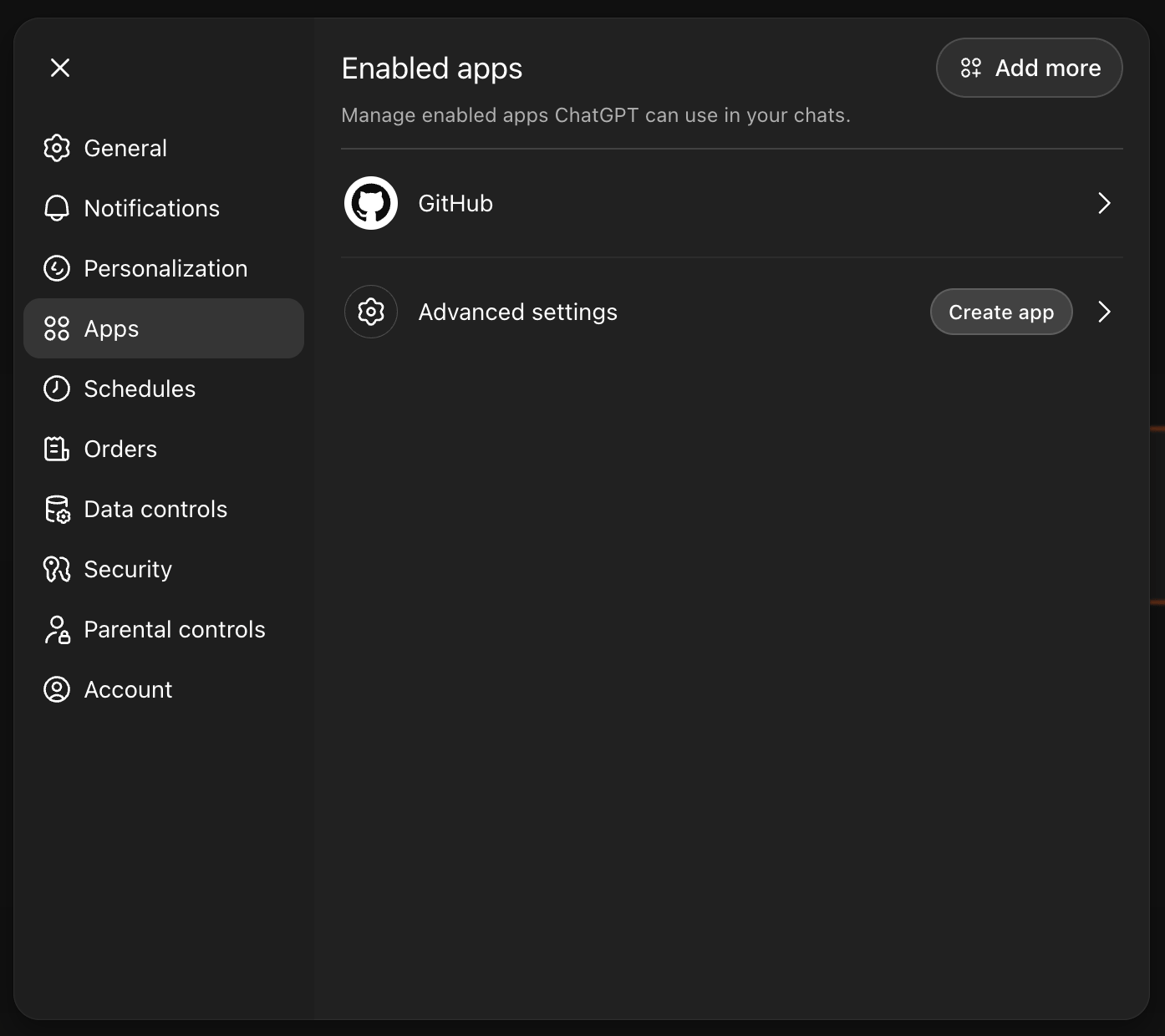 If you don't see "Advanced Settings" in the "Apps" settings menu, you might need to reach out to your administrator to enable adding "Custom Apps" for your team.
### Cursor
You can add the Plain MCP to Cursor via your Cursor config at `~/.cursor/mcp.json`
```json theme={null}
{
"mcpServers": {
"plain": {
"type": "remote",
"url": "https://mcp.plain.com/mcp"
}
}
}
```
Go to **Cursor Settings** → **Tools & MCP** and click **Connect** next to Plain to authenticate.
### Claude.ai
1. Go to "Customize" → "Connectors"
2. Click the ➕ icon, then choose "Add custom connector"
3. Add a custom connector named "Plain" with the Remote MCP server URL `https://mcp.plain.com/mcp`
4. Click the "Connect" button next to the newly created Plain connector to authenticate.
If you don't see "Advanced Settings" in the "Apps" settings menu, you might need to reach out to your administrator to enable adding "Custom Apps" for your team.
### Cursor
You can add the Plain MCP to Cursor via your Cursor config at `~/.cursor/mcp.json`
```json theme={null}
{
"mcpServers": {
"plain": {
"type": "remote",
"url": "https://mcp.plain.com/mcp"
}
}
}
```
Go to **Cursor Settings** → **Tools & MCP** and click **Connect** next to Plain to authenticate.
### Claude.ai
1. Go to "Customize" → "Connectors"
2. Click the ➕ icon, then choose "Add custom connector"
3. Add a custom connector named "Plain" with the Remote MCP server URL `https://mcp.plain.com/mcp`
4. Click the "Connect" button next to the newly created Plain connector to authenticate.
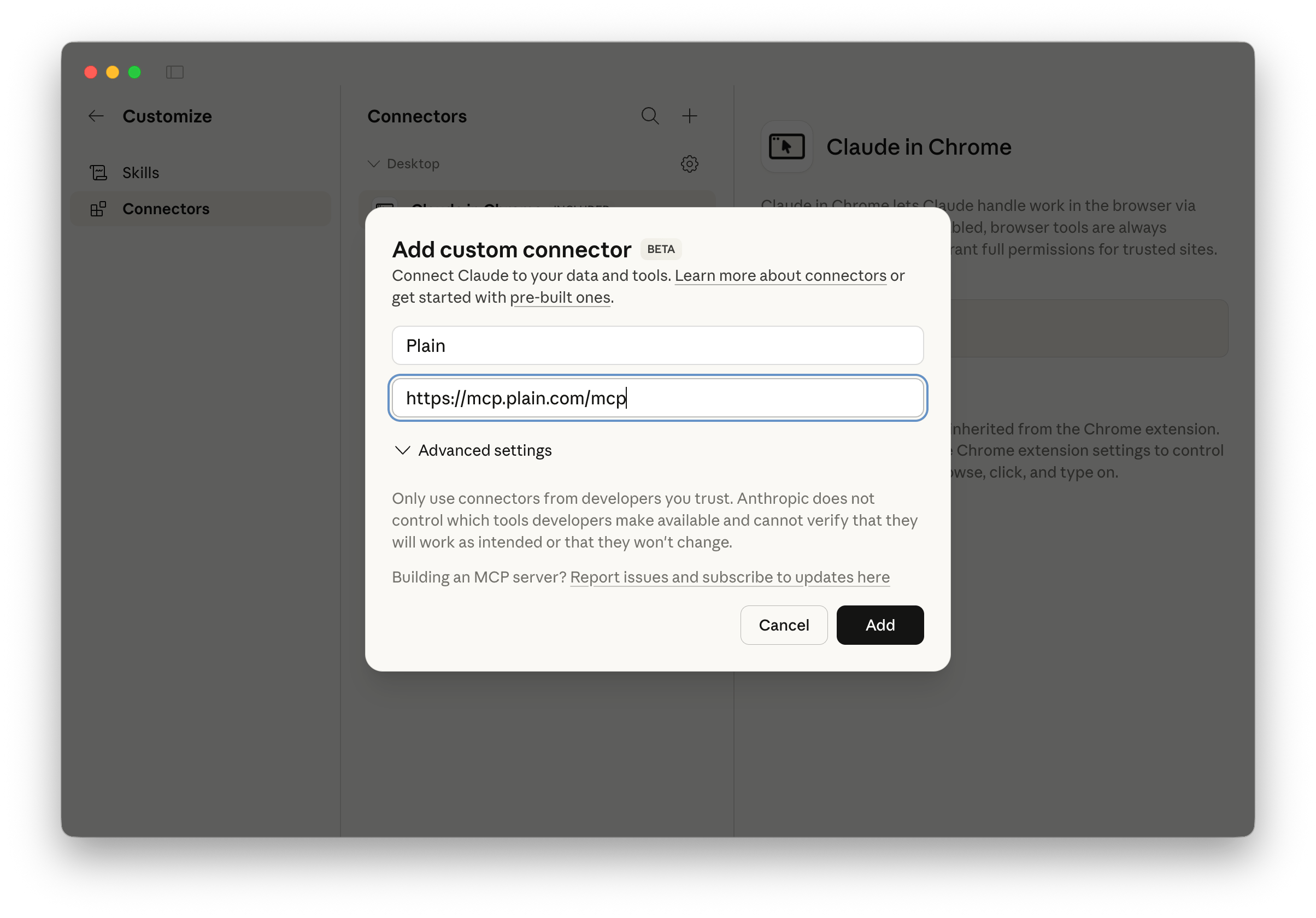 If you're on a Claude Team plan, you may need to reach out to your administrator to add this custom connector for you.
### Claude Code
Adding the Plain MCP to claude-code can be done via the `mcp-remote` helper package which involves adding the following to your `~/.claude.json` configuration.
```json theme={null}
"mcpServers": {
"plain": {
"command": "npx",
"args": ["-y", "mcp-remote", "https://mcp.plain.com/mcp"],
"enabled": true
}
}
```
Unfortunately Claude Code does not support refreshing OAuth tokens yet. A workaround until that is implemented is to use the `mcp-remote` npm package.
Next time you start Claude Code, it will launch a browser window asking you to authenticate with your Plain account and select the workspace you'd like to connect. Run the `/mcp` command and select the `plain` MCP to see more details.
### Other MCP clients
MCP clients that run locally (not in the browser) can connect to Plain if they support remote HTTP servers. Point it at `https://mcp.plain.com/mcp` and complete the OAuth flow when prompted.
## Authentication
Plain MCP uses OAuth to allow your MCP server connection to share the same context as your normal web app user. No additional managing of permissions required. This means replies to threads will appear as though they come from your user.
After successfully authenticating, your client should receive both an `accessToken` as well as a `refreshToken`. It is the client's responsibility to do the actual refreshing. Most agentic coding applications support this now, but we have had issues with claude-code in particular. Use the '[mcp-remote](https://www.npmjs.com/package/mcp-remote)' package and the setup detailed above rather than passing only the URL as a "remote" mcp server in claude's configuration.
## Available tools
The MCP server includes 30 tools. Tools marked **write** take actions in your workspace. Most AI clients will ask for confirmation before executing them.
### Threads
| **Tool** | **Access** | **What it does** |
| ------------------------- | ---------- | -------------------------------------------------------------- |
| Fetch Threads | Read | List threads with filters and pagination |
| Fetch Thread Details | Read | Full thread details plus timeline entries |
| Fetch My Assigned Threads | Read | List threads assigned to you (active by default) |
| Search Threads | Read | Search threads by text with optional filters |
| Reply To Thread | Write | Send a reply to an email, Slack, or form thread |
| Assign Thread | Write | Assign a thread to a user, machine user, or yourself |
| Unassign Thread | Write | Remove the current assignee |
| Mark Thread As Done | Write | Mark a thread as resolved |
| Mark Thread As Todo | Write | Reopen or set a thread back to active |
| Snooze Thread | Write | Snooze a thread until later |
| Change Thread Priority | Write | Set priority: urgent, high, normal, or low |
| Add Labels | Write | Add labels to a thread |
| Create Note | Write | Add an internal note to a thread or customer |
| Fetch Citations | Read | List knowledge sources that Ari used when replying on a thread |
### Customers
| **Tool** | **Access** | **What it does** |
| ---------------------- | ---------- | ----------------------------------------- |
| Fetch Customers | Read | List customers (excludes spam by default) |
| Fetch Customer Details | Read | Full profile for a specific customer |
| Fetch Customer Threads | Read | List threads for a specific customer |
| Search Customers | Read | Search by name, email, or external ID |
### Tenants
| **Tool** | **Access** | **What it does** |
| -------------------- | ---------- | ------------------------------------ |
| Fetch Tenants | Read | List tenants with pagination |
| Fetch Tenant Details | Read | Full details including tenant fields |
| Search Tenants | Read | Search by name or external ID |
| Upsert Tenant | Write | Create or update a tenant |
### Help Center
| **Tool** | **Access** | **What it does** |
| ------------------------------- | ---------- | ------------------------------------ |
| Get Help Centers | Read | List your help centers |
| Get Help Center Article Groups | Read | List your Help Center article groups |
| Get Help Center Articles | Read | List articles in a Help Center |
| Get Help Center Article | Read | Fetch an article by ID |
| Get Help Center Article By Slug | Read | Fetch an article by slug |
| Upsert Help Center Article | Write | Create or update an article |
### User and workspace
| **Tool** | **Access** | **What it does** |
| ------------------- | ---------- | ---------------------------------- |
| Fetch My User | Read | Your authenticated user profile |
| Fetch My Workspace | Read | Your workspace details |
| Fetch User By Email | Read | Find a Plain user by email address |
| Fetch Labels | Read | List all labels in your workspace |
## Use case examples
### Triage your queue
> "Show me my assigned threads. Summarize the top 5 by urgency and suggest which ones I should handle first."
Read your active threads and get a prioritized summary without opening each one.
### Understand a customer's history
> "Look up the customer with email [alex@acme.com](mailto:alex@acme.com). Show me their recent threads and summarize the pattern. Are they hitting the same issue repeatedly?"
Pull together a customer's full context in seconds instead of clicking through timelines.
### Summarize what's waiting
> "Show me all my TODO threads. Group them by label and summarize what each one is about."
See what has gone quiet, so you can decide what needs attention.
### Draft a reply with full context
> "Show me thread th\_01ABC123. Read the full timeline, then draft a reply that addresses the customer's latest question. Use a helpful but concise tone."
The AI reads the full thread history and drafts a reply for you to review before sending.
### Audit your Help Center
> "List all articles in my Help Center. Flag any that haven't been updated in the last 90 days."
Spot outdated documentation without manually checking each article.
### Get a snapshot of a tenant's health
> "Look up the tenant 'Acme Corp'. Show me their details and all open threads. Are there any patterns or escalation risks?"
Prep for an account review by pulling tenant context and open issues together.
### Cross-reference with other tools
The Plain MCP works alongside other MCP servers. If you also have Slack, GitHub, or Linear MCPs connected, you can combine them:
> "Find threads about 'payment errors' from the last 7 days, check if there's a related GitHub issue, and post a summary to #incidents in Slack."
Each server handles its own domain, and the AI coordinates between them.
## If something isn't working
* **Can't authenticate:** Make sure you can log into Plain at [app.plain.com](http://app.plain.com) first. The MCP server uses the same auth.
* **Tool not appearing:** Some AI clients cache available tools. Try disconnecting and reconnecting the MCP server.
* **Permission errors:** Check that your Plain user has the right role for the action you're trying to take.
If it's still not working, collect:
* Your workspace ID (visible in **Settings** → **Workspace**)
* The exact error message
* Which AI client you're using
Then reach out to us via [**help@plain.com**](mailto:help@plain.com) for assistance.
If you're on a Claude Team plan, you may need to reach out to your administrator to add this custom connector for you.
### Claude Code
Adding the Plain MCP to claude-code can be done via the `mcp-remote` helper package which involves adding the following to your `~/.claude.json` configuration.
```json theme={null}
"mcpServers": {
"plain": {
"command": "npx",
"args": ["-y", "mcp-remote", "https://mcp.plain.com/mcp"],
"enabled": true
}
}
```
Unfortunately Claude Code does not support refreshing OAuth tokens yet. A workaround until that is implemented is to use the `mcp-remote` npm package.
Next time you start Claude Code, it will launch a browser window asking you to authenticate with your Plain account and select the workspace you'd like to connect. Run the `/mcp` command and select the `plain` MCP to see more details.
### Other MCP clients
MCP clients that run locally (not in the browser) can connect to Plain if they support remote HTTP servers. Point it at `https://mcp.plain.com/mcp` and complete the OAuth flow when prompted.
## Authentication
Plain MCP uses OAuth to allow your MCP server connection to share the same context as your normal web app user. No additional managing of permissions required. This means replies to threads will appear as though they come from your user.
After successfully authenticating, your client should receive both an `accessToken` as well as a `refreshToken`. It is the client's responsibility to do the actual refreshing. Most agentic coding applications support this now, but we have had issues with claude-code in particular. Use the '[mcp-remote](https://www.npmjs.com/package/mcp-remote)' package and the setup detailed above rather than passing only the URL as a "remote" mcp server in claude's configuration.
## Available tools
The MCP server includes 30 tools. Tools marked **write** take actions in your workspace. Most AI clients will ask for confirmation before executing them.
### Threads
| **Tool** | **Access** | **What it does** |
| ------------------------- | ---------- | -------------------------------------------------------------- |
| Fetch Threads | Read | List threads with filters and pagination |
| Fetch Thread Details | Read | Full thread details plus timeline entries |
| Fetch My Assigned Threads | Read | List threads assigned to you (active by default) |
| Search Threads | Read | Search threads by text with optional filters |
| Reply To Thread | Write | Send a reply to an email, Slack, or form thread |
| Assign Thread | Write | Assign a thread to a user, machine user, or yourself |
| Unassign Thread | Write | Remove the current assignee |
| Mark Thread As Done | Write | Mark a thread as resolved |
| Mark Thread As Todo | Write | Reopen or set a thread back to active |
| Snooze Thread | Write | Snooze a thread until later |
| Change Thread Priority | Write | Set priority: urgent, high, normal, or low |
| Add Labels | Write | Add labels to a thread |
| Create Note | Write | Add an internal note to a thread or customer |
| Fetch Citations | Read | List knowledge sources that Ari used when replying on a thread |
### Customers
| **Tool** | **Access** | **What it does** |
| ---------------------- | ---------- | ----------------------------------------- |
| Fetch Customers | Read | List customers (excludes spam by default) |
| Fetch Customer Details | Read | Full profile for a specific customer |
| Fetch Customer Threads | Read | List threads for a specific customer |
| Search Customers | Read | Search by name, email, or external ID |
### Tenants
| **Tool** | **Access** | **What it does** |
| -------------------- | ---------- | ------------------------------------ |
| Fetch Tenants | Read | List tenants with pagination |
| Fetch Tenant Details | Read | Full details including tenant fields |
| Search Tenants | Read | Search by name or external ID |
| Upsert Tenant | Write | Create or update a tenant |
### Help Center
| **Tool** | **Access** | **What it does** |
| ------------------------------- | ---------- | ------------------------------------ |
| Get Help Centers | Read | List your help centers |
| Get Help Center Article Groups | Read | List your Help Center article groups |
| Get Help Center Articles | Read | List articles in a Help Center |
| Get Help Center Article | Read | Fetch an article by ID |
| Get Help Center Article By Slug | Read | Fetch an article by slug |
| Upsert Help Center Article | Write | Create or update an article |
### User and workspace
| **Tool** | **Access** | **What it does** |
| ------------------- | ---------- | ---------------------------------- |
| Fetch My User | Read | Your authenticated user profile |
| Fetch My Workspace | Read | Your workspace details |
| Fetch User By Email | Read | Find a Plain user by email address |
| Fetch Labels | Read | List all labels in your workspace |
## Use case examples
### Triage your queue
> "Show me my assigned threads. Summarize the top 5 by urgency and suggest which ones I should handle first."
Read your active threads and get a prioritized summary without opening each one.
### Understand a customer's history
> "Look up the customer with email [alex@acme.com](mailto:alex@acme.com). Show me their recent threads and summarize the pattern. Are they hitting the same issue repeatedly?"
Pull together a customer's full context in seconds instead of clicking through timelines.
### Summarize what's waiting
> "Show me all my TODO threads. Group them by label and summarize what each one is about."
See what has gone quiet, so you can decide what needs attention.
### Draft a reply with full context
> "Show me thread th\_01ABC123. Read the full timeline, then draft a reply that addresses the customer's latest question. Use a helpful but concise tone."
The AI reads the full thread history and drafts a reply for you to review before sending.
### Audit your Help Center
> "List all articles in my Help Center. Flag any that haven't been updated in the last 90 days."
Spot outdated documentation without manually checking each article.
### Get a snapshot of a tenant's health
> "Look up the tenant 'Acme Corp'. Show me their details and all open threads. Are there any patterns or escalation risks?"
Prep for an account review by pulling tenant context and open issues together.
### Cross-reference with other tools
The Plain MCP works alongside other MCP servers. If you also have Slack, GitHub, or Linear MCPs connected, you can combine them:
> "Find threads about 'payment errors' from the last 7 days, check if there's a related GitHub issue, and post a summary to #incidents in Slack."
Each server handles its own domain, and the AI coordinates between them.
## If something isn't working
* **Can't authenticate:** Make sure you can log into Plain at [app.plain.com](http://app.plain.com) first. The MCP server uses the same auth.
* **Tool not appearing:** Some AI clients cache available tools. Try disconnecting and reconnecting the MCP server.
* **Permission errors:** Check that your Plain user has the right role for the action you're trying to take.
If it's still not working, collect:
* Your workspace ID (visible in **Settings** → **Workspace**)
* The exact error message
* Which AI client you're using
Then reach out to us via [**help@plain.com**](mailto:help@plain.com) for assistance.