> ## Documentation Index
> Fetch the complete documentation index at: https://www.plain.com/docs/llms.txt
> Use this file to discover all available pages before exploring further.
# Test mode
> See how Ari would answer without replying to customers.
Test mode lets you see how Ari would handle your support before it replies to any customer.
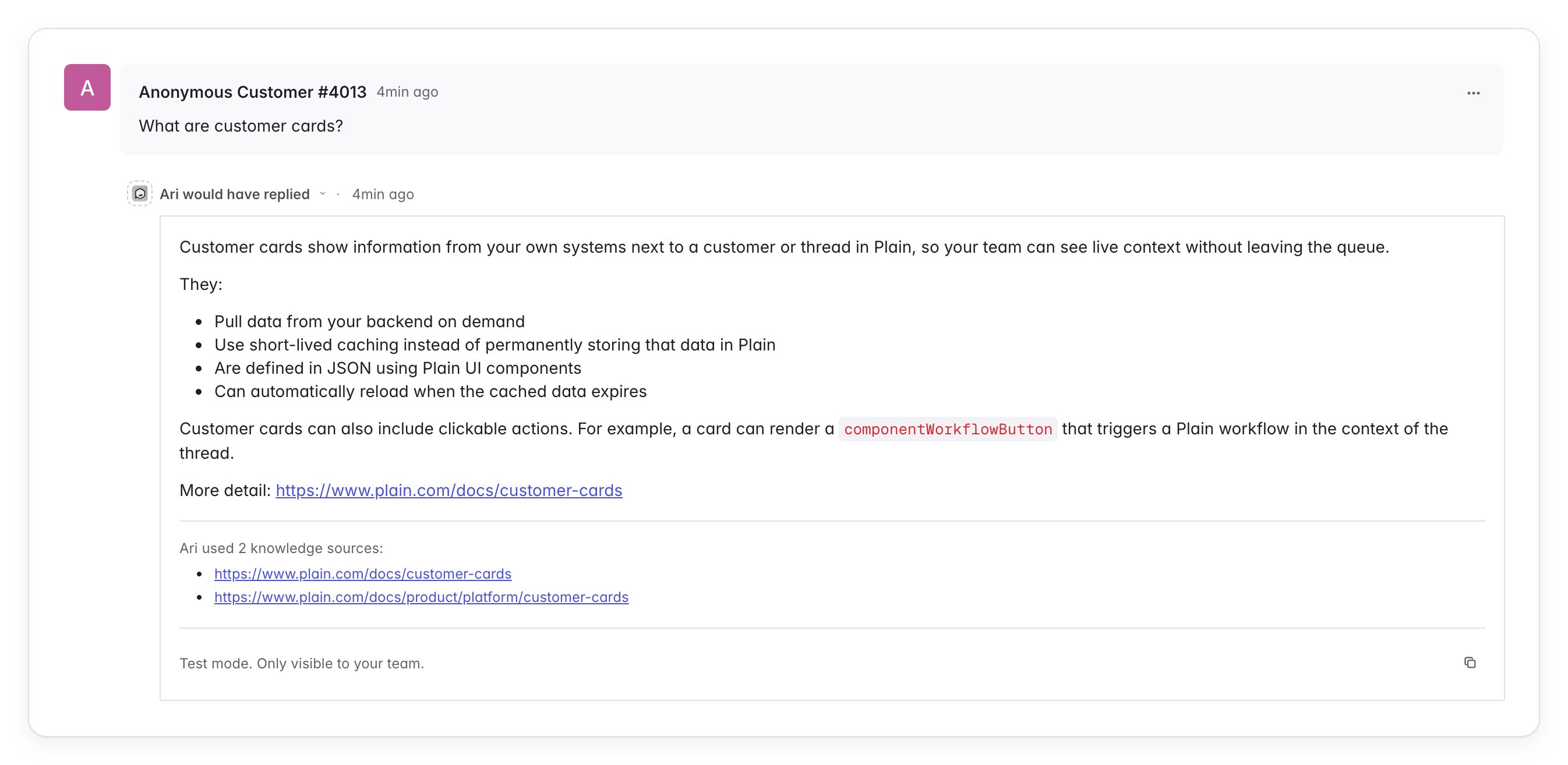
Ari runs on your real threads but sends nothing. Instead it adds a timeline entry showing what it would have done: the reply it would have sent, or why it would have handed off to your team.
Your team keeps handling every thread the same way they do now. Ari only adds its private timeline entry, which customers never see. It doesn't message the customer or act on the thread in any other way, like leaving notes or changing its status or priority. This lets you check Ari's behavior, and build trust, on your own threads without affecting the customer experience.
## Live and test mode
You choose the mode each time Ari is assigned to a thread, through a workflow or manually, so Ari can reply on one queue while it runs in test mode on another:
* **Live**: Ari replies to customers. It becomes the thread's main assignee.
* **Test**: Ari sends nothing and adds private timeline entries showing what it would have done. It joins as an additional assignee, so whoever owns the thread keeps it and your queues and assignment rules stay the same.
## What you'll see
On threads where Ari is in test mode, Ari adds private timeline entries when new customer messages are added to a thread. You'll see timeline entries when:
* **Ari would have replied**, along with the draft answer Ari would have sent;
* **Ari would have handed off**, along with the hand-off reason; and when
* **Ari would not have responded**.
These entries are internal, so customers never see them.
Once Ari would have handed a thread off to your team, it stops adding entries to that thread, the same as when Ari is operating in live mode.
 ## Choosing live or test mode
### In workflows
Every [workflow](/docs/product/agents/ari#assign-via-workflow) action that assigns threads to Ari has its own mode. Pick **Live** or **Test** when you assign Ari in a workflow.
## Choosing live or test mode
### In workflows
Every [workflow](/docs/product/agents/ari#assign-via-workflow) action that assigns threads to Ari has its own mode. Pick **Live** or **Test** when you assign Ari in a workflow.
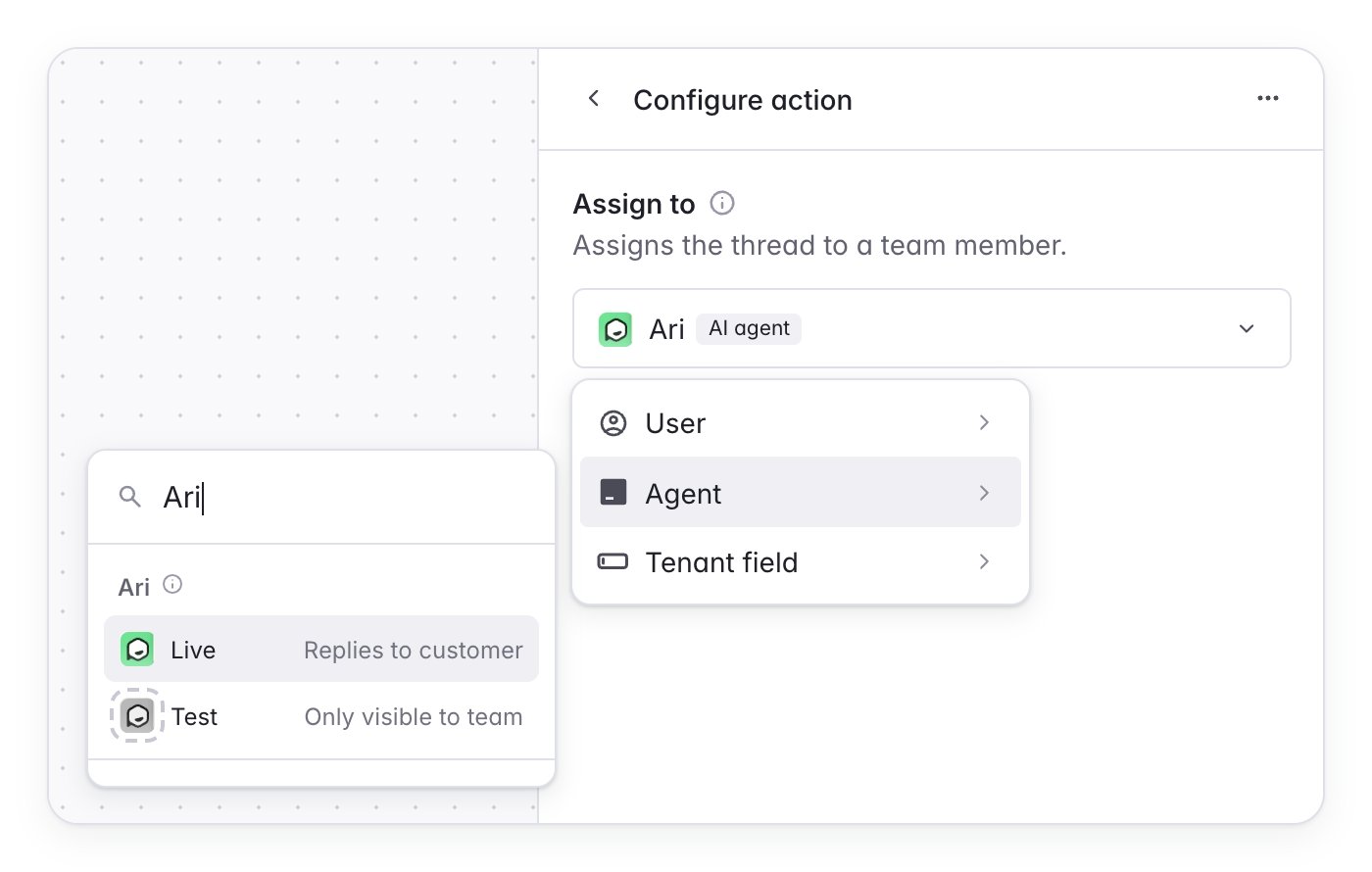 Workflow conditions decide which threads Ari picks up, so you can scope each step by any condition workflows support, such as tier, label, channel, or business hours. One workflow can have several Ari assignments, each with its own mode. When you're happy with Ari's drafts, switch its assignment to live.
If you used the now-deprecated workspace-wide Live or Shadow setting, your existing workflows kept the mode your workspace was set to.
### Manually
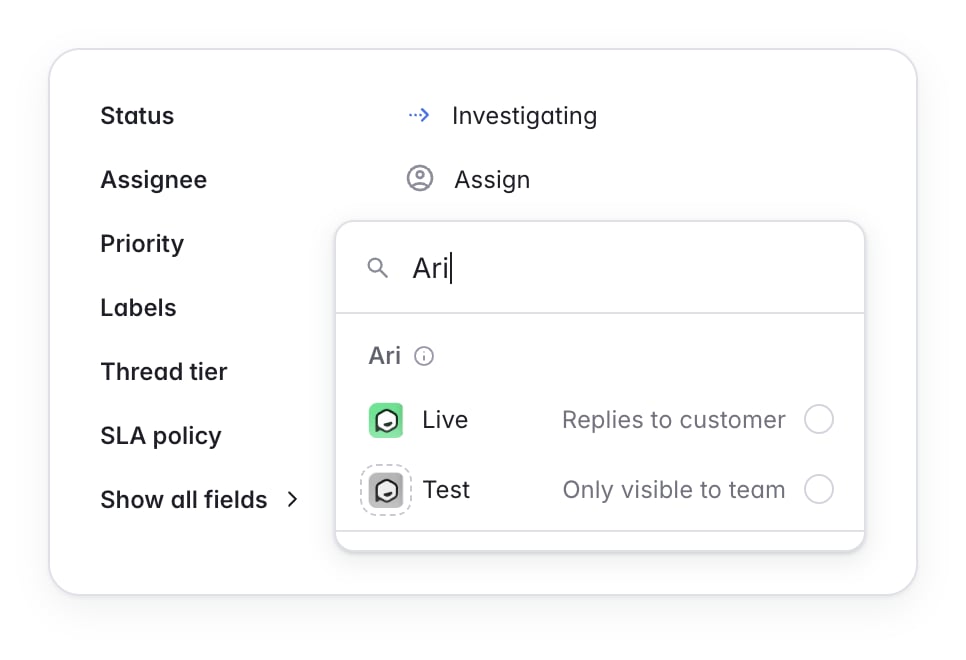
You can also pick **Live** or **Test** when you assign Ari from a thread's assignee picker.
Workflow conditions decide which threads Ari picks up, so you can scope each step by any condition workflows support, such as tier, label, channel, or business hours. One workflow can have several Ari assignments, each with its own mode. When you're happy with Ari's drafts, switch its assignment to live.
If you used the now-deprecated workspace-wide Live or Shadow setting, your existing workflows kept the mode your workspace was set to.
### Manually
You can also pick **Live** or **Test** when you assign Ari from a thread's assignee picker.
 ## Tracking live and test mode assignments
Two places in Plain AI show how your workflows use each mode.
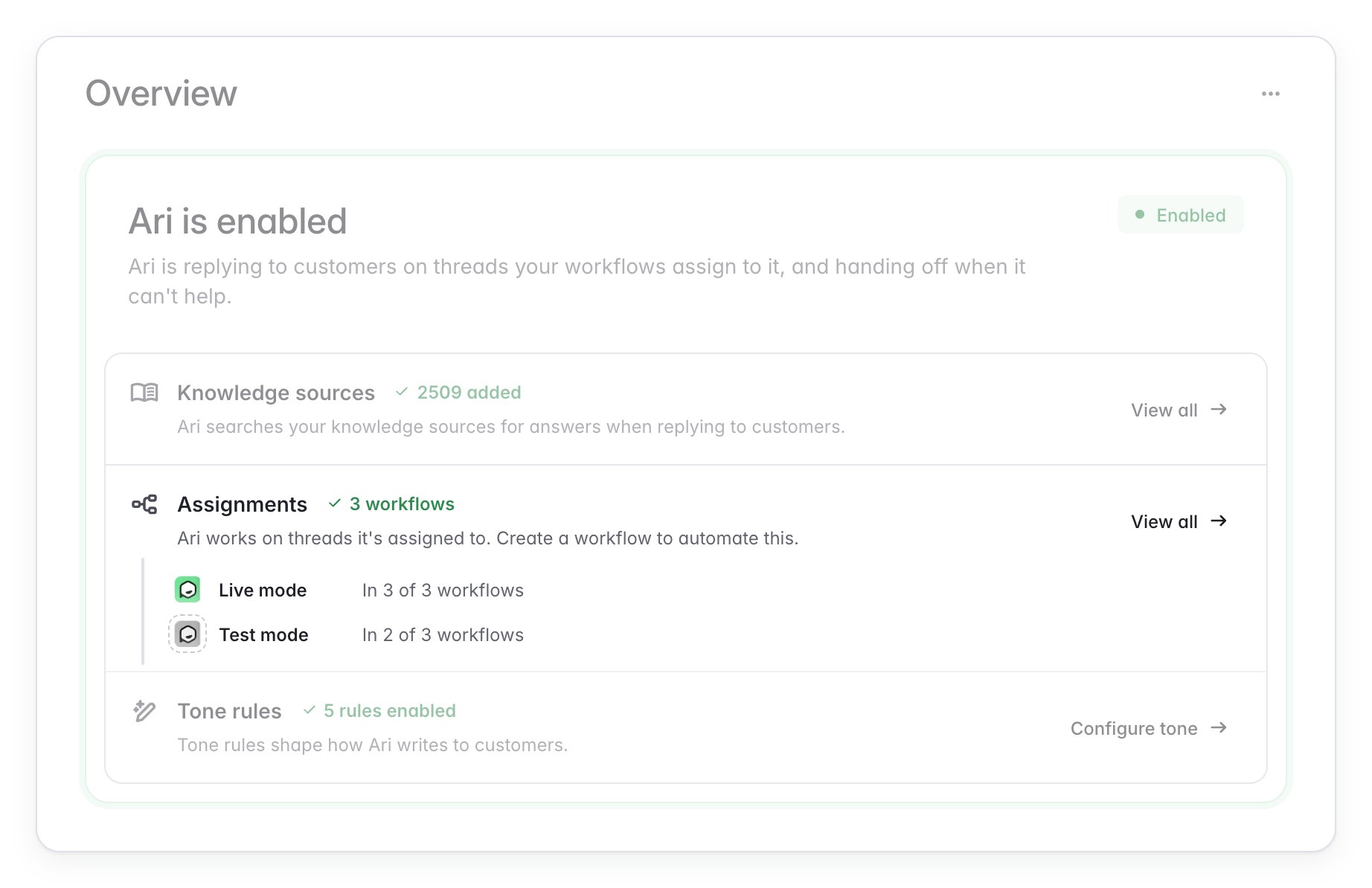
**Ari overview**: the Ari status card shows how many of your workflows assign Ari in live mode and how many in test mode.
## Tracking live and test mode assignments
Two places in Plain AI show how your workflows use each mode.
**Ari overview**: the Ari status card shows how many of your workflows assign Ari in live mode and how many in test mode.
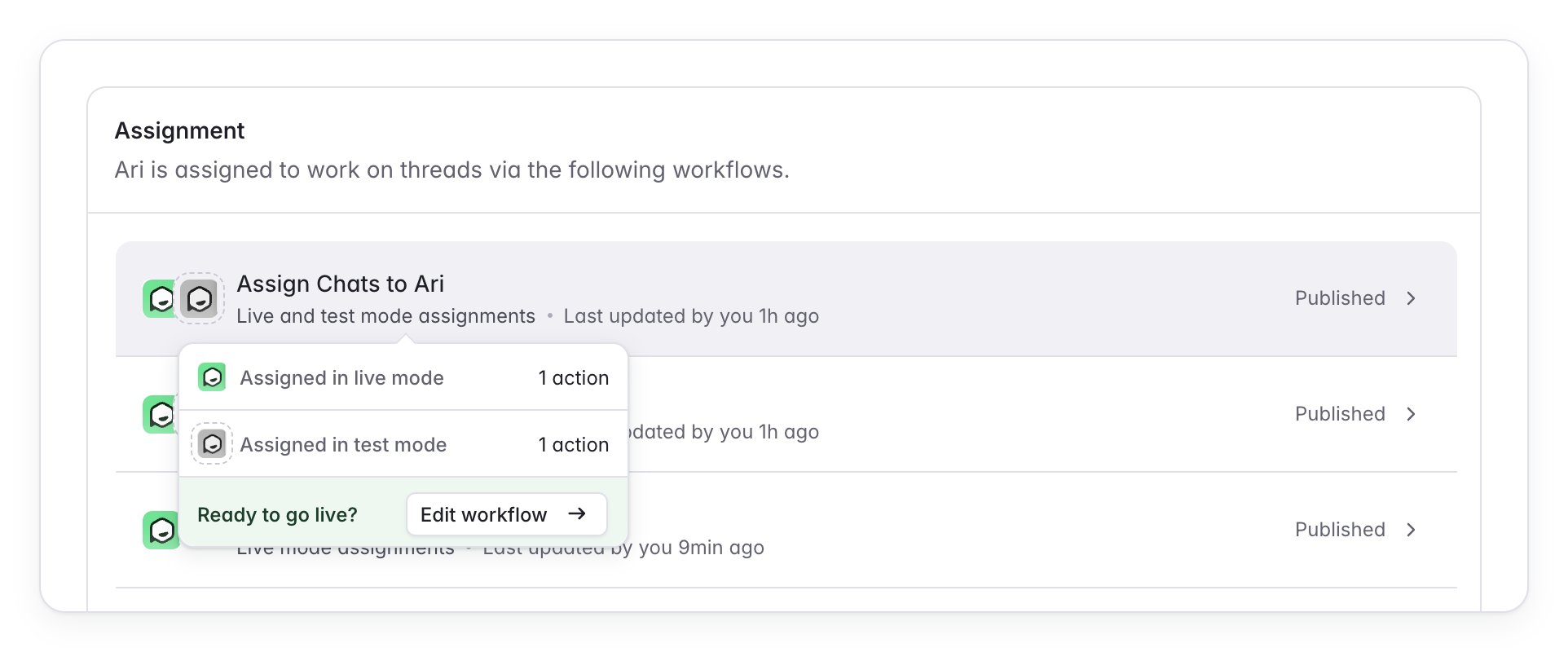
 **Ari preferences**: hover a workflow row to see how many of its Ari assignments are live and how many are in test mode.
 ## Knowledge gaps in test mode
When Ari would have handed off because it couldn't find an answer in your knowledge sources, it records a [knowledge gap](/docs/product/agents/knowledge-gaps) exactly as it does live. The gap is grouped with repeat questions and raises a task for your team, so you can fill the holes in your documentation before Ari starts replying to customers.
The test mode entry on the thread doesn't mention the gap. Find it under [**Ari → Knowledge → Knowledge gaps**](https://app.plain.com/~/ai/knowledge-gaps) or as a task linked to the thread.
## Reading via GQL
In test mode Ari writes its outcome to the thread's timeline as a [Thread Event](/docs/graphql/events). Read it like any other timeline entry, filtering to events:
```graphql theme={null}
query ($threadId: ID!) {
thread(threadId: $threadId) {
timelineEntries(filters: { entryTypes: [THREAD_EVENT] }, first: 50) {
edges { node { entry { ... on ThreadEventEntry {
externalId
title
components { ... on ComponentContainer { containerContent {
... on ComponentText { text }
} } }
} } } }
}
}
}
```
Test mode events are identified by their `externalId`, which starts with `ari-dry-run`.
When Ari would have answered, the drafted reply is the `ComponentText` inside the event's `ComponentContainer`.
This documentation is built and hosted on [Mintlify](https://mintlify.com), a developer documentation platform.
## Knowledge gaps in test mode
When Ari would have handed off because it couldn't find an answer in your knowledge sources, it records a [knowledge gap](/docs/product/agents/knowledge-gaps) exactly as it does live. The gap is grouped with repeat questions and raises a task for your team, so you can fill the holes in your documentation before Ari starts replying to customers.
The test mode entry on the thread doesn't mention the gap. Find it under [**Ari → Knowledge → Knowledge gaps**](https://app.plain.com/~/ai/knowledge-gaps) or as a task linked to the thread.
## Reading via GQL
In test mode Ari writes its outcome to the thread's timeline as a [Thread Event](/docs/graphql/events). Read it like any other timeline entry, filtering to events:
```graphql theme={null}
query ($threadId: ID!) {
thread(threadId: $threadId) {
timelineEntries(filters: { entryTypes: [THREAD_EVENT] }, first: 50) {
edges { node { entry { ... on ThreadEventEntry {
externalId
title
components { ... on ComponentContainer { containerContent {
... on ComponentText { text }
} } }
} } } }
}
}
}
```
Test mode events are identified by their `externalId`, which starts with `ari-dry-run`.
When Ari would have answered, the drafted reply is the `ComponentText` inside the event's `ComponentContainer`.
This documentation is built and hosted on [Mintlify](https://mintlify.com), a developer documentation platform.