> ## Documentation Index
> Fetch the complete documentation index at: https://www.plain.com/docs/llms.txt
> Use this file to discover all available pages before exploring further.
# Discord
> Ingest threads from a private server or public community through Plain's Discord integration.
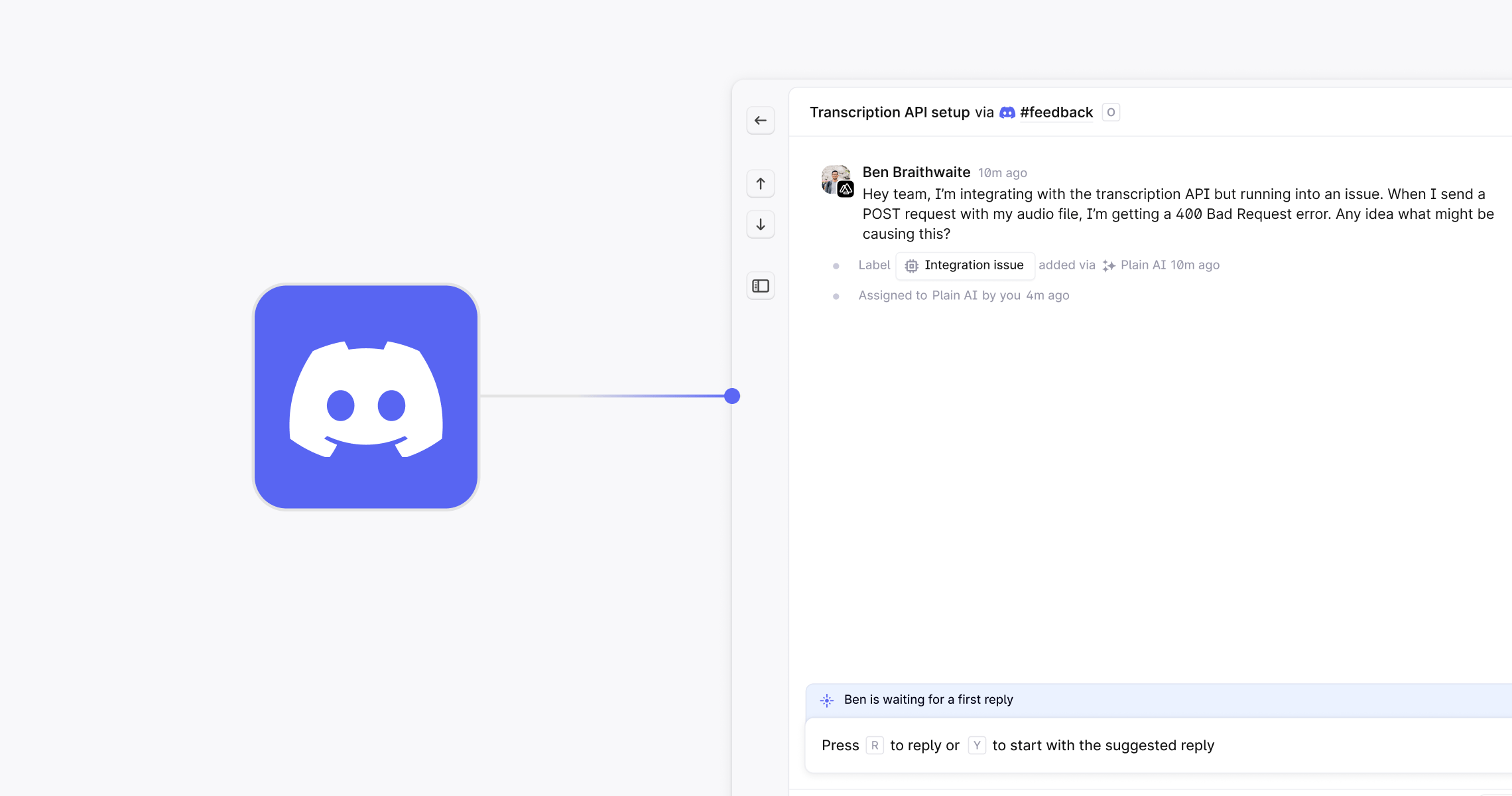
Whether you run a private server or a public community for feedback, Plain's Discord integration brings Discord conversations into the same queue as every other channel.
 ## Getting started
Go to **Settings → Channels → Discord** and click **Connect to Discord**. Choose the server you want to use, then complete the Discord authorization.
Check that the Plain bot shows as online in your server before continuing.
Add the Plain bot to every forum you want support coverage in. It only ingests from forums it has been added to.
On the Discord integration page in Plain, click **Connect your profile**. Each person on your team does this once, so their replies post to Discord under their own name.
### How it works
* **Thread ingestion:** You can configure which channels to ingest from the Discord settings page in Plain. All channels will be **off by default**, and you can **toggle on** the ones you'd like to ingest threads from. Only threads from **forum channels** are ingested. Text channels and private threads are not supported.
* **Responding to threads:** You can reply to Discord threads **directly from Plain**. Responses appear in the associated Discord thread under the Plain bot, keeping the communication loop connected.
### Reporting for Discord
Discord threads are included in your workspace's Reporting section. Metrics include total volume, time to first response, time to close, and team performance, filtered by Discord as a channel.
### Auto-responders for Discord
Auto-responders can be configured to reply automatically to Discord threads based on conditions like time of day, channel, or message content. To create one, go to **Settings → Auto-responders**, select "Discord" as the channel, and define your message and criteria.
### Webhooks for Discord
Webhooks support Discord events, enabling advanced workflows and integrations. The Discord-specific event types you can subscribe to are:
* `thread.discord_message_received`
* `thread.discord_message_sent`
* `thread.discord_message_updated`
General thread events such as `thread.created` and `thread.status_transitioned` are also available. Common use cases:
* Routing threads to specific users
* Auto-labeling based on message content
* Triggering incidents from high-priority messages
* Syncing support metrics with internal dashboards
Webhooks are managed in **Settings → Webhooks**. Full webhook docs are available [here](/docs/webhooks).
### CSAT for Discord
You can natively send CSAT surveys to customers who have submitted a request through Discord. See the [CSAT article](/docs/product/platform/csat) for more information.
### Known limitations
* Support for showing and sending **mentions** and **reactions** in Plain
* Displaying **avatars** from Discord as the customer avatar in Plain
* Verifying and connecting Discord users to existing Plain customers via their email addresses
Discord is available on our Horizon and Frontier pricing tiers.
## Getting started
Go to **Settings → Channels → Discord** and click **Connect to Discord**. Choose the server you want to use, then complete the Discord authorization.
Check that the Plain bot shows as online in your server before continuing.
Add the Plain bot to every forum you want support coverage in. It only ingests from forums it has been added to.
On the Discord integration page in Plain, click **Connect your profile**. Each person on your team does this once, so their replies post to Discord under their own name.
### How it works
* **Thread ingestion:** You can configure which channels to ingest from the Discord settings page in Plain. All channels will be **off by default**, and you can **toggle on** the ones you'd like to ingest threads from. Only threads from **forum channels** are ingested. Text channels and private threads are not supported.
* **Responding to threads:** You can reply to Discord threads **directly from Plain**. Responses appear in the associated Discord thread under the Plain bot, keeping the communication loop connected.
### Reporting for Discord
Discord threads are included in your workspace's Reporting section. Metrics include total volume, time to first response, time to close, and team performance, filtered by Discord as a channel.
### Auto-responders for Discord
Auto-responders can be configured to reply automatically to Discord threads based on conditions like time of day, channel, or message content. To create one, go to **Settings → Auto-responders**, select "Discord" as the channel, and define your message and criteria.
### Webhooks for Discord
Webhooks support Discord events, enabling advanced workflows and integrations. The Discord-specific event types you can subscribe to are:
* `thread.discord_message_received`
* `thread.discord_message_sent`
* `thread.discord_message_updated`
General thread events such as `thread.created` and `thread.status_transitioned` are also available. Common use cases:
* Routing threads to specific users
* Auto-labeling based on message content
* Triggering incidents from high-priority messages
* Syncing support metrics with internal dashboards
Webhooks are managed in **Settings → Webhooks**. Full webhook docs are available [here](/docs/webhooks).
### CSAT for Discord
You can natively send CSAT surveys to customers who have submitted a request through Discord. See the [CSAT article](/docs/product/platform/csat) for more information.
### Known limitations
* Support for showing and sending **mentions** and **reactions** in Plain
* Displaying **avatars** from Discord as the customer avatar in Plain
* Verifying and connecting Discord users to existing Plain customers via their email addresses
Discord is available on our Horizon and Frontier pricing tiers.