> ## Documentation Index
> Fetch the complete documentation index at: https://www.plain.com/docs/llms.txt
> Use this file to discover all available pages before exploring further.
# Set up email receiving (forwarding)
> How to set up email forwarding into Plain, manage email copies, and understand spoofing detection.
To receive customer emails in Plain, you need to forward messages from your support address (e.g. `support@example.com`) to your Plain workspace's inbound address. Once set up, every customer email will appear in Plain as a thread.
You can find your Plain inbound address in **Settings → Email** in your workspace.
**CC'd recipients** on inbound emails are not currently displayed in Plain or preserved on outbound replies. If you need to keep other parties in the loop, consider using BCC email addresses (see below).
## Google Workspace
1. [Open the Gmail routing settings](https://admin.google.com/u/0/ac/apps/gmail/routing) in your Admin Console.
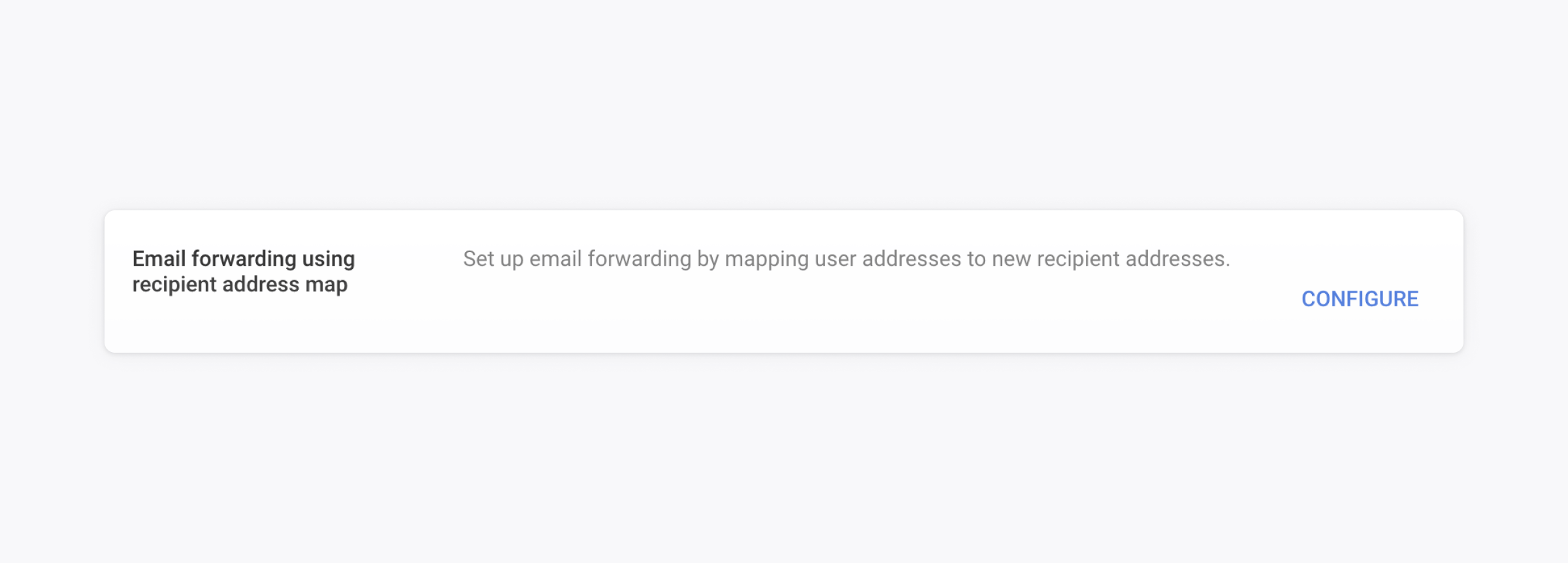
2. Click **Email forwarding using recipient address map** → **Configure** or **Add another rule**.
 3. Configure the forwarding rule
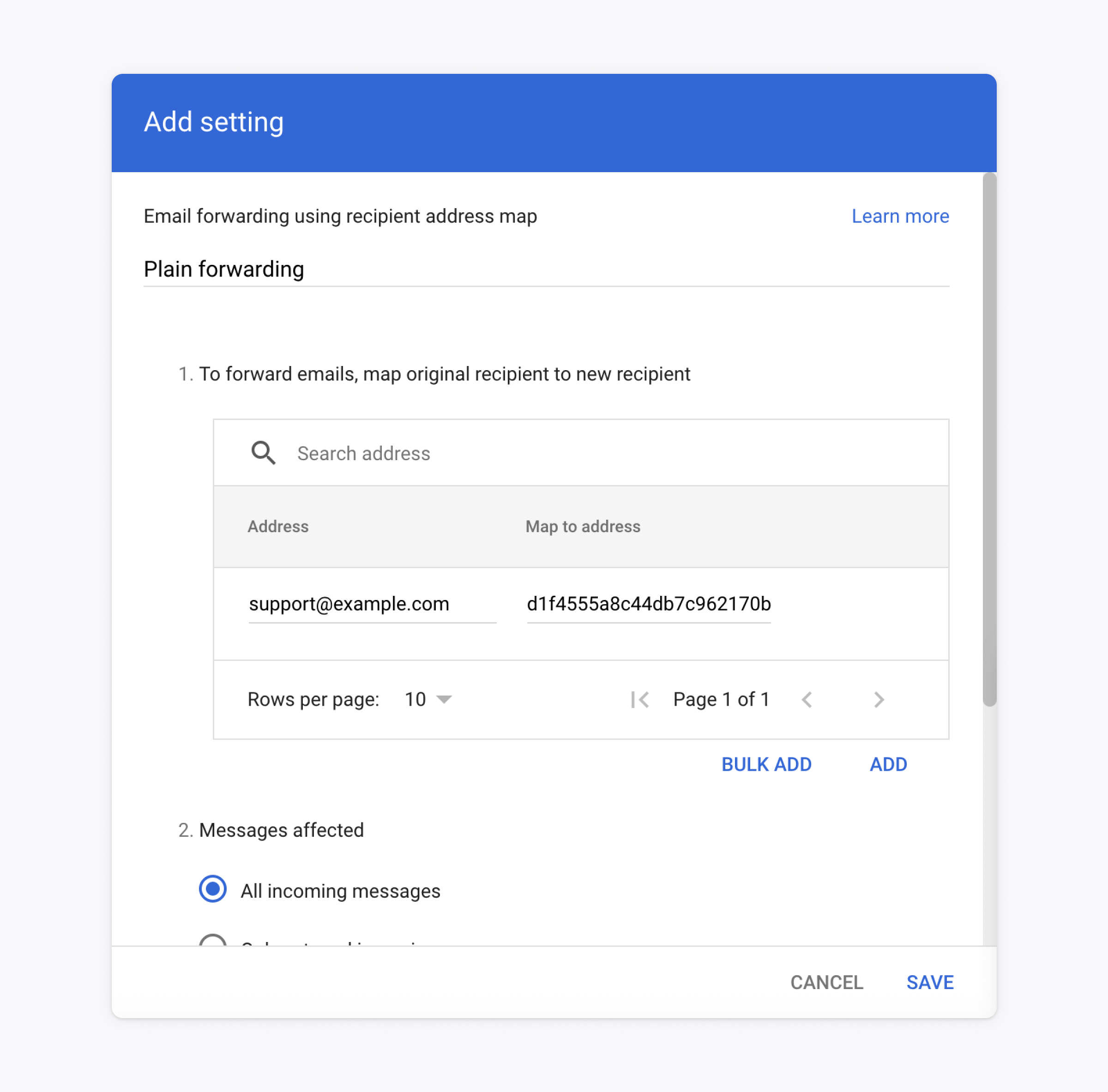
* Pick a name for the forwarding rule. For instance: `Plain forwarding`
* Enter your support email under 'Address' (e.g. `support@example.com`)
* Enter your Plain inbound email address under 'Map to address' (e.g. `abcdefg@inbound.postmarkapp.com`)
* Choose 'All incoming messages'
3. Configure the forwarding rule
* Pick a name for the forwarding rule. For instance: `Plain forwarding`
* Enter your support email under 'Address' (e.g. `support@example.com`)
* Enter your Plain inbound email address under 'Map to address' (e.g. `abcdefg@inbound.postmarkapp.com`)
* Choose 'All incoming messages'
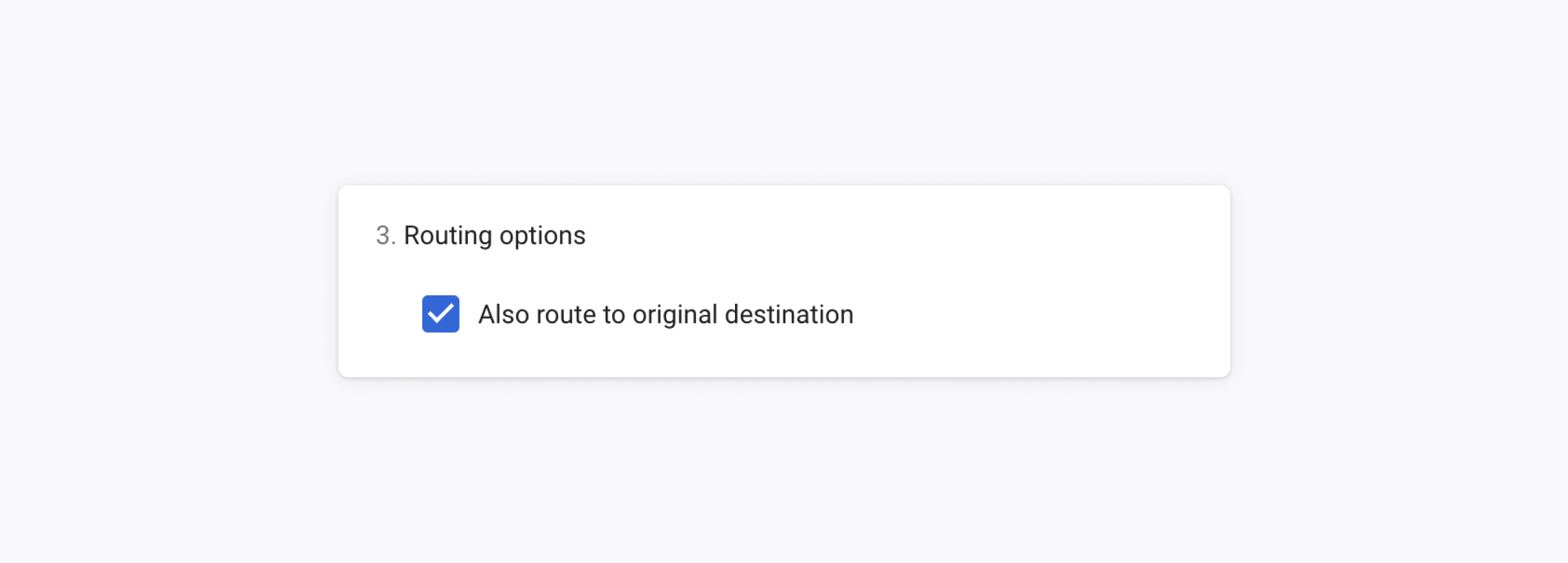
 4. If you also want emails to stay in your original inbox, check **Also route to original destination**.
Enable this if your support address points to a Google Group and you still want messages delivered there.
4. If you also want emails to stay in your original inbox, check **Also route to original destination**.
Enable this if your support address points to a Google Group and you still want messages delivered there.
 5. Click **Save.**
### Microsoft 365
1. Sign in to the [Microsoft 365 Admin Center](https://admin.microsoft.com).
2. Go to **Exchange admin center → Mail flow → Rules**.
3. Click **Add a rule → Create a new rule**.
4. Set the condition: **The recipient is** → your support email address.
5. Set the action: **Redirect the message to** → your Plain inbound address.
6. Save and enable the rule.
## Other providers
Forwarding can also be configured through your domain registrar (e.g. DNSimple, Namecheap) or any other email host that supports forwarding rules. The goal is the same: any email sent to your support address should be forwarded to your Plain inbound address.
If you need help configuring this, [get in touch](mailto:help@plain.com).
## Archiving inbound emails (Google Workspace)
To keep copies of all inbound emails for compliance or audit purposes, set up a secondary routing rule in Google Workspace that delivers a copy to a separate archive address.
1. Go to [Default Routing](https://admin.google.com/u/0/ac/apps/gmail/routing) in Gmail settings.
2. Click **Configure** or **Add another rule**.
3. Under **Specify envelope recipients to match**, choose **Single recipient** and enter your support email (e.g. `support@example.com`).
4. Scroll down, tick **Add more recipients** under **Also deliver to**. Click **Add** and enter a dedicated archive address (e.g. `support.archive@example.com`).
5. Click **Save**, then scroll down and select **Perform this action on non-recognized and recognized addresses**. Click **Save** again.
Always use a separate address for your archive. Never the same as your support inbox, or it may cause issues processing emails in Plain.
## Archiving outbound emails (BCC)
To keep a copy of all emails your team *sends* to customers, set up BCC email addresses in **Settings → Email**.
Plain adds your configured BCC addresses to every outbound message sent to a customer, without affecting the email your customer receives. This applies to messages sent by workspace members, not system notifications.
You can configure up to five BCC addresses. They cannot be the same as your primary support address or any alternate address.
Common uses:
* Compliance and audit archives
* Feeding outbound emails into a CRM or external system
## Spoofing detection
Plain runs authentication checks on every inbound email to estimate whether it was genuinely sent by the address it claims to be from. Each email is classified as `PASS`, `FAIL`, or `UNKNOWN`.
The checks use SPF, DKIM, DMARC, and related forwarding headers. When those are missing or inconclusive, we use a leading email spam platform as a fallback signal.
* **FAIL**: checks strongly suggest the sender could be spoofed
* **UNKNOWN**: not enough data to make a confident decision
For both `FAIL` and `UNKNOWN`, Plain displays a warning banner on the thread. The safest verification step, especially on a `FAIL`, is to reply and confirm the sender can respond from the same address.
5. Click **Save.**
### Microsoft 365
1. Sign in to the [Microsoft 365 Admin Center](https://admin.microsoft.com).
2. Go to **Exchange admin center → Mail flow → Rules**.
3. Click **Add a rule → Create a new rule**.
4. Set the condition: **The recipient is** → your support email address.
5. Set the action: **Redirect the message to** → your Plain inbound address.
6. Save and enable the rule.
## Other providers
Forwarding can also be configured through your domain registrar (e.g. DNSimple, Namecheap) or any other email host that supports forwarding rules. The goal is the same: any email sent to your support address should be forwarded to your Plain inbound address.
If you need help configuring this, [get in touch](mailto:help@plain.com).
## Archiving inbound emails (Google Workspace)
To keep copies of all inbound emails for compliance or audit purposes, set up a secondary routing rule in Google Workspace that delivers a copy to a separate archive address.
1. Go to [Default Routing](https://admin.google.com/u/0/ac/apps/gmail/routing) in Gmail settings.
2. Click **Configure** or **Add another rule**.
3. Under **Specify envelope recipients to match**, choose **Single recipient** and enter your support email (e.g. `support@example.com`).
4. Scroll down, tick **Add more recipients** under **Also deliver to**. Click **Add** and enter a dedicated archive address (e.g. `support.archive@example.com`).
5. Click **Save**, then scroll down and select **Perform this action on non-recognized and recognized addresses**. Click **Save** again.
Always use a separate address for your archive. Never the same as your support inbox, or it may cause issues processing emails in Plain.
## Archiving outbound emails (BCC)
To keep a copy of all emails your team *sends* to customers, set up BCC email addresses in **Settings → Email**.
Plain adds your configured BCC addresses to every outbound message sent to a customer, without affecting the email your customer receives. This applies to messages sent by workspace members, not system notifications.
You can configure up to five BCC addresses. They cannot be the same as your primary support address or any alternate address.
Common uses:
* Compliance and audit archives
* Feeding outbound emails into a CRM or external system
## Spoofing detection
Plain runs authentication checks on every inbound email to estimate whether it was genuinely sent by the address it claims to be from. Each email is classified as `PASS`, `FAIL`, or `UNKNOWN`.
The checks use SPF, DKIM, DMARC, and related forwarding headers. When those are missing or inconclusive, we use a leading email spam platform as a fallback signal.
* **FAIL**: checks strongly suggest the sender could be spoofed
* **UNKNOWN**: not enough data to make a confident decision
For both `FAIL` and `UNKNOWN`, Plain displays a warning banner on the thread. The safest verification step, especially on a `FAIL`, is to reply and confirm the sender can respond from the same address.