> ## Documentation Index
> Fetch the complete documentation index at: https://www.plain.com/docs/llms.txt
> Use this file to discover all available pages before exploring further.
# Initial setup
> Install the Plain app in Microsoft Teams and connect your first channels.
To setup Plain in your own Teams channels, you'll need to do the following.
 ## Configuration
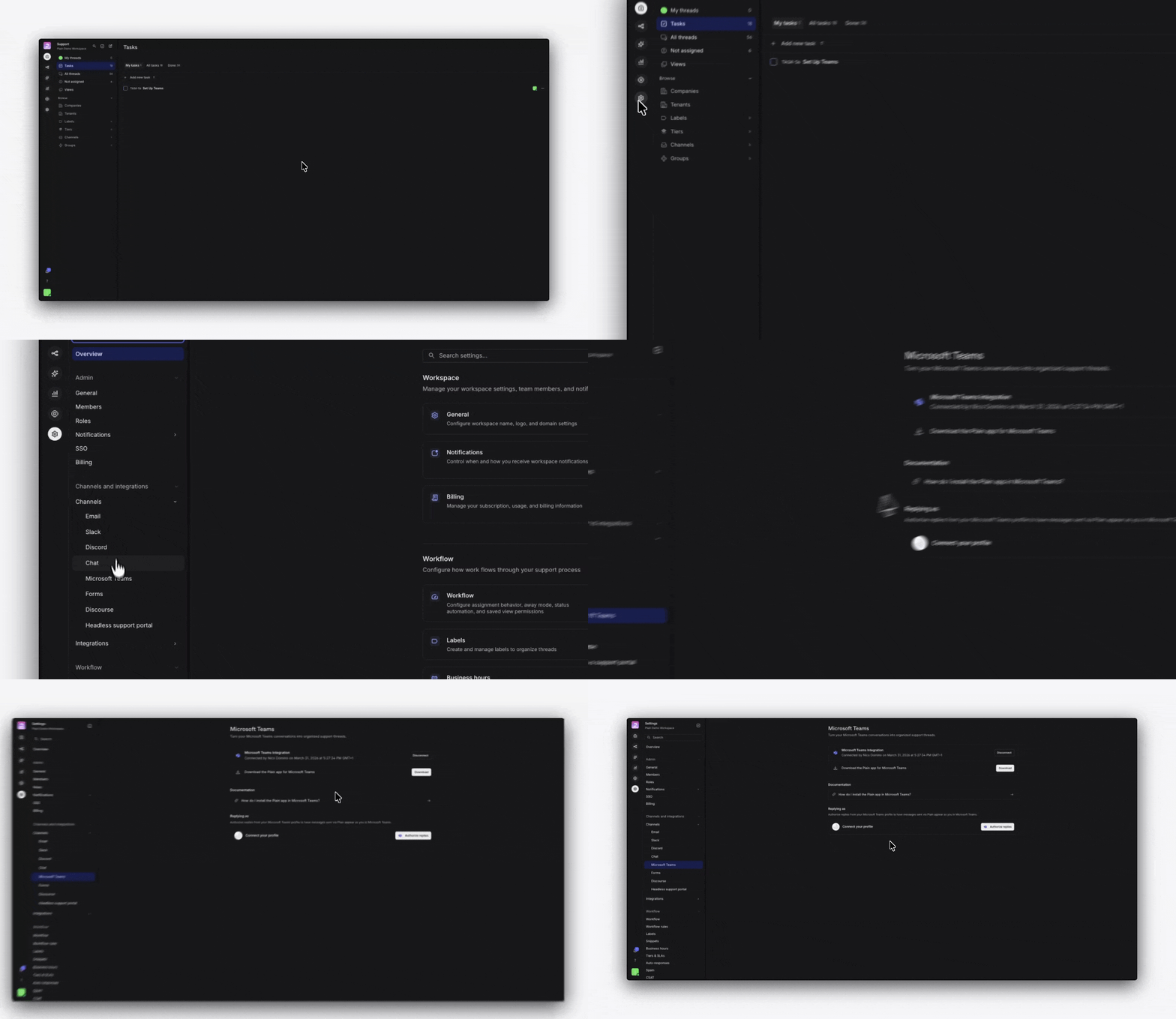
* In Plain, go to **Settings** → **Microsoft Teams**.
* Press `Connect to Teams`.
* You will be redirected to Microsoft to complete an OAuth admin consent flow. Sign in with a **Microsoft 365 administrator account** and grant the requested permissions.
## Add Plain to channels
Next, add the Plain app to Teams by installing it from the [Microsoft Teams App Store](https://teams.cloud.microsoft/l/app/03035b20-fa14-4893-baa4-380f6ad971ad?source=app-details-dialog).
Plain can be added to **standard** channels, **chats** channels, as well as **shared** channels.
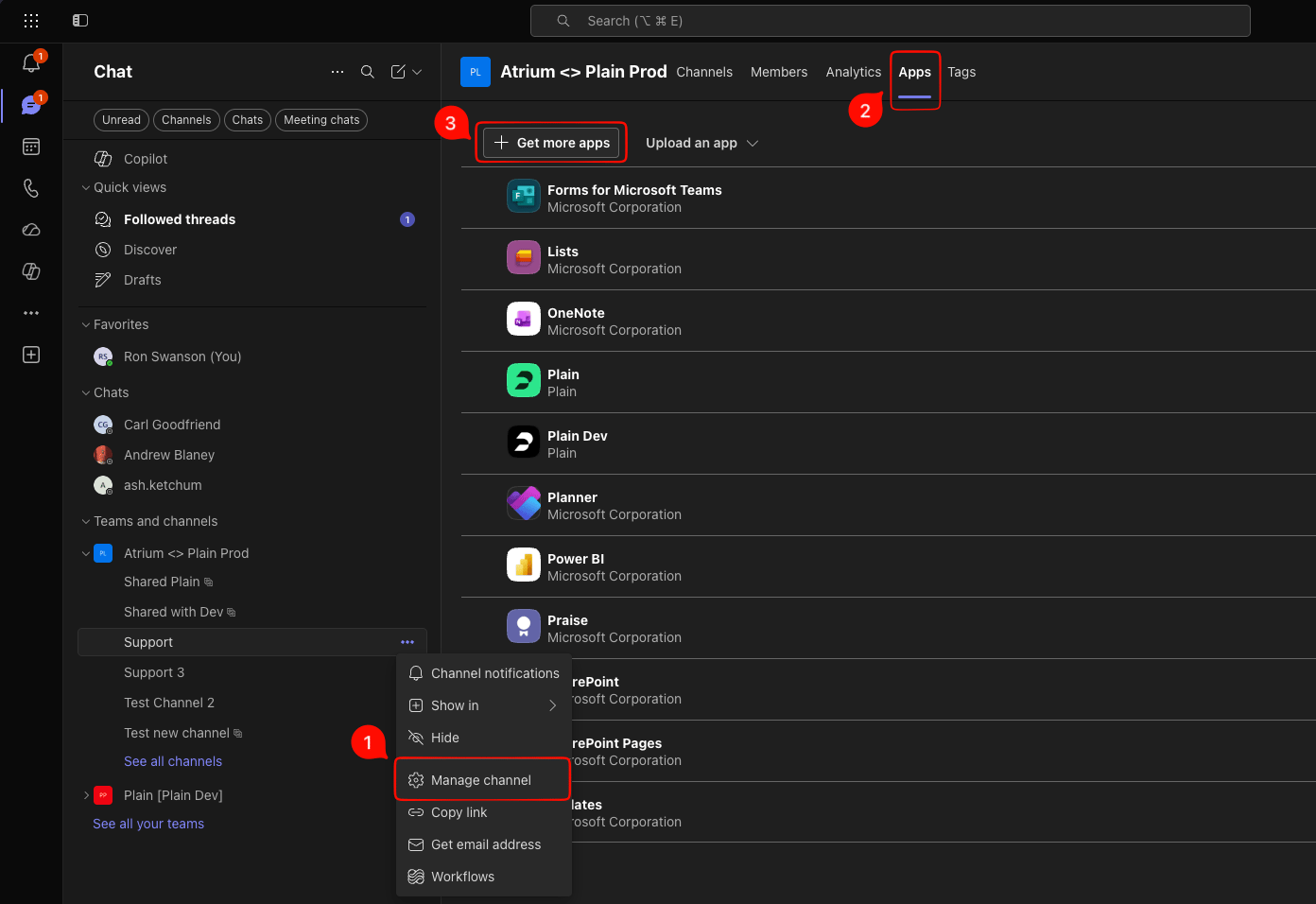
The app can be added to channels by navigating to the "…" overflow menu in the channel list next to either an individual channel name or a whole Team group of channels. From there, select "Manage Team / Channel" and then go to the "Apps" tab. Next, select "Get more apps" and search for and select Plain.
## Configuration
* In Plain, go to **Settings** → **Microsoft Teams**.
* Press `Connect to Teams`.
* You will be redirected to Microsoft to complete an OAuth admin consent flow. Sign in with a **Microsoft 365 administrator account** and grant the requested permissions.
## Add Plain to channels
Next, add the Plain app to Teams by installing it from the [Microsoft Teams App Store](https://teams.cloud.microsoft/l/app/03035b20-fa14-4893-baa4-380f6ad971ad?source=app-details-dialog).
Plain can be added to **standard** channels, **chats** channels, as well as **shared** channels.
The app can be added to channels by navigating to the "…" overflow menu in the channel list next to either an individual channel name or a whole Team group of channels. From there, select "Manage Team / Channel" and then go to the "Apps" tab. Next, select "Get more apps" and search for and select Plain.
 ## How Plain threads are created from Teams
Plain creates threads differently depending on whether a message comes from someone with an account who's email address matches the domain you're using in Plain, or any other user.
* **Team member messages**: Top-level posts from members of your team do not create a Plain thread on their own. A thread is created, however, if someone not on your team replies to that post: at which point Plain backfills the entire conversation (the original post and all replies) into a new thread.
* **Other messages**: Any top-level message from a user not on your team will immediately create a new thread in Plain.
## Authorize Teams users in Plain
By default, responses are sent from the Plain bot and will appear with a header indicating which support agent is responding.
To send replies from your own Teams user instead, link your Microsoft account by navigating to **Settings → Microsoft Teams** and click **Authorise replies**. This must be done for each support agent in Plain, as they'll each want to use their own Teams accounts.
This is also required if you want to @-mention other Teams users directly from Plain. Replies from Plain with a linked "authorize replies" account will then appear transparently like any other reply in Teams.
## How Plain threads are created from Teams
Plain creates threads differently depending on whether a message comes from someone with an account who's email address matches the domain you're using in Plain, or any other user.
* **Team member messages**: Top-level posts from members of your team do not create a Plain thread on their own. A thread is created, however, if someone not on your team replies to that post: at which point Plain backfills the entire conversation (the original post and all replies) into a new thread.
* **Other messages**: Any top-level message from a user not on your team will immediately create a new thread in Plain.
## Authorize Teams users in Plain
By default, responses are sent from the Plain bot and will appear with a header indicating which support agent is responding.
To send replies from your own Teams user instead, link your Microsoft account by navigating to **Settings → Microsoft Teams** and click **Authorise replies**. This must be done for each support agent in Plain, as they'll each want to use their own Teams accounts.
This is also required if you want to @-mention other Teams users directly from Plain. Replies from Plain with a linked "authorize replies" account will then appear transparently like any other reply in Teams.