> ## Documentation Index
> Fetch the complete documentation index at: https://www.plain.com/docs/llms.txt
> Use this file to discover all available pages before exploring further.
# In-Slack actions
> Triage, assign, resolve, and snooze threads from inside Slack.
In-Slack actions help your team triage, assign, resolve, and investigate support threads without leaving Slack. You can take action instantly, create visibility on ownership and status, and now get AI assistance: all from inside the conversation.
 ## Use Slack actions to manage threads
The following actions can be performed directly from [a notification in your Slack channel](https://help.plain.com/article/notifications):
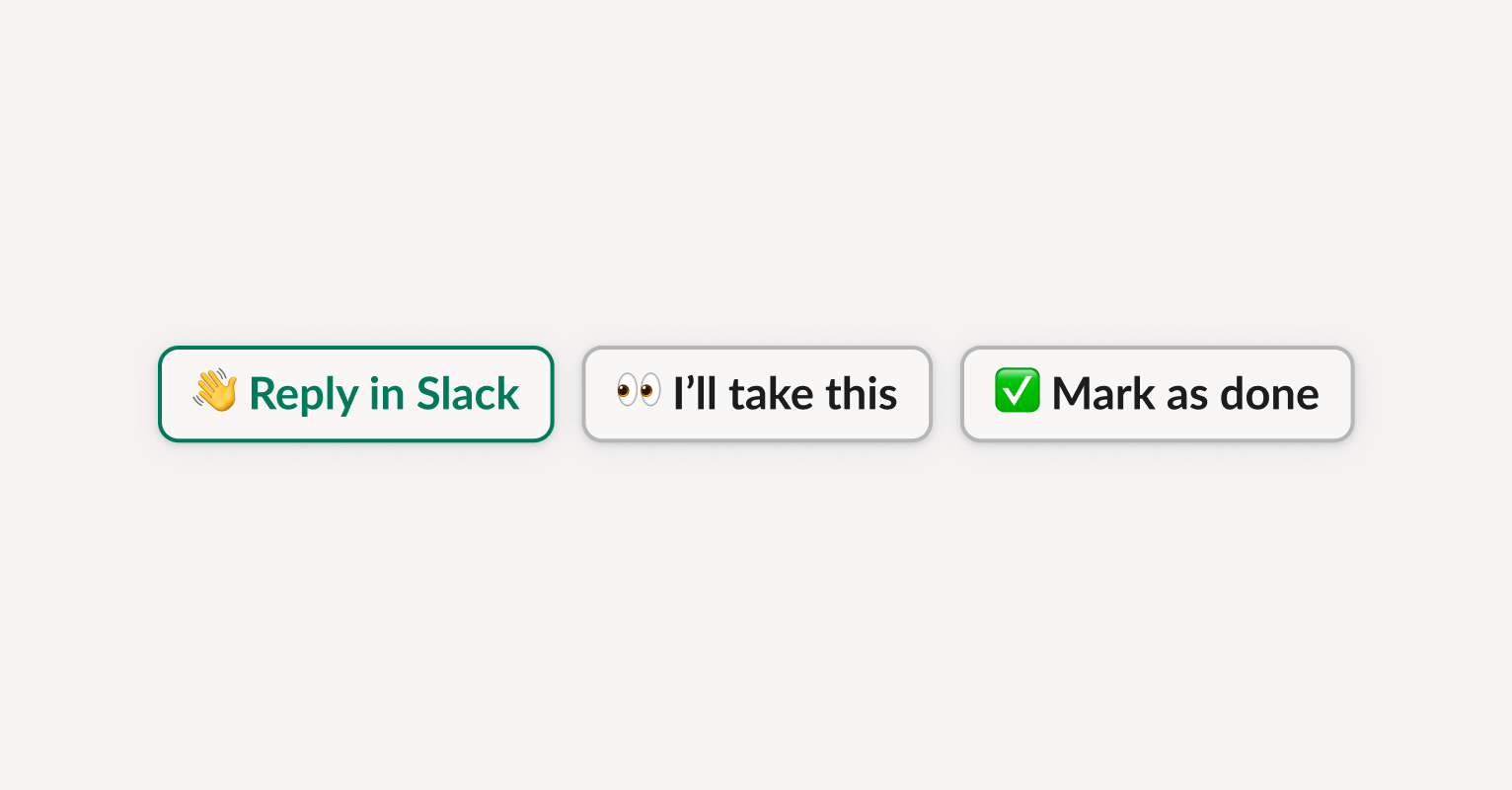
* **Reply in Slack**
Opens the original customer Slack thread so you can jump in instantly.
* **I'll take this**
Assigns the thread to you in Plain.
* **Status dropdown**
Lets you update the thread status directly from Slack. All your custom statuses (e.g. Investigating, Waiting on customer) are available in one click.
* **Snooze until tomorrow**
Snooze a thread so that you have a reminder to look at it later.
* **Set priority to urgent**
Automatically change a thread's priority to signal to your team that it needs immediate attention.
* **Open in Plain**
Go to the thread in Plain, directly from the Slack notification.
## Update thread status with emojis
You can also take action directly in the customer's Slack thread, using emojis on the top-level message.
* ✅ → Marks the thread as **Done** in Plain
* 👀 → Marks the thread as **Investigating**
Plain syncs these emoji reactions with thread status in real-time, but only when the setting is toggled 'On' from **Settings → Notifications.**
If the thread isn't already assigned and you react with ✅ or 👀, Plain auto-assigns it to you, as long as your role in Plain isn't *Viewer*.
## Ask Sidekick from Slack
You can invoke Sidekick, Plain's AI assistant, directly in a connected Slack channel by @mentioning it. Sidekick responds in the thread with full access to your knowledge sources, tool integrations (Linear, Datadog, GitHub, and more), and support history.
## Use Slack actions to manage threads
The following actions can be performed directly from [a notification in your Slack channel](https://help.plain.com/article/notifications):
* **Reply in Slack**
Opens the original customer Slack thread so you can jump in instantly.
* **I'll take this**
Assigns the thread to you in Plain.
* **Status dropdown**
Lets you update the thread status directly from Slack. All your custom statuses (e.g. Investigating, Waiting on customer) are available in one click.
* **Snooze until tomorrow**
Snooze a thread so that you have a reminder to look at it later.
* **Set priority to urgent**
Automatically change a thread's priority to signal to your team that it needs immediate attention.
* **Open in Plain**
Go to the thread in Plain, directly from the Slack notification.
## Update thread status with emojis
You can also take action directly in the customer's Slack thread, using emojis on the top-level message.
* ✅ → Marks the thread as **Done** in Plain
* 👀 → Marks the thread as **Investigating**
Plain syncs these emoji reactions with thread status in real-time, but only when the setting is toggled 'On' from **Settings → Notifications.**
If the thread isn't already assigned and you react with ✅ or 👀, Plain auto-assigns it to you, as long as your role in Plain isn't *Viewer*.
## Ask Sidekick from Slack
You can invoke Sidekick, Plain's AI assistant, directly in a connected Slack channel by @mentioning it. Sidekick responds in the thread with full access to your knowledge sources, tool integrations (Linear, Datadog, GitHub, and more), and support history.
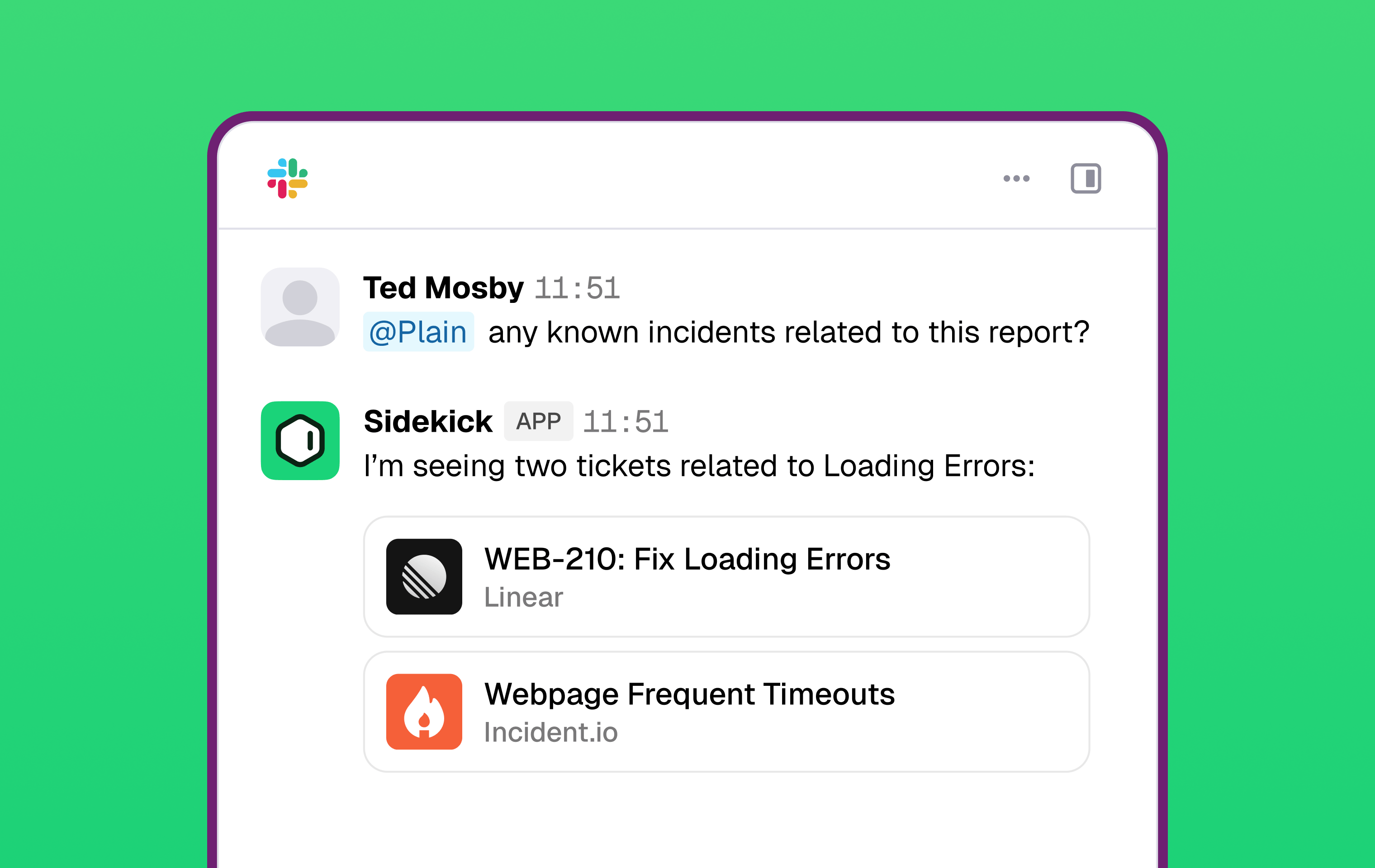 This means you can investigate, draft replies, and pull context from your connected tools without ever leaving Slack.
Sidekick in Slack is enabled by a workspace Admin or Owner in **Settings → AI → Sidekick → Integrations → Slack**.
This means you can investigate, draft replies, and pull context from your connected tools without ever leaving Slack.
Sidekick in Slack is enabled by a workspace Admin or Owner in **Settings → AI → Sidekick → Integrations → Slack**.