> ## Documentation Index
> Fetch the complete documentation index at: https://www.plain.com/docs/llms.txt
> Use this file to discover all available pages before exploring further.
# Customer Inbox
> Give customers one place to open, track, and reply to their threads, whatever channel they used.
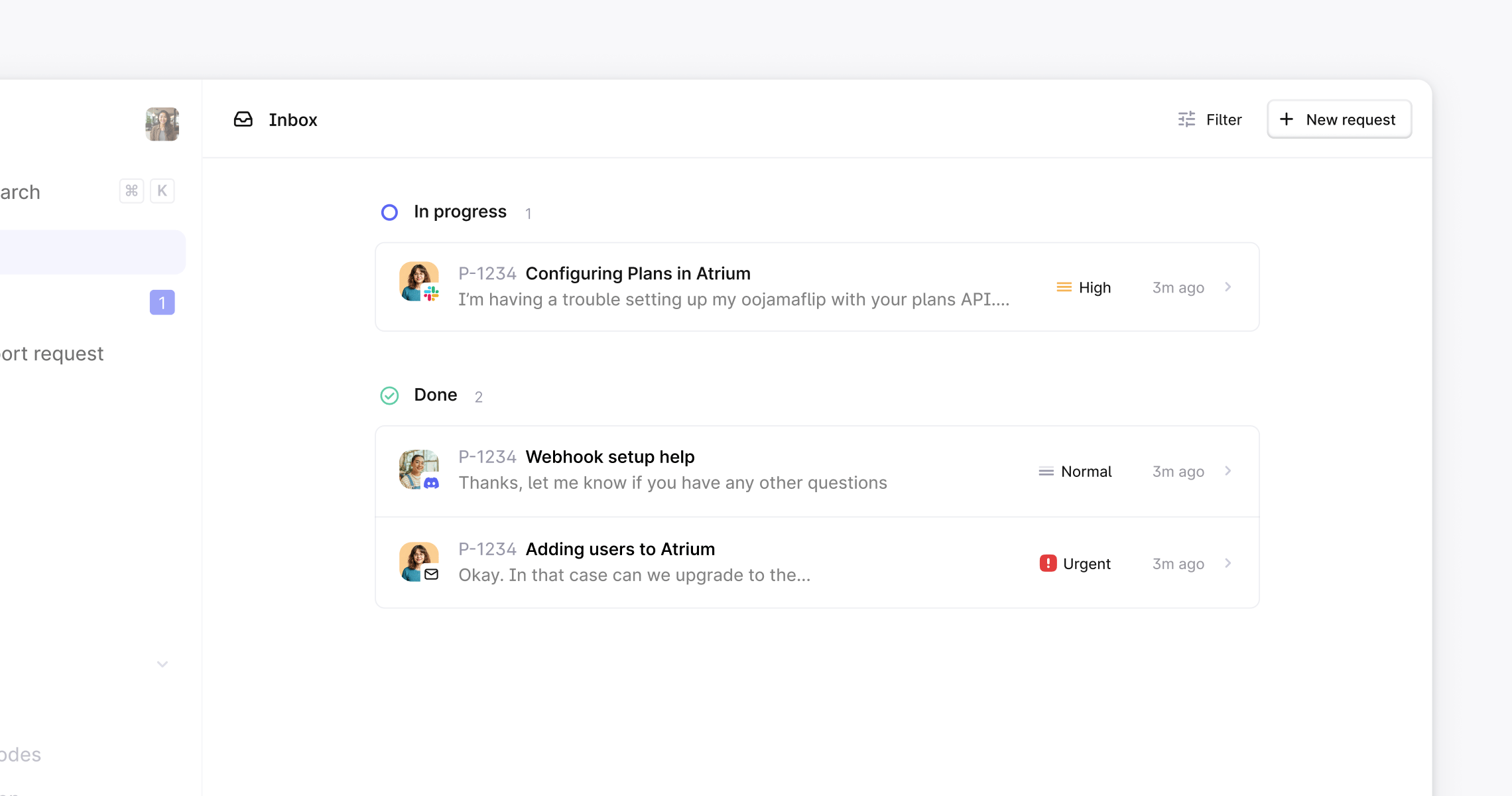
Plain's Customer Inbox gives your customers a single, consistent place to create, track, and reply to their threads, regardless of which channel they used to get in touch (Slack, email, chat, and more). New requests submitted via the Customer Inbox flow straight into your team's Plain queue alongside all other channels.
 ## Enabling the Customer Inbox
To turn on Customer Inbox:
1. Go to **Help Center → Customer Inbox** in Plain
2. Toggle on **Customer Inbox**
3. Select your preferred **Thread visibility** option (see below)
4. Click **Save**
Once enabled, customers will see a **"Your requests"** section in the sidebar of your Help Center.
Email must be enabled as a channel before you can use the Customer Inbox.
## Logging in
Customers log in using a 6-digit code sent to their email, no password needed. The email address must match a customer record in Plain. Once authenticated, they'll see their threads organized by status.
Customers see a simplified version of Plain's internal statuses:
| What your team sees | What the customer sees |
| -------------------------------------------- | ---------------------- |
| Needs first response, Investigating, Snoozed | In progress |
| Waiting for customer | Waiting for you |
| Done | Done |
## Submitting new requests
Customers can submit new threads directly from the Customer Inbox. By default this is a single open text field, but you can configure a custom form to collect structured information upfront, like issue type, priority, or product area. See [Custom forms →](/docs/product/help-center/customer-inbox-custom-forms) for details.
## Thread visibility
Control which threads each customer can see under **Help Center → Customer Inbox → Thread visibility**:
* **Only their own threads** (default): Each customer sees only requests they submitted themselves
* **Threads from anyone in their tenant**: Useful for B2B teams where multiple contacts at the same account need visibility across shared requests
* **All threads from their company**: Broadest visibility, showing everything linked to their company in Plain
### Thread visibility overrides
Overrides are only available when your global thread visibility is set to **Only their own threads**. They let you grant specific customers broader visibility on top of that default without changing what everyone else can see.
#### Threads from anyone with the same tenant
* **Add tenant**: Grants all customers belonging to a specific tenant visibility of each other's threads
* **Add customer**: Grants a specific individual customer visibility of all threads from their tenant
#### Threads from anyone with the same company
* **Add company**: Grants all customers belonging to a specific company visibility of each other's threads
* **Add customer**: Grants a specific individual customer visibility of all threads from their company
This gives account admins elevated visibility without opening it to everyone on the account.
## Additional recipients
You can allow customers to add additional recipients to both new and existing threads from the Customer Inbox. When enabled, customers can CC colleagues into a conversation directly from the portal, useful for keeping multiple stakeholders at an account in the loop.
Enable this under **Help Center → Customer Inbox → Additional recipients**.
## Enabling the Customer Inbox
To turn on Customer Inbox:
1. Go to **Help Center → Customer Inbox** in Plain
2. Toggle on **Customer Inbox**
3. Select your preferred **Thread visibility** option (see below)
4. Click **Save**
Once enabled, customers will see a **"Your requests"** section in the sidebar of your Help Center.
Email must be enabled as a channel before you can use the Customer Inbox.
## Logging in
Customers log in using a 6-digit code sent to their email, no password needed. The email address must match a customer record in Plain. Once authenticated, they'll see their threads organized by status.
Customers see a simplified version of Plain's internal statuses:
| What your team sees | What the customer sees |
| -------------------------------------------- | ---------------------- |
| Needs first response, Investigating, Snoozed | In progress |
| Waiting for customer | Waiting for you |
| Done | Done |
## Submitting new requests
Customers can submit new threads directly from the Customer Inbox. By default this is a single open text field, but you can configure a custom form to collect structured information upfront, like issue type, priority, or product area. See [Custom forms →](/docs/product/help-center/customer-inbox-custom-forms) for details.
## Thread visibility
Control which threads each customer can see under **Help Center → Customer Inbox → Thread visibility**:
* **Only their own threads** (default): Each customer sees only requests they submitted themselves
* **Threads from anyone in their tenant**: Useful for B2B teams where multiple contacts at the same account need visibility across shared requests
* **All threads from their company**: Broadest visibility, showing everything linked to their company in Plain
### Thread visibility overrides
Overrides are only available when your global thread visibility is set to **Only their own threads**. They let you grant specific customers broader visibility on top of that default without changing what everyone else can see.
#### Threads from anyone with the same tenant
* **Add tenant**: Grants all customers belonging to a specific tenant visibility of each other's threads
* **Add customer**: Grants a specific individual customer visibility of all threads from their tenant
#### Threads from anyone with the same company
* **Add company**: Grants all customers belonging to a specific company visibility of each other's threads
* **Add customer**: Grants a specific individual customer visibility of all threads from their company
This gives account admins elevated visibility without opening it to everyone on the account.
## Additional recipients
You can allow customers to add additional recipients to both new and existing threads from the Customer Inbox. When enabled, customers can CC colleagues into a conversation directly from the portal, useful for keeping multiple stakeholders at an account in the loop.
Enable this under **Help Center → Customer Inbox → Additional recipients**.