> ## Documentation Index
> Fetch the complete documentation index at: https://www.plain.com/docs/llms.txt
> Use this file to discover all available pages before exploring further.
# Customer cards
> Show data from your own systems next to a thread, and add actions your team can click.
[**Customer cards**](/docs/customer-cards) let you show information from your own systems and configure clickable actions that trigger a Plain workflow, without your team needing to leave the conversation or open a separate menu.
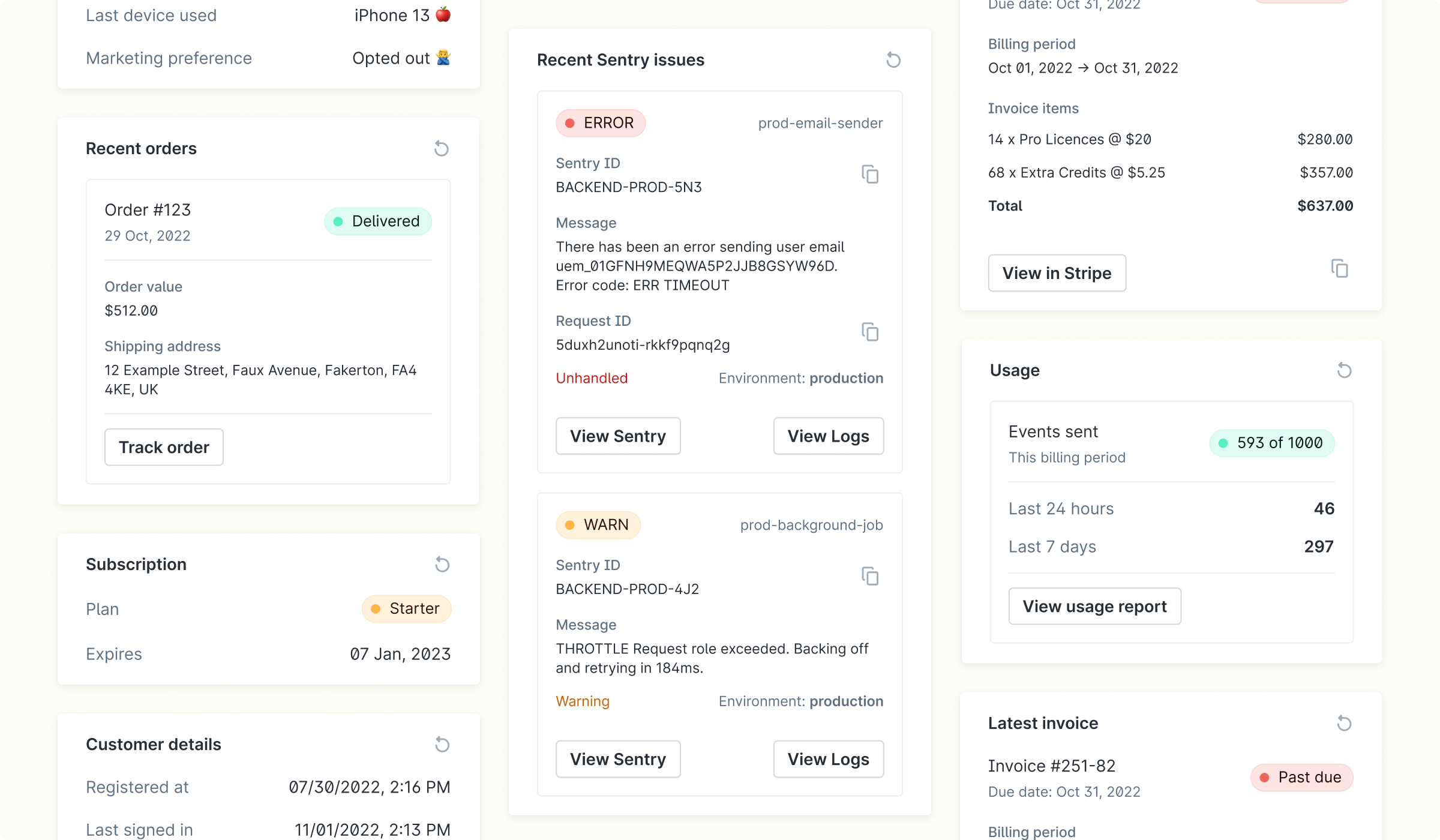 ## How does data from my system get displayed in customer cards?
Customer cards:
* Pull from your backend, so you do not have to sync your customer data to Plain.
* The data is short-lived, so it is permanently stored in Plain beyond the time frame you set.
* Defined in JSON, so you do not write any styling.
* Automatically reloaded if a user is viewing a customer and the data expires.
## Workflow triggers from customer cards
When a thread is opened and your customer card API is called, you can include a `componentWorkflowButton` in your card response. Plain renders this as a button inside the card. When a team member clicks it, Plain runs the specified workflow in the context of that thread.
### Setting up workflow triggers:
This requires your engineering team to update your customer card API. Here's the two-step process:
**Step 1: Create the workflow in Plain.**
Go to **Settings → Workflows** and create the workflow you want the button to trigger. Your developer will need the workflow ID, which is visible in the workflow settings.
**Step 2: Add the button to your customer card API**
Your developer adds a `componentWorkflowButton` to your card API response, pointing it at the workflow ID. Your API can also include logic to only show the button in certain situations. For example, only when a customer's billing is in an error state.
## Use cases:
* **Billing operations**: resync a billing record, apply a credit, or trigger a refund
* **Account operations**: rename a team, allowlist a user, reset a rate limit
* **Escalation**: escalate a thread to the right team with a single click
* **Debugging**: trigger a diagnostics workflow tied to that customer's account
[**Jump to documentation →**](/docs/customer-cards)
## Examples:
## How does data from my system get displayed in customer cards?
Customer cards:
* Pull from your backend, so you do not have to sync your customer data to Plain.
* The data is short-lived, so it is permanently stored in Plain beyond the time frame you set.
* Defined in JSON, so you do not write any styling.
* Automatically reloaded if a user is viewing a customer and the data expires.
## Workflow triggers from customer cards
When a thread is opened and your customer card API is called, you can include a `componentWorkflowButton` in your card response. Plain renders this as a button inside the card. When a team member clicks it, Plain runs the specified workflow in the context of that thread.
### Setting up workflow triggers:
This requires your engineering team to update your customer card API. Here's the two-step process:
**Step 1: Create the workflow in Plain.**
Go to **Settings → Workflows** and create the workflow you want the button to trigger. Your developer will need the workflow ID, which is visible in the workflow settings.
**Step 2: Add the button to your customer card API**
Your developer adds a `componentWorkflowButton` to your card API response, pointing it at the workflow ID. Your API can also include logic to only show the button in certain situations. For example, only when a customer's billing is in an error state.
## Use cases:
* **Billing operations**: resync a billing record, apply a credit, or trigger a refund
* **Account operations**: rename a team, allowlist a user, reset a rate limit
* **Escalation**: escalate a thread to the right team with a single click
* **Debugging**: trigger a diagnostics workflow tied to that customer's account
[**Jump to documentation →**](/docs/customer-cards)
## Examples:
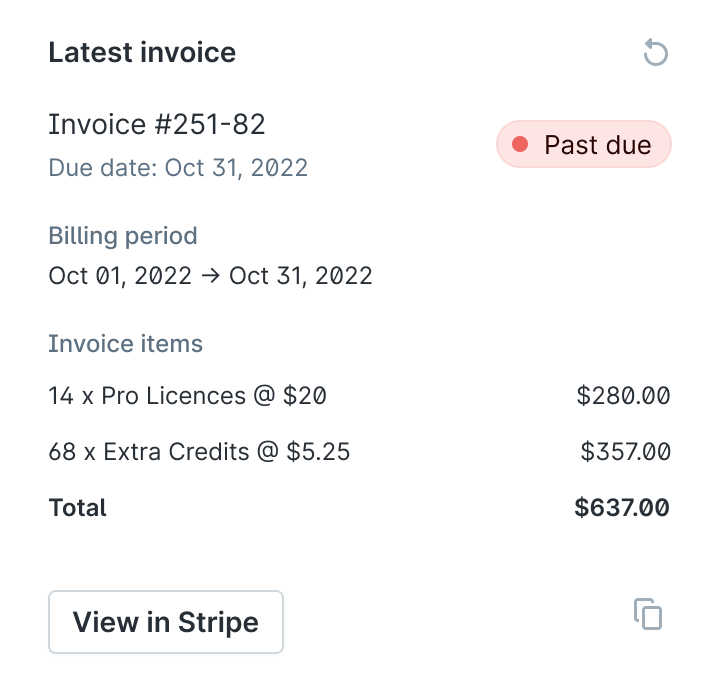
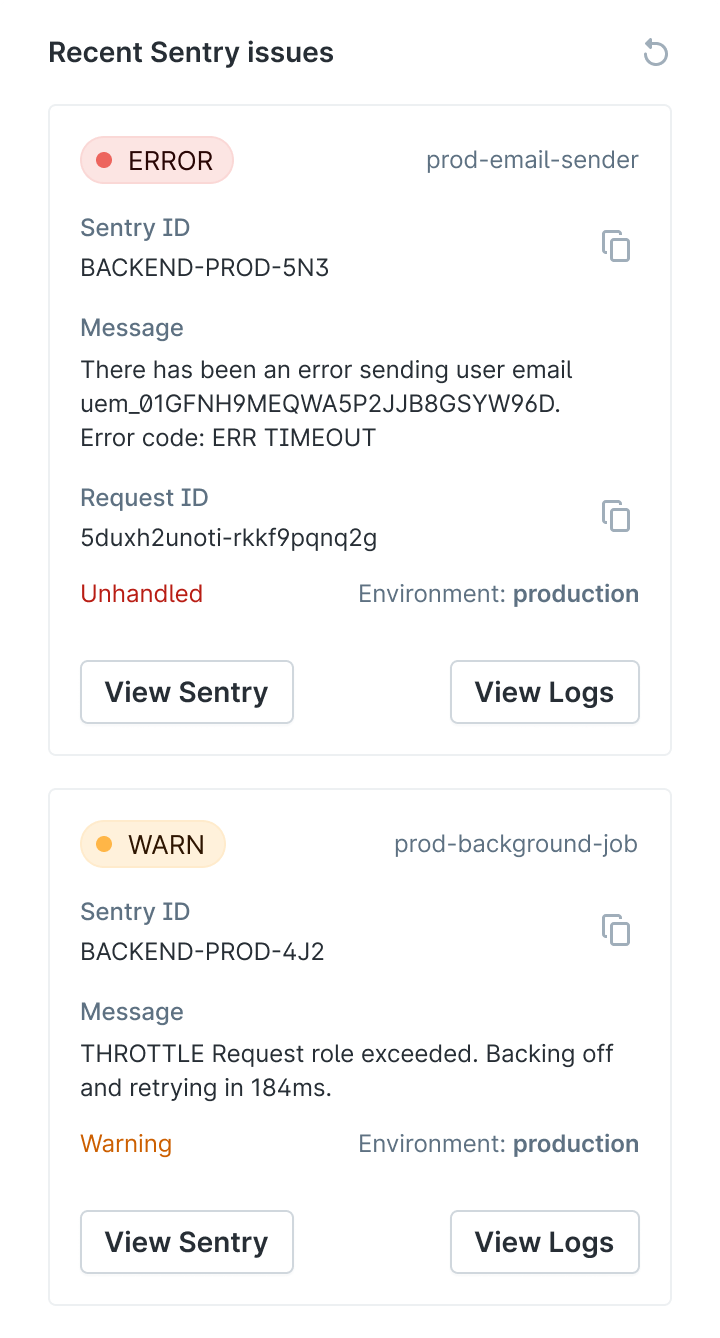
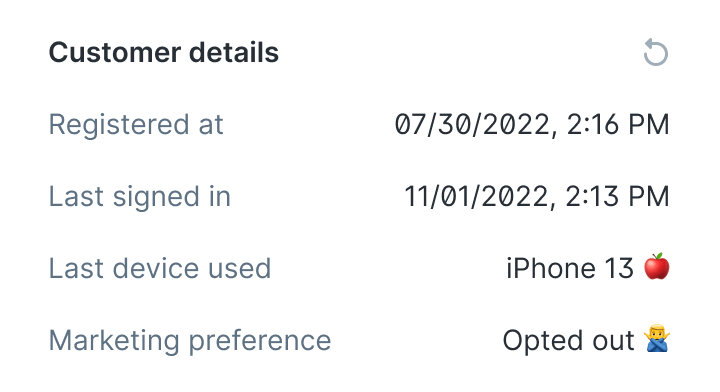 ## Try the examples
The [example cards repo](https://github.com/team-plain/example-customer-cards) is a working API you can point at your workspace. Each card is available at:
```plaintext theme={null}
https://example-customer-cards.plain.com/?cardKey=CARD_KEY
```
| **Card** | **Key** |
| ------------------- | --------------------- |
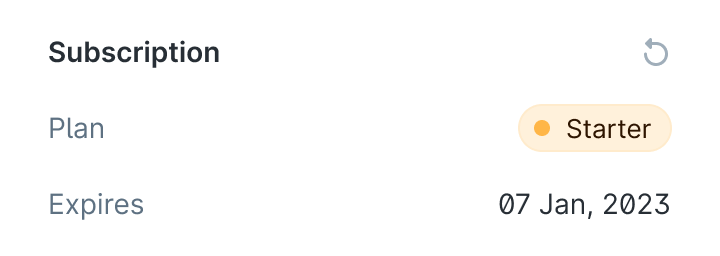
| Subscription status | `subscription-status` |
| Latest invoice | `latest-invoice` |
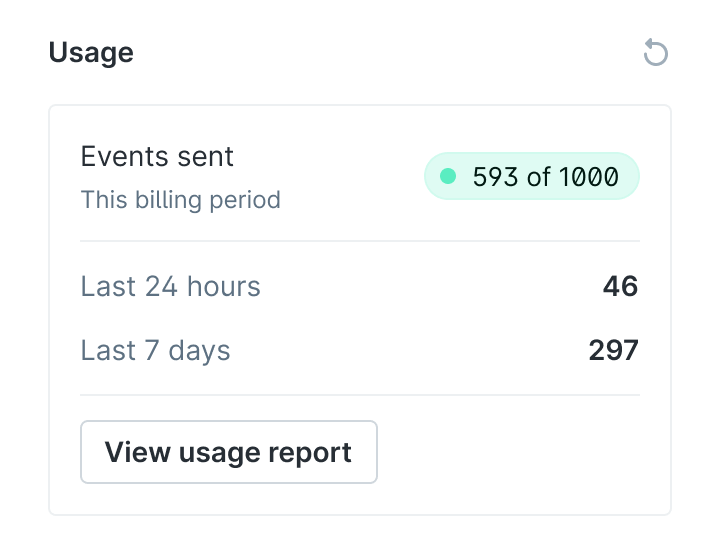
| Usage | `usage` |
| Sentry errors | `sentry` |
| Account details | `customer-details` |
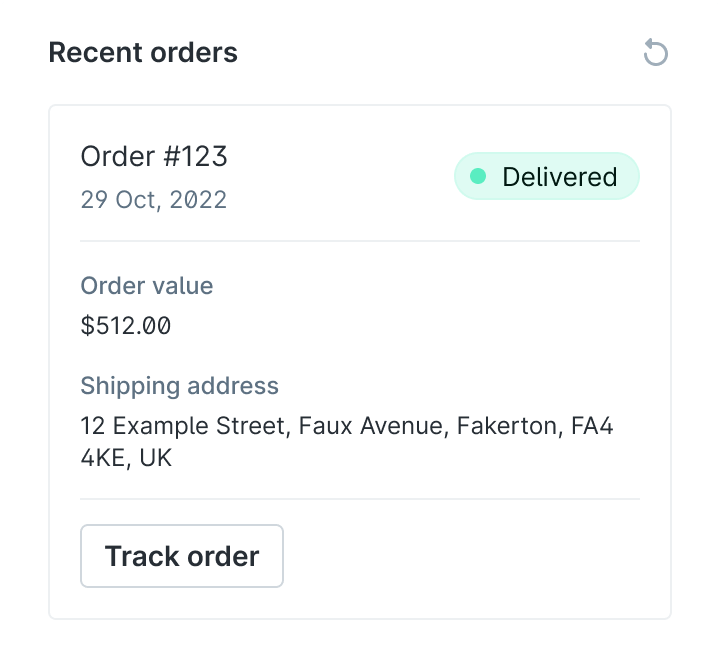
| Last order | `last-order` |
| Workflow button | `workflow-card` |
To add one: go to **Settings → Customer Cards**, click **Add card**, enter the URL above with the relevant key, and open any thread to see it load.
## Try the examples
The [example cards repo](https://github.com/team-plain/example-customer-cards) is a working API you can point at your workspace. Each card is available at:
```plaintext theme={null}
https://example-customer-cards.plain.com/?cardKey=CARD_KEY
```
| **Card** | **Key** |
| ------------------- | --------------------- |
| Subscription status | `subscription-status` |
| Latest invoice | `latest-invoice` |
| Usage | `usage` |
| Sentry errors | `sentry` |
| Account details | `customer-details` |
| Last order | `last-order` |
| Workflow button | `workflow-card` |
To add one: go to **Settings → Customer Cards**, click **Add card**, enter the URL above with the relevant key, and open any thread to see it load.