> ## Documentation Index
> Fetch the complete documentation index at: https://www.plain.com/docs/llms.txt
> Use this file to discover all available pages before exploring further.
# Escalation paths
> Set up structured escalation levels and assign threads to them using the Workflow Builder.
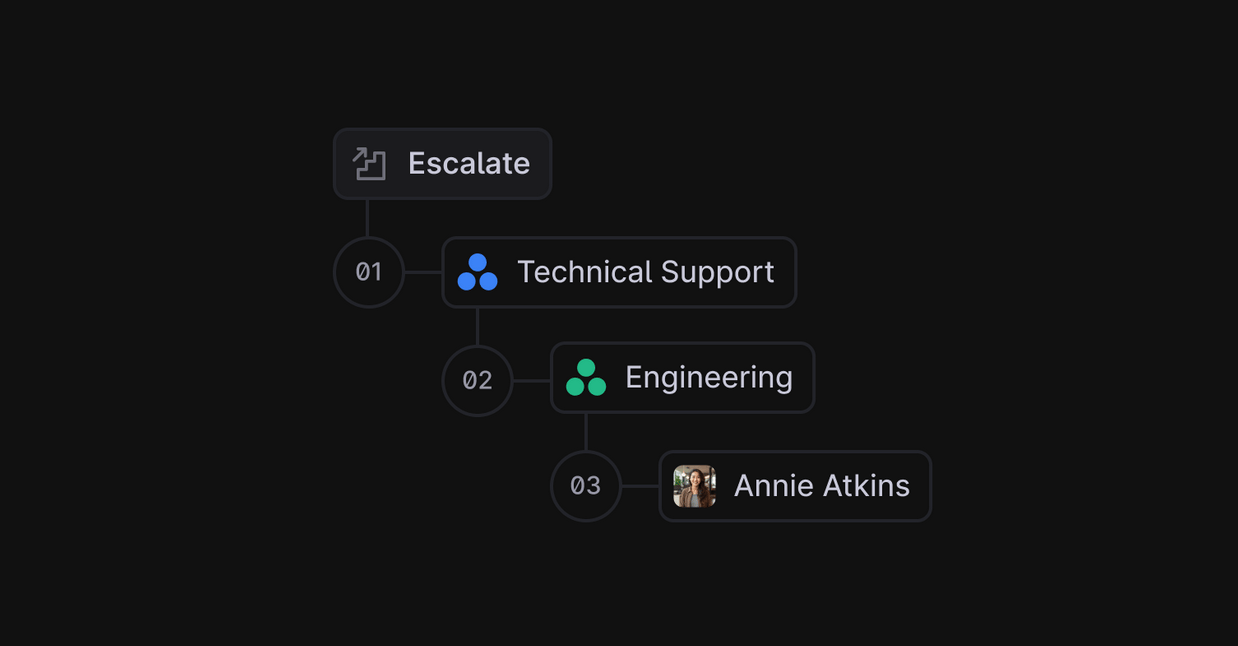
**Escalation paths** allow your team to define a set of levels, so that if a team member is stuck when resolving a thread, they have a predefined path to escalate it to the next relevant person or team.
This ensures standardized handoffs and gives every thread a clear path to resolution.
 ## Configuration
Setting up escalation paths requires two steps:
1. Define the escalation path (name + levels) in Settings
2. Create a workflow in the Workflow Builder to assign threads to that path
### Adding an escalation path
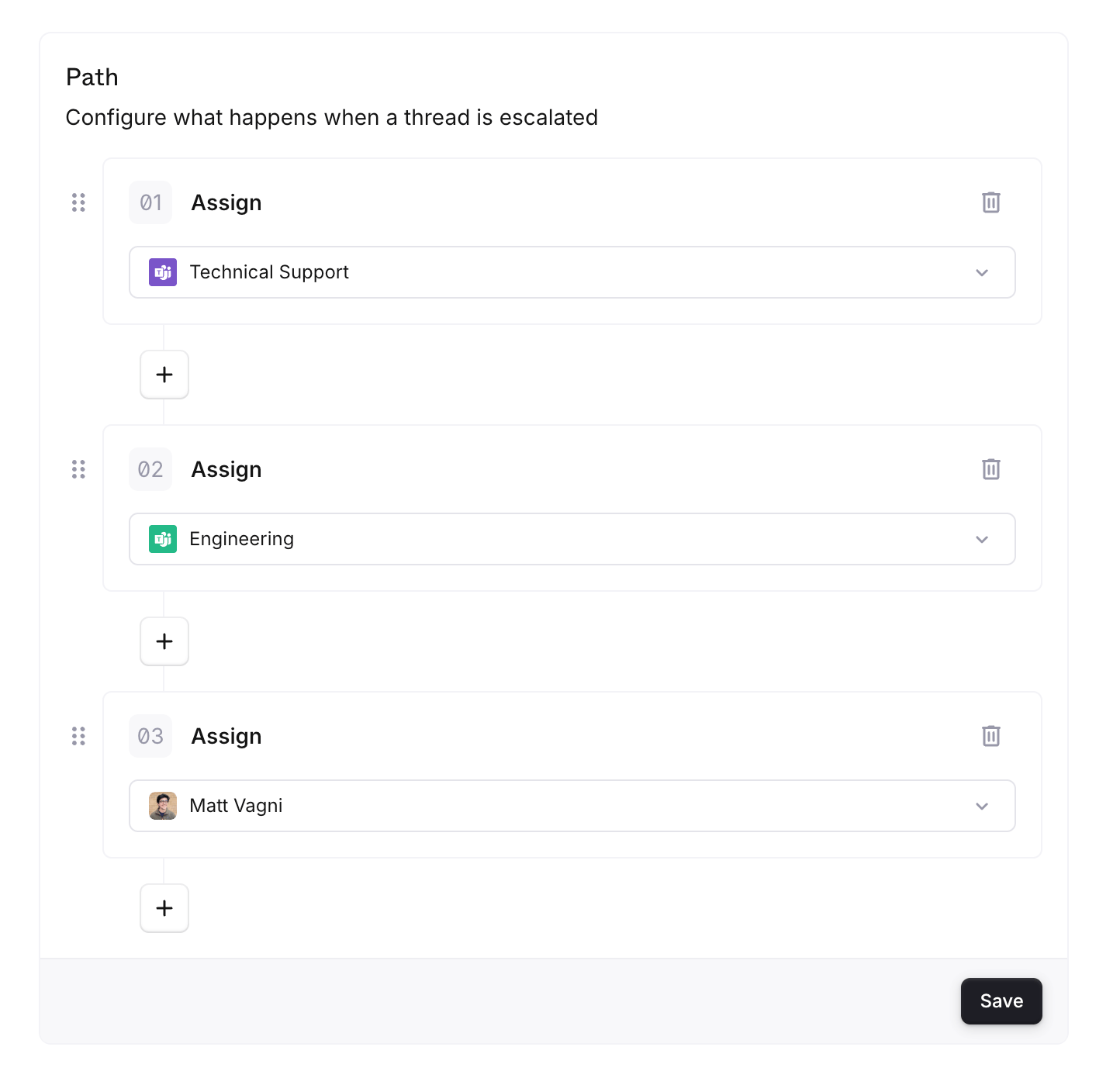
1. Go to `Settings → Workflow → Escalation Paths`
2. Click "New Escalation Path"
3. Set a name and add your defined escalation levels
## Configuration
Setting up escalation paths requires two steps:
1. Define the escalation path (name + levels) in Settings
2. Create a workflow in the Workflow Builder to assign threads to that path
### Adding an escalation path
1. Go to `Settings → Workflow → Escalation Paths`
2. Click "New Escalation Path"
3. Set a name and add your defined escalation levels
 ### Setting a thread to use an escalation path
1. Go to Workflows and create a new workflow or edit an existing one
2. Under **Actions**, pick **Set escalation path**
## Usage
### Escalating a thread
To escalate, click **More** at the bottom of the thread page, under the composer, then pick **Escalate**
### Changing or clearing the escalation path
To manually change which escalation path a thread uses, or to remove it entirely:
1. Press ⌘ + K to open the Command Palette
2. Search for **"Update Escalation Path"**
### Things to know
* When escalating, the currently assigned user is always unassigned
* The currently assigned team label is removed only if it is part of the escalation level being escalated from
* The current escalation level is evaluated at the moment of escalation. Manual user/team assignments can affect which level is considered "current"
## Example
At Plain, we use the following escalation path for product questions. It's assigned via a workflow that triggers on threads from `support@plain.com`:
1. Technical Support *(team)*
2. Engineering *(team)*
3. Staff Engineer *(user)*
4. Founders *(team)*
The workflow that sets this path uses a single condition step, "Support email equals [support@plain.com](mailto:support@plain.com)", followed by a **Set escalation path** action.
### Setting a thread to use an escalation path
1. Go to Workflows and create a new workflow or edit an existing one
2. Under **Actions**, pick **Set escalation path**
## Usage
### Escalating a thread
To escalate, click **More** at the bottom of the thread page, under the composer, then pick **Escalate**
### Changing or clearing the escalation path
To manually change which escalation path a thread uses, or to remove it entirely:
1. Press ⌘ + K to open the Command Palette
2. Search for **"Update Escalation Path"**
### Things to know
* When escalating, the currently assigned user is always unassigned
* The currently assigned team label is removed only if it is part of the escalation level being escalated from
* The current escalation level is evaluated at the moment of escalation. Manual user/team assignments can affect which level is considered "current"
## Example
At Plain, we use the following escalation path for product questions. It's assigned via a workflow that triggers on threads from `support@plain.com`:
1. Technical Support *(team)*
2. Engineering *(team)*
3. Staff Engineer *(user)*
4. Founders *(team)*
The workflow that sets this path uses a single condition step, "Support email equals [support@plain.com](mailto:support@plain.com)", followed by a **Set escalation path** action.