> ## Documentation Index
> Fetch the complete documentation index at: https://www.plain.com/docs/llms.txt
> Use this file to discover all available pages before exploring further.
# SLAs
> How SLAs work in Plain, including types, statuses, and business hours configuration.
SLAs (Service Level Agreement) give your team a clear framework for response times, along with the visibility and alerts needed to meet them consistently.
 **Note:** SLAs in Plain are only applied when a thread requires action from your internal support team. If a customer message doesn't need a response, for example, a confirmation or thank-you, no SLA will be active.
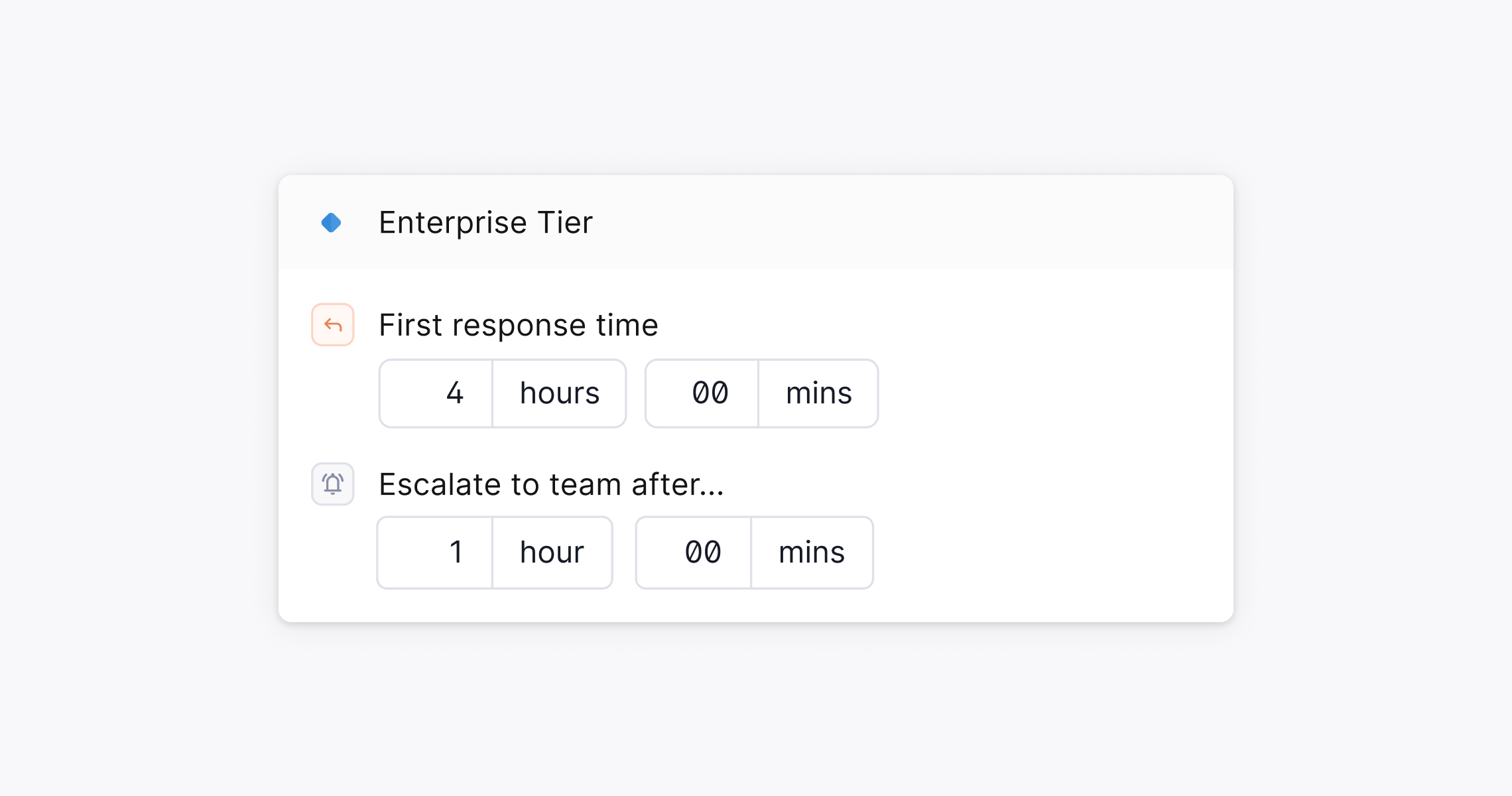
SLAs are configured at the [Tier →](/docs/product/platform/tiers) level, in Settings → Tiers & SLAs. Within each tier, you can set different targets per priority, so higher-impact customers and more urgent issues get faster response times. For example, an Enterprise customer with an Urgent thread can have a tighter SLA than a Free customer with a Low priority thread.
## SLA types
* **First response time**: Tracks how long it takes your team to send the first reply to a new thread.
* **Next response time**: Tracks how long it takes to reply after a customer responds.
## SLA statuses
Each SLA moves through a series of statuses as time progresses and your team responds. You'll see these in the thread view and when setting up workflow triggers.
| Status | What it means |
| ------------------- | --------------------------------------------------------------------------------------------------------------------------------------------------------------------- |
| **Pending** | The SLA timer is counting down. The deadline hasn't passed and no alert threshold has been crossed. |
| **Imminent breach** | A pre-breach alert window is active. The deadline hasn't passed yet, but you're approaching it. This only appears if you've configured an alert threshold on the SLA. |
| **Breaching** | The deadline has passed and the SLA condition still isn't met. For example, no first reply has been sent inside the first response time window. |
| **Achieved** | The SLA condition was met in time. For example, a first reply was sent before the deadline. |
| **Breached** | The SLA passed through Breaching without being met, but the underlying condition has since been resolved, for example a reply was eventually sent. |
| **Canceled** | The SLA no longer applies. For example, a thread was marked as Done without a reply being sent. |
## SLAs and snoozed threads
What happens to the SLA timer when you snooze a thread depends on which snooze status you use.
| Snooze status | SLA timer behavior |
| ------------------------ | --------------------------------------------------------------------------------------------------- |
| **Waiting for customer** | The timer is canceled. You've replied and are waiting on the customer, so no SLA applies. |
| **Paused for later** | The timer keeps running. You've paused the thread, but the customer is still waiting on a response. |
## Business hours
By default, SLA timers run 24/7. You can configure them to count only during business hours instead.
To set your working schedule, go to **Settings → Business hours**.
**Note:** SLAs in Plain are only applied when a thread requires action from your internal support team. If a customer message doesn't need a response, for example, a confirmation or thank-you, no SLA will be active.
SLAs are configured at the [Tier →](/docs/product/platform/tiers) level, in Settings → Tiers & SLAs. Within each tier, you can set different targets per priority, so higher-impact customers and more urgent issues get faster response times. For example, an Enterprise customer with an Urgent thread can have a tighter SLA than a Free customer with a Low priority thread.
## SLA types
* **First response time**: Tracks how long it takes your team to send the first reply to a new thread.
* **Next response time**: Tracks how long it takes to reply after a customer responds.
## SLA statuses
Each SLA moves through a series of statuses as time progresses and your team responds. You'll see these in the thread view and when setting up workflow triggers.
| Status | What it means |
| ------------------- | --------------------------------------------------------------------------------------------------------------------------------------------------------------------- |
| **Pending** | The SLA timer is counting down. The deadline hasn't passed and no alert threshold has been crossed. |
| **Imminent breach** | A pre-breach alert window is active. The deadline hasn't passed yet, but you're approaching it. This only appears if you've configured an alert threshold on the SLA. |
| **Breaching** | The deadline has passed and the SLA condition still isn't met. For example, no first reply has been sent inside the first response time window. |
| **Achieved** | The SLA condition was met in time. For example, a first reply was sent before the deadline. |
| **Breached** | The SLA passed through Breaching without being met, but the underlying condition has since been resolved, for example a reply was eventually sent. |
| **Canceled** | The SLA no longer applies. For example, a thread was marked as Done without a reply being sent. |
## SLAs and snoozed threads
What happens to the SLA timer when you snooze a thread depends on which snooze status you use.
| Snooze status | SLA timer behavior |
| ------------------------ | --------------------------------------------------------------------------------------------------- |
| **Waiting for customer** | The timer is canceled. You've replied and are waiting on the customer, so no SLA applies. |
| **Paused for later** | The timer keeps running. You've paused the thread, but the customer is still waiting on a response. |
## Business hours
By default, SLA timers run 24/7. You can configure them to count only during business hours instead.
To set your working schedule, go to **Settings → Business hours**.