> ## Documentation Index
> Fetch the complete documentation index at: https://www.plain.com/docs/llms.txt
> Use this file to discover all available pages before exploring further.
# Tier SLAs
> How SLAs attached to a tier work: the two SLA types, their priority and label conditions, statuses, snoozed threads, and business hours.
[SLA policies](/docs/product/platform/slas) supersede tier SLAs. Existing tier SLAs keep working, and you can still edit or delete them.
A Service Level Agreement (SLA) is a promise about how fast your team replies. Plain measures each thread against the SLA that applies to it, shows a countdown in the thread and the queue, and warns your team before the deadline passes. Only replies from your team stop the clock, and an SLA is only active while a thread needs a reply.
A tier SLA is an SLA attached to a [tier](/docs/product/platform/tiers). Every thread from a company or tenant in that tier is measured against it. Within a tier, you can set different SLAs per priority and label, so an Enterprise customer's Urgent thread can have a tighter SLA than a Free customer's Low priority thread. Manage tier SLAs in **Settings → Tiers & SLAs**.
 ## SLA types
A tier can hold two types of SLA:
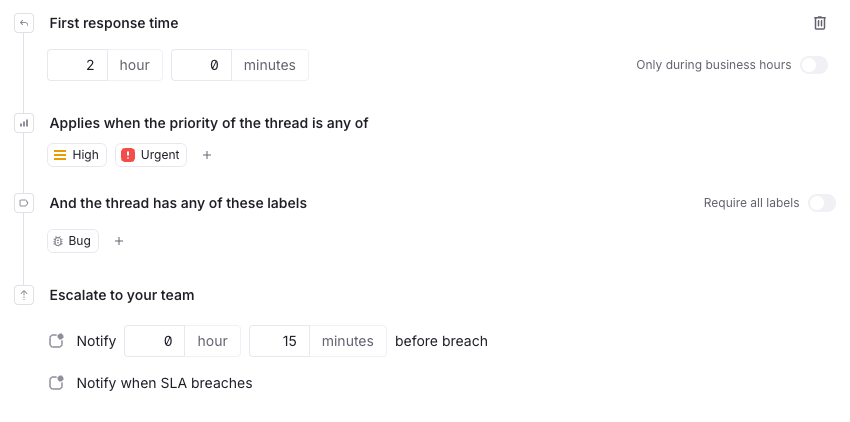
* **First response time**: how long your team has to send the first reply to a new thread. The clock starts when the thread is created
* **Next response time**: how long your team has to reply after a customer responds. The clock restarts with every customer message
A tier needs a first response time SLA before you can add a next response time SLA, and you can't remove the first response time SLA while a next response time SLA exists.
Auto-responses don't count as a reply.
## Add an SLA to a tier
Tiers and SLAs are available on the Horizon pricing plan and above. To add an SLA:
Go to **Settings → Tiers & SLAs** and open the tier.
Click **Add SLA** and pick **First response time** or **Next response time**.
Enter the time allowed in hours and minutes. Turn on **Only during business hours** if the clock should pause outside your [working hours](#business-hours).
Click **Add priority** or **Add label** to apply the SLA only to some threads. Leave both empty to apply it to every thread in the tier. See [How an SLA is matched to a thread](#how-an-sla-is-matched-to-a-thread).
Under **Escalate to your team**, enter how long before the deadline Plain should notify you. See [Notify before breach](#notify-before-breach).
Click **Save changes**.
## How an SLA is matched to a thread
A thread's tier comes from its company or tenant. Plain looks at that tier's SLAs and applies the ones whose conditions the thread matches. An SLA with no conditions matches every thread in the tier. Conditions narrow it down:
* **Priority**: the SLA applies only when the thread's priority is one of the ones you add: **Urgent**, **High**, **Normal**, or **Low**
* **Labels**: the SLA applies only when the thread has any of the labels you add. Turn on **Require all labels** for it to apply only when the thread has every one of them
Plain rejects a new SLA if an existing SLA of the same type covers the same priority and matches the same label as it. Two SLAs on the same priority can coexist only when their label conditions are distinct, for example one for **Bug** threads and one for **Billing** threads.
A thread with both of those labels matches both SLAs. When that happens, an SLA with **Require all labels** on wins. Otherwise the SLA that was created first wins.
When a thread's priority or labels change, or its company or tenant moves to a different tier, Plain re-evaluates which SLA applies.
## Notify before breach
Under **Escalate to your team**, set how long before the deadline the SLA moves to **Imminent breach**. The warning period must be shorter than the response time.
When an SLA reaches **Imminent breach**, and again when it reaches **Breaching**, Plain posts a warning to the Slack or Discord channels that have **SLA warnings** turned on under **Settings → Notifications**.
## SLA statuses
Each SLA moves through a series of statuses as time passes and your team responds. You'll see these in the thread view and when setting up workflow triggers.
| Status | What it means |
| ------------------- | ---------------------------------------------------------------------------------------------------------------------------------------------------------------- |
| **Pending** | The SLA timer is counting down. The deadline hasn't passed and no warning has fired. |
| **Imminent breach** | The warning period is active. The deadline hasn't passed yet, but you're approaching it. This only appears if you've set a notify before breach time on the SLA. |
| **Breaching** | The deadline has passed and the SLA condition still isn't met. For example, no first reply has been sent inside the first response time. |
| **Achieved** | The SLA condition was met in time. For example, a first reply was sent before the deadline. |
| **Breached** | The SLA passed through Breaching without being met, but the underlying condition has since been resolved, for example a reply was eventually sent. |
| **Canceled** | The SLA no longer applies. For example, a thread was marked as Done without a reply being sent. |
## SLAs and snoozed threads
What happens to the SLA timer when you snooze a thread depends on which snooze status you use:
| Snooze status | SLA timer behavior |
| ------------------------ | --------------------------------------------------------------------------------------------------- |
| **Waiting for customer** | The timer is canceled. You've replied and are waiting on the customer, so no SLA applies. |
| **Paused for later** | The timer keeps running. You've paused the thread, but the customer is still waiting on a response. |
## Business hours
By default, SLA timers run 24/7. Turn on **Only during business hours** on an SLA to count time only while your team is working. Set your working schedule in **Settings → Business hours**.
With a 4 hour first response time and a Mon–Fri 09:00–17:00 schedule, a thread that arrives at 16:30 on a Friday is due at 12:30 on Monday. With the setting off, the same thread is due at 20:30 on Friday.
## Manage tier SLAs with the API
Tier SLAs can also be created, updated, and deleted with the [GraphQL API](/docs/graphql/tiers/service-level-agreements).
## SLA types
A tier can hold two types of SLA:
* **First response time**: how long your team has to send the first reply to a new thread. The clock starts when the thread is created
* **Next response time**: how long your team has to reply after a customer responds. The clock restarts with every customer message
A tier needs a first response time SLA before you can add a next response time SLA, and you can't remove the first response time SLA while a next response time SLA exists.
Auto-responses don't count as a reply.
## Add an SLA to a tier
Tiers and SLAs are available on the Horizon pricing plan and above. To add an SLA:
Go to **Settings → Tiers & SLAs** and open the tier.
Click **Add SLA** and pick **First response time** or **Next response time**.
Enter the time allowed in hours and minutes. Turn on **Only during business hours** if the clock should pause outside your [working hours](#business-hours).
Click **Add priority** or **Add label** to apply the SLA only to some threads. Leave both empty to apply it to every thread in the tier. See [How an SLA is matched to a thread](#how-an-sla-is-matched-to-a-thread).
Under **Escalate to your team**, enter how long before the deadline Plain should notify you. See [Notify before breach](#notify-before-breach).
Click **Save changes**.
## How an SLA is matched to a thread
A thread's tier comes from its company or tenant. Plain looks at that tier's SLAs and applies the ones whose conditions the thread matches. An SLA with no conditions matches every thread in the tier. Conditions narrow it down:
* **Priority**: the SLA applies only when the thread's priority is one of the ones you add: **Urgent**, **High**, **Normal**, or **Low**
* **Labels**: the SLA applies only when the thread has any of the labels you add. Turn on **Require all labels** for it to apply only when the thread has every one of them
Plain rejects a new SLA if an existing SLA of the same type covers the same priority and matches the same label as it. Two SLAs on the same priority can coexist only when their label conditions are distinct, for example one for **Bug** threads and one for **Billing** threads.
A thread with both of those labels matches both SLAs. When that happens, an SLA with **Require all labels** on wins. Otherwise the SLA that was created first wins.
When a thread's priority or labels change, or its company or tenant moves to a different tier, Plain re-evaluates which SLA applies.
## Notify before breach
Under **Escalate to your team**, set how long before the deadline the SLA moves to **Imminent breach**. The warning period must be shorter than the response time.
When an SLA reaches **Imminent breach**, and again when it reaches **Breaching**, Plain posts a warning to the Slack or Discord channels that have **SLA warnings** turned on under **Settings → Notifications**.
## SLA statuses
Each SLA moves through a series of statuses as time passes and your team responds. You'll see these in the thread view and when setting up workflow triggers.
| Status | What it means |
| ------------------- | ---------------------------------------------------------------------------------------------------------------------------------------------------------------- |
| **Pending** | The SLA timer is counting down. The deadline hasn't passed and no warning has fired. |
| **Imminent breach** | The warning period is active. The deadline hasn't passed yet, but you're approaching it. This only appears if you've set a notify before breach time on the SLA. |
| **Breaching** | The deadline has passed and the SLA condition still isn't met. For example, no first reply has been sent inside the first response time. |
| **Achieved** | The SLA condition was met in time. For example, a first reply was sent before the deadline. |
| **Breached** | The SLA passed through Breaching without being met, but the underlying condition has since been resolved, for example a reply was eventually sent. |
| **Canceled** | The SLA no longer applies. For example, a thread was marked as Done without a reply being sent. |
## SLAs and snoozed threads
What happens to the SLA timer when you snooze a thread depends on which snooze status you use:
| Snooze status | SLA timer behavior |
| ------------------------ | --------------------------------------------------------------------------------------------------- |
| **Waiting for customer** | The timer is canceled. You've replied and are waiting on the customer, so no SLA applies. |
| **Paused for later** | The timer keeps running. You've paused the thread, but the customer is still waiting on a response. |
## Business hours
By default, SLA timers run 24/7. Turn on **Only during business hours** on an SLA to count time only while your team is working. Set your working schedule in **Settings → Business hours**.
With a 4 hour first response time and a Mon–Fri 09:00–17:00 schedule, a thread that arrives at 16:30 on a Friday is due at 12:30 on Monday. With the setting off, the same thread is due at 20:30 on Friday.
## Manage tier SLAs with the API
Tier SLAs can also be created, updated, and deleted with the [GraphQL API](/docs/graphql/tiers/service-level-agreements).