> ## Documentation Index
> Fetch the complete documentation index at: https://www.plain.com/docs/llms.txt
> Use this file to discover all available pages before exploring further.
# Assignment
> How threads get an owner in Plain - manually, automatically as you type, or load-balanced across a team.
Assigning threads in Plain keeps support **organized, accountable, and responsive**.
 ## How assignment works
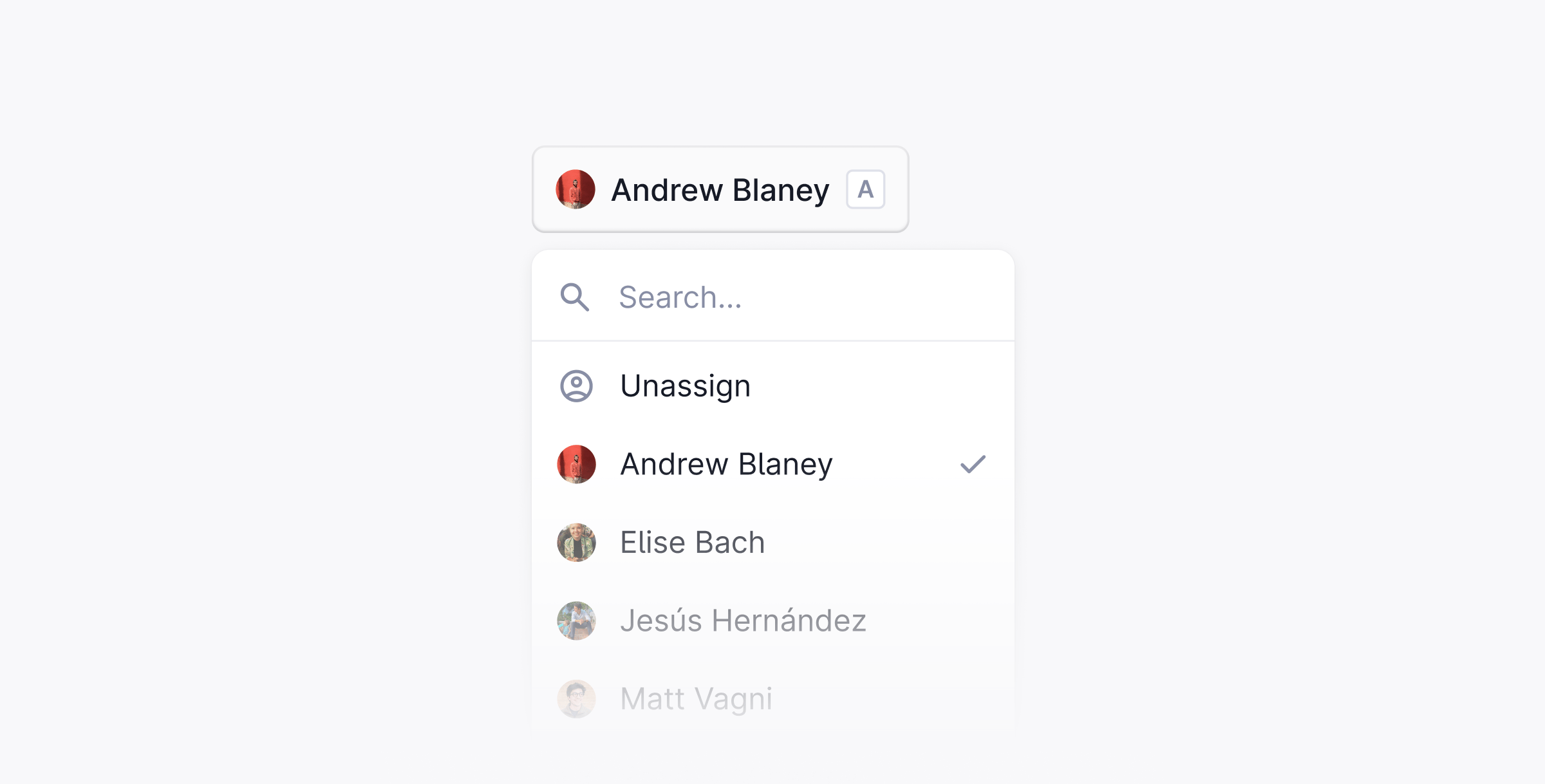
When you begin typing in a thread, Plain automatically assigns it to you. You can also assign threads manually: press `A` while viewing a thread, use ⌘ + K, or select an assignee from the top-right of the thread view.
### Sticky assignment
By default, once you're assigned to a thread, Plain keeps you assigned. You can change this in **Settings → Workflow**.
### Online, offline, and away mode
Users can be in one of three statuses: **Online**, **Offline**, or **Away**. Configure this from your profile.
### Multiple assignees
You can add **multiple assignees** to a thread: one lead, plus optional co-assignees.
## Auto-assignment
You can enable auto-assignment in your team's settings to automatically distribute incoming threads across your team members so no one gets overloaded.
## How assignment works
When you begin typing in a thread, Plain automatically assigns it to you. You can also assign threads manually: press `A` while viewing a thread, use ⌘ + K, or select an assignee from the top-right of the thread view.
### Sticky assignment
By default, once you're assigned to a thread, Plain keeps you assigned. You can change this in **Settings → Workflow**.
### Online, offline, and away mode
Users can be in one of three statuses: **Online**, **Offline**, or **Away**. Configure this from your profile.
### Multiple assignees
You can add **multiple assignees** to a thread: one lead, plus optional co-assignees.
## Auto-assignment
You can enable auto-assignment in your team's settings to automatically distribute incoming threads across your team members so no one gets overloaded.
 ### How it works
When a thread carries the team label, auto-assignment collects every member of that team, filters out users who are Away or at capacity, and assigns the thread to the eligible user with the lowest current load.
### Set it up
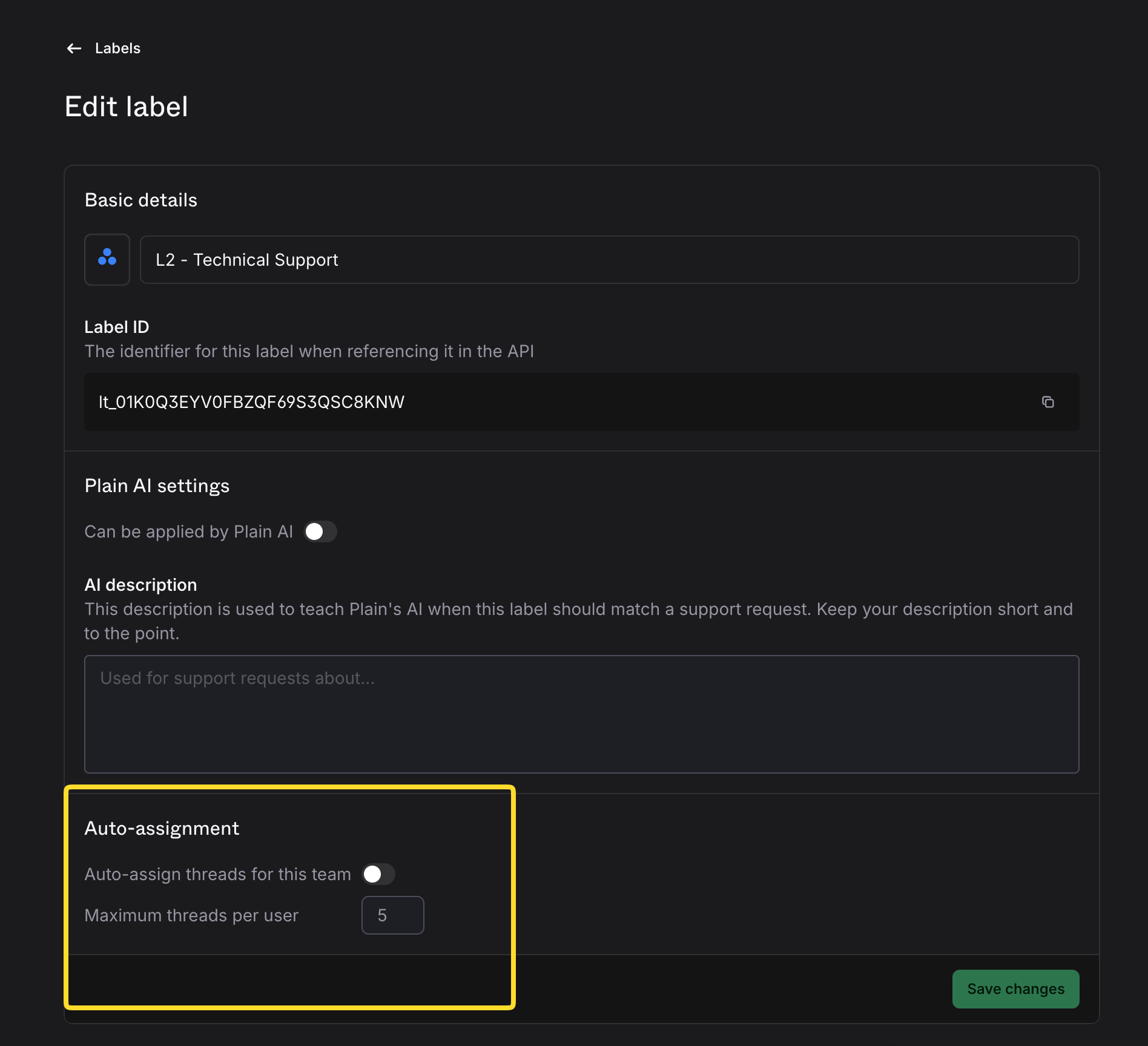
1. **Create (or confirm) your team** - Go to **Settings → Labels** and add your team and its members.
2. **Enable Auto-assignment** - Toggle **Auto-assign threads for this team.**
3. Set a **max capacity**. This is the maximum number of Todo threads an agent can hold before they're skipped in the rotation.
4. **Save -** New matching threads will now auto-assign.
### How the algorithm works
When a thread needs to be assigned, Plain picks the best available agent by checking:
* **Availability**: agents with status Away, Break, or Offline are skipped
* **Capacity**: agents who've hit their max capacity are skipped
* **Least loaded**: among eligible agents, the one with the fewest assigned threads gets picked
### When assignments trigger
Auto-assignment fires automatically when:
* A new thread is created with a team label
* A team label is added to an existing thread
* A thread is marked Done or Snoozed (freeing up capacity → backfills other threads)
* A thread is reopened (goes back to Todo unassigned)
* An agent comes back online (their teams get backfilled)
### Things to know
* If no agents have capacity, the thread stays unassigned until someone frees up
* Auto-assignment only assigns threads with **Todo** status that have no existing assignee
When something needs escalating, [escalation paths](/docs/product/platform/escalation-paths) give your team a predefined route to the next level.
### How it works
When a thread carries the team label, auto-assignment collects every member of that team, filters out users who are Away or at capacity, and assigns the thread to the eligible user with the lowest current load.
### Set it up
1. **Create (or confirm) your team** - Go to **Settings → Labels** and add your team and its members.
2. **Enable Auto-assignment** - Toggle **Auto-assign threads for this team.**
3. Set a **max capacity**. This is the maximum number of Todo threads an agent can hold before they're skipped in the rotation.
4. **Save -** New matching threads will now auto-assign.
### How the algorithm works
When a thread needs to be assigned, Plain picks the best available agent by checking:
* **Availability**: agents with status Away, Break, or Offline are skipped
* **Capacity**: agents who've hit their max capacity are skipped
* **Least loaded**: among eligible agents, the one with the fewest assigned threads gets picked
### When assignments trigger
Auto-assignment fires automatically when:
* A new thread is created with a team label
* A team label is added to an existing thread
* A thread is marked Done or Snoozed (freeing up capacity → backfills other threads)
* A thread is reopened (goes back to Todo unassigned)
* An agent comes back online (their teams get backfilled)
### Things to know
* If no agents have capacity, the thread stays unassigned until someone frees up
* Auto-assignment only assigns threads with **Todo** status that have no existing assignee
When something needs escalating, [escalation paths](/docs/product/platform/escalation-paths) give your team a predefined route to the next level.