
Building Your First Automation with APIs
Build a multi-step automation that connects two platforms via API
Welcome Back!
In Chapter 1, you installed Claude Code and built your first quick win. You proved you can use the terminal.
Now we're building something real: automations that connect multiple tools and save us hours of manual work every week.
I recorded three videos of me building this automation from scratch. You'll watch what I do, then read the technical explanations of what's actually happening under the hood. The videos show the "how." The written sections explain the "what" and "why."
By the end, you'll understand:
What an API actually is (and why it matters)
The difference between reading data, creating data, and updating data
How to connect any two tools that have APIs
What to do when things break
Let's go!
Video 1: What We're Building (and Why)
In this video, I explain the problem. I run an invite-only newsletter called Field Notes, and I want to automate the process of creating member accounts. I walk through the tools involved (Tally for forms, Airtable for tracking, Ghost for the newsletter) and what we're going to automate.
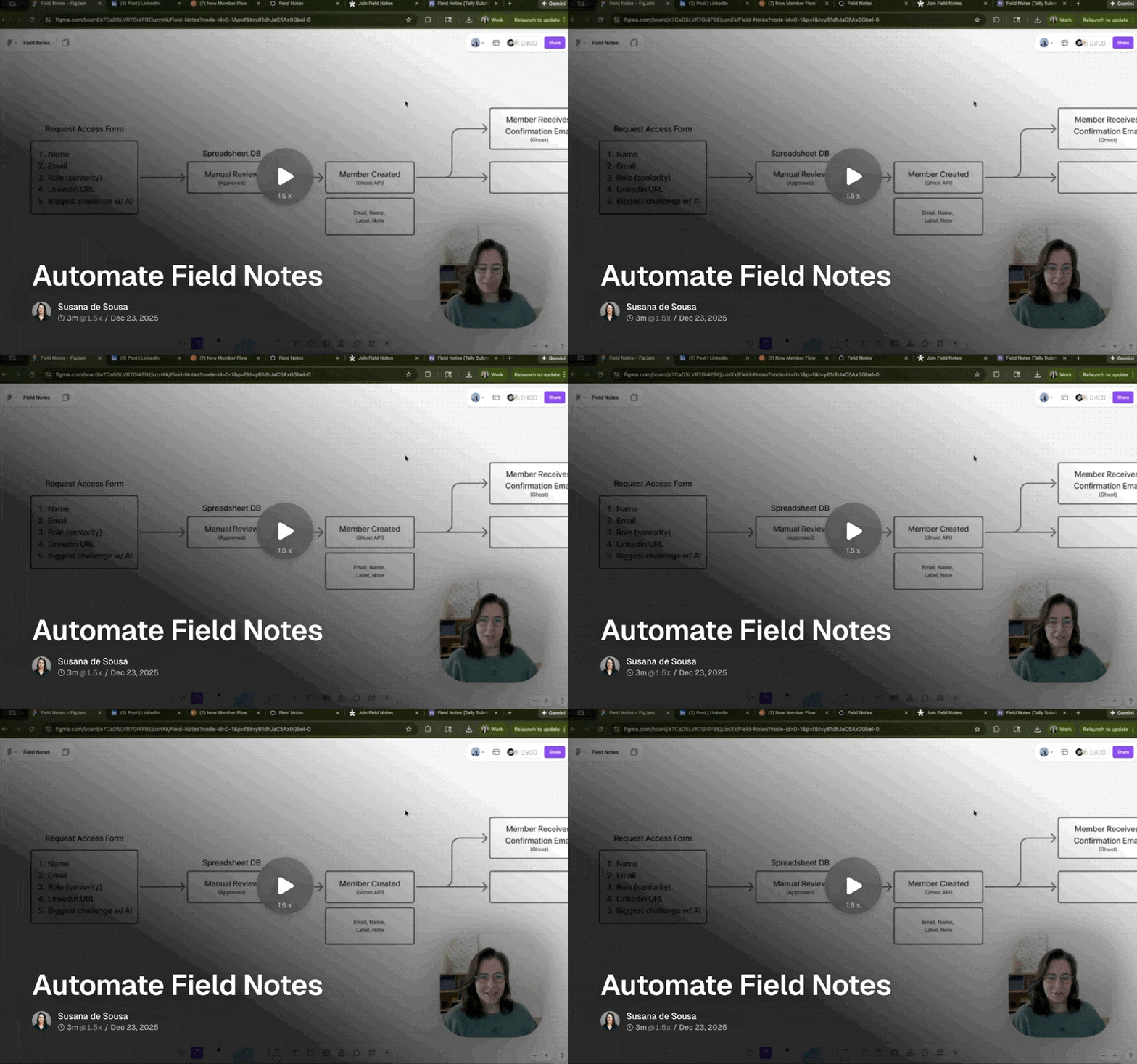
The key takeaway: I want to do two things:
Check who's already a member from the first batch and update Airtable to reflect that
Set up a way to approve new members and create their accounts in batch — no more doing it one by one
First, Let's Talk About APIs
Before we go further, you need to understand what an API is. I'll keep this simple.
What is an API?
API stands for Application Programming Interface. Think of it as a waiter at a restaurant.
You (the customer) want food from the kitchen
You can't walk into the kitchen yourself
The waiter takes your order, brings it to the kitchen, and returns with your food
An API works the same way:
Your script wants data from Airtable
Your script can't access Airtable's database directly
The API takes your request, gets the data, and returns it to your script
Every modern tool — Airtable, Ghost, Slack, Notion, Salesforce — has an API. That's how they talk to each other.
The Four Things You Can Do With an API
APIs let you do four basic operations (often called CRUD):
OPERATION | WHAT IT DOES | REAL EXAMPLE |
|---|---|---|
Create | Add new data | Create a new member in Ghost |
Read | Get existing data | Fetch all records from Airtable |
Update | Change existing data | Mark a record as "Member = true" |
Delete | Remove data | Delete a test account |
In technical terms, these map to HTTP methods:
OPERATION | HTTP METHOD | WHAT YOUR SCRIPT SENDS |
|---|---|---|
Create |
| "Here's a new member, add them" |
Read |
| "Give me all the records" |
Update |
| "Change this field on this record" |
Delete |
| "Remove this record" |
You don't need to memorize this. But when you see Claude's plan mention "GET request" or "POST request," now you know what it means.
API Keys: Our Script's Password
APIs need to know who's making the request. That's where API keys come in.
An API key is like a password that identifies your script. When your script talks to Airtable, it says: "Hey, it's me, here's my key, please give me access."
This is why API keys are secret. Anyone with your key can access your data. Never share them. Never put them in code that others can see.
Where API Keys Live: The .env File
For this project, I stored the API keys in a special file called .env (short for "environment"). It looks like this:
Your scripts read from this file, but the file itself never gets shared. This keeps your keys safe.
💡 Note: The .env file isn't just for API keys. You can use it to store any configuration your script needs to run — Base IDs, table names, URLs, and other settings all belong here. This makes your scripts reusable: someone else can use the same script with their own .env file, no code changes needed, because you're not "hard-coding" your API keys or personal data into the script itself.
Video 2: Script to Sync Existing Data
In this video, I build the entire first script from scratch. I show the flowchart, ask Claude to read the API docs, handle some dependency issues (pip vs pip3), and watch the records update at once.

Watch for these moments:
[~2:00] The flowchart explaining what Script 1 does
[~5:00] Asking Claude to read API documentation first
[~8:00] The
.claude/settings.jsonfile that stores permissions[~15:00] Claude asking which language to use (Python)
[~20:00] The pip vs pip3 dependency issue
[~25:00] Running the sync and watching records update
What Script 1 Actually Does (Technical Breakdown)
You don't need to know how to code to build with Claude Code, but it's helpful to understand what's happening under the hood.
The Problem
I had 40 people already subscribed in Ghost (my newsletter platform). But my Airtable database was out of date and did not know about them — the "Member" checkbox was unchecked for everyone. I needed to sync this data.
The Solution: Three Steps
Step 1: Reading from Ghost (GET Request)
The script sends a GET request to Ghost's Admin API:
Ghost's Admin API uses JWT (JSON Web Token) authentication.
The script takes your Admin API key (which looks like key_id:secret), splits it apart, and generates a short-lived JWT token that expires in 5 minutes. This is more secure than sending the raw API key with each request.
Ghost responds with a list of all members — their emails, names, when they joined, etc. This data comes back as JSON, which looks like:
The script extracts just the emails: ["alice@example.com", "bob@example.com", ...]
Step 2: Reading from Airtable (GET Request)
Same idea. The script sends a GET request to Airtable:
Airtable responds with all records, including their email addresses and current "Member" status.
Step 3: Compare and Update (PATCH Request)
Now the script has two datasets:
Ghost members (40 emails)
Airtable records (91 records with emails and IDs)
It compares them: "Which Airtable records have emails that exist in Ghost?"
For each match, it sends a PATCH request to update that record:
This changes the "Member" checkbox from false to true.
Why Batching Matters: Airtable has rate limits — you can only update 10 records per request. If you try to update 36 records one at a time, you'll hit the limit and get errors. So the script batches: it groups records into sets of 10 and sends them together. That's why you see "Updating in batches of 10..." in the output.
The Upsert Optimization: After running the script once, I realized a problem: if I ran it again, it would try to update all 36 records again, even though they're already marked as members. That's wasteful. So I asked Claude to modify the script to only update records that need updating (and skip the ones already marked true). This makes the script idempotent — you can run it multiple times and it only changes what actually needs changing.
Now You Try
The specific tools don't matter — the pattern works for any two platforms with APIs. Here's the general approach:
Step 1: Set Up Your Environment File
Create a .env file with your API keys and configuration:
Step 2: Have Claude Learn the APIs
Before writing any code, point Claude to the documentation for each platform:
Step 3: Connect to Each Platform
Test each connection separately before trying to sync them:
Step 4: Build the Sync Script
Use Plan Mode (Shift+Tab) and describe what you want:
Claude will ask clarifying questions about field names, filters, and preferences. Answer them, and let it build the script.
Video 3: Script to Create New Members
In this video, I build Script 2, which creates new members in Ghost based on approvals in Airtable. This video is longer because things go wrong — the magic link API returns 404 errors and Claude goes down some rabbit holes.

Watch for these moments:
[~3:00] The flowchart for Script 2 (different from Script 1)
[~10:00] Adding filters: only process records where Invite=true AND Member=false
[~20:00] The 404 error on the magic link endpoint
[~30:00] Claude trying multiple fixes that don't work
[~40:00] Finally getting it working
This video shows troubleshooting in real time. Things break. Claude doesn't always get it right the first time. Persistence matters.
What Script 2 Actually Does (Technical Breakdown)
Script 2 is more complex because it writes to Ghost, not just reads.
The Problem
New people request access via a form. I review them in Airtable and mark the ones I approve. But then I still have to manually create each account in Ghost.
The Solution: Three Steps
Step 1: Reading with Filters (GET Request)
We don't want all records — just the ones I've approved but haven't processed yet:
The filterByFormula parameter tells Airtable to only return matching records. The formula AND(NOT({Member}), {Invite}) means "Member is unchecked AND Invite is checked."
Step 2: Creating a Member with Automatic Email (POST Request)
For each approved person, the script sends a POST request to Ghost. Here's the key insight: Ghost can automatically send a welcome email when you create a member — you just need to include the right query parameters.
The magic is in those query parameters:
send_email=true— tells Ghost to email the new memberemail_type=signup— sends the signup/welcome email template
One request, two things happen: member created and email sent.
Note on labels: Ghost expects labels as objects with both name and slug fields, not just strings. The script always adds an "API" label to track members created via automation, plus their role from Airtable.
Step 3: Updating Airtable (PATCH Request)
Finally, we mark records as processed so we don't create duplicate accounts next time:
Like in the first script, updates are batched in groups of 10 to respect Airtable's rate limits.
The Complete Flow
For each approved record:
Create member in Ghost
If successful, add to "success" list
If failed, log error, continue to next record
After all records processed, mark successful records as Member=true in Airtable
When Things Go Wrong: The 404 Saga
In the latest video, you watched me hit a wall. I was trying to send welcome emails to new members, but my approach wasn't working.
What I Tried First (The Wrong Approach)
I initially thought I needed two separate API calls:
POST to create the member
POST to a "magic link" endpoint to send the email
The second call kept failing:
Claude tried several fixes — different endpoint URLs, different headers, different payloads. Nothing worked.
What Actually Fixed It
I knew it was possible — I'd gotten it working that morning with a different script. But right as I was preparing to stop the troubleshooting process, Claude figured it out on its own. It created a test member — and the email came through.
The solution wasn't to fix the magic link endpoint — it was to realize I didn't need it at all.
When Claude gets stuck, here's my advice:
1. Don't give up after one failure. It often needs a few attempts.
2. Give it one more chance. Sometimes Claude finds the answer right when you're about to lose faith.
3. Go back to the source. "Read the docs again" often reveals a simpler approach.
4. Share what you know. "I know this is possible" gives Claude useful context.
5. Look for simpler solutions. Sometimes the fix isn't debugging your complex approach — it's finding a simpler one.
Now You Try
The second script is about creating new records and triggering actions when you do.
The Pattern
Most "approval workflow" automations follow this structure:
The Prompt Template
Use Plan Mode (Shift+Tab) and adapt this to your tools:
Key Questions Claude Will Ask
What are the filter conditions? (e.g., "Approved = true AND Created = false")
What fields should map to what? (e.g., "Email from column A, Name from column B")
What should happen when a record fails? (Skip and continue, or stop entirely?)
Should it ask for confirmation? (Yes, especially while you're learning)
Pro Tip: Check the Docs for Bonus Features
Many APIs can do more than just create a record. Ghost, for example, can send a welcome email automatically if you add the right parameters to your POST request. Stripe can send receipts. Notion can notify users.
Before building, ask Claude:
You might save yourself an extra API call 😄