

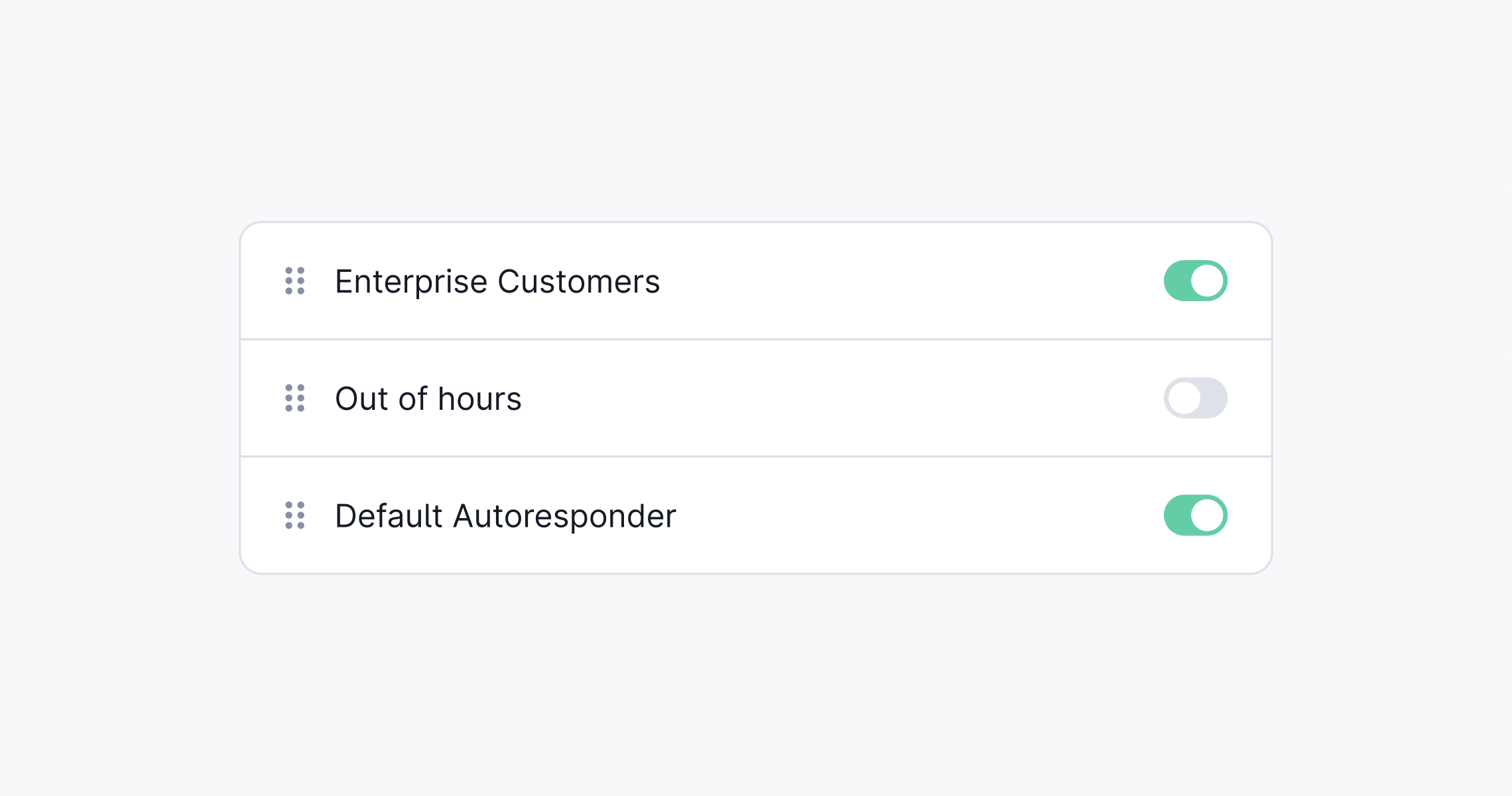
When auto-responses are triggered
Auto-responses fire when a new thread is created. You can restrict them to specific conditions. All conditions on a single auto-response must match for it to send. If you have multiple auto-responses configured, they are evaluated in order and the first match wins. Available conditions:- Support email address: only applies when the thread comes in via email
- Inside or outside business hours: matches based on your workspace business hours setting
- Label: matches threads that have a specific label applied
- Tier: matches threads belonging to a specific customer tier
- Priority: matches threads at a specific priority level
When auto-responses are suppressed
Even when an auto-response is enabled, it will not send in the following situations:- Thread created by an agent: auto-responses only fire for threads created by a customer or a machine user (e.g. via API). Threads opened manually by a support agent are skipped.
- Customer is marked as spam: no auto-response is sent to spam customers.
- Thread has no inbound message: if the thread has no first customer message, the auto-response is skipped.
- Thread is no longer in Todo when the response is due: if the thread has been resolved, snoozed, or otherwise moved out of Todo before the scheduled send time, the auto-response is canceled.
- An agent or machine user has already replied: if any non-customer message is sent before the auto-response fires, for example during the response delay window, the auto-response is canceled. This prevents a second reply when a user has already picked the thread up.
Response delay
You can configure a delay (up to 15 minutes) between when the thread is created and when the auto-response is sent. The delay is calculated from the timestamp of the first inbound message. The delay window is also a safety net: if an agent replies within the delay, the auto-response is automatically suppressed so the customer does not receive two responses.Supported channels
Auto-responses can be enabled across multiple support channels:- Email: for inbound messages to your support inbox
- Chat: for sessions started in your website widget
- Slack: for threads started via Slack Connect
- API: for programmatically created threads
- Microsoft Teams: for threads started via a Teams channel
- Discord: for threads started via a Discord server
Using dynamic fields in automated replies
You can include variables in automated email responses to personalize messages automatically. Supported fields include:-
{{ customer.fullName }} -
{{ customer.shortName }} -
{{ customer.email }} -
{{ thread.ref }} -
{{ thread.id }}