

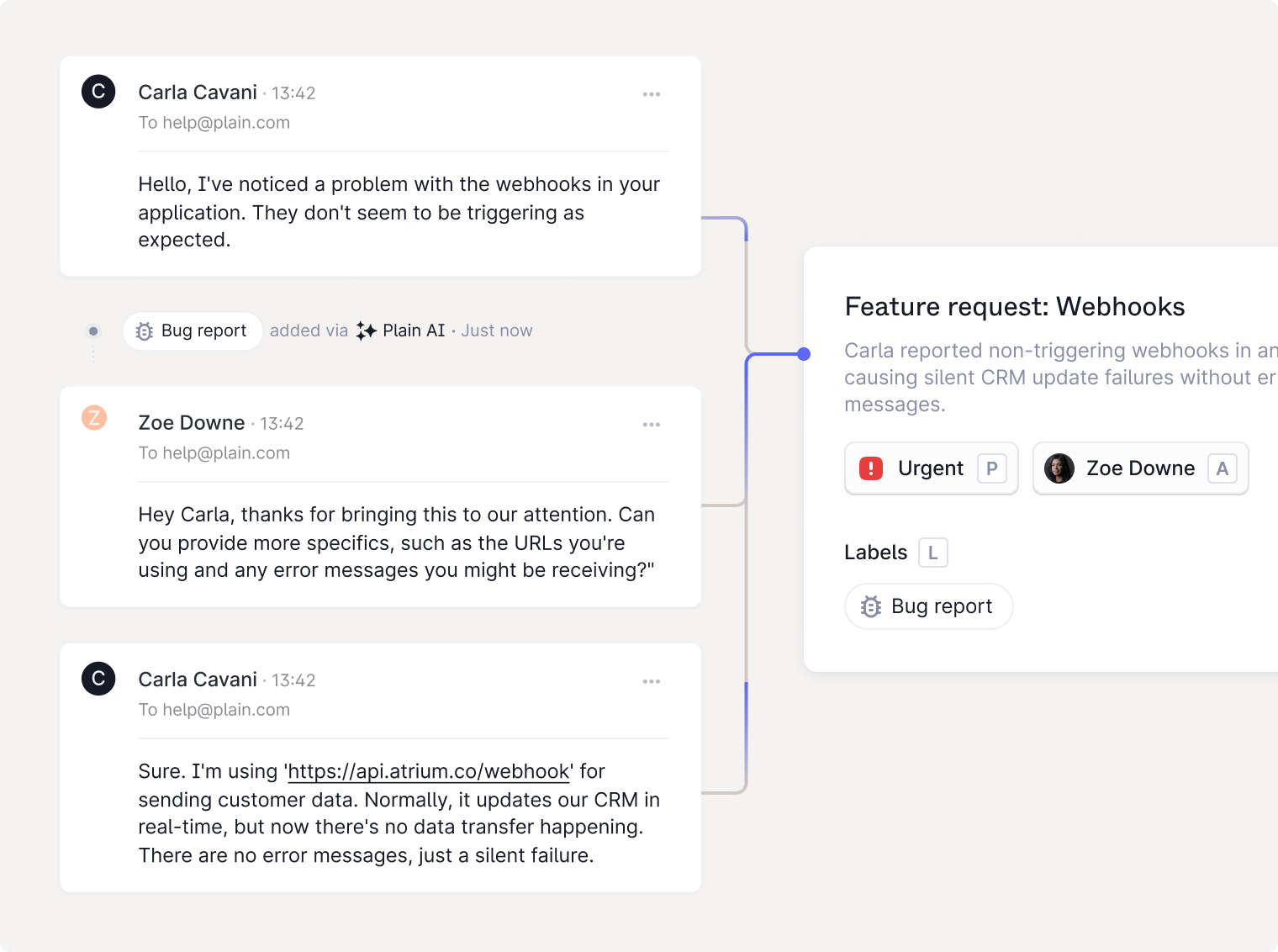
Auto-triage automatically handles the first layer of triage: labeling, prioritizing, summarizing, and surfacing similar issues.
AI triage: workflow

Auto-labeling and priority

Label and prioritize new threads with a workflow using the Add labels or Set priority action. In either action, choose a Mode:
  • Manual: choose labels in Select labels, or a fixed priority in Set priority to.
  • AI selected: let AI read the thread and choose labels or a priority from its content on each run.
In AI selected mode, use the optional Instructions field to guide the selection. For example, tell AI to treat production outages as urgent. AI chooses from the labels with Can be applied by Plain AI turned on. Turn the setting off on a label to exclude it from AI selection. A thread that already has labels or a priority keeps them. Each AI selection uses 1–2 credits. Click View usage under AI selected to open your credit usage in a new tab. For triage that needs tools or judgment beyond labels and priority, use a Sidekick action.

Thread titles

In Slack and other real-time channels, threads arrive with no subject line. Auto-generated thread titles solve this by creating short, descriptive summaries for each conversation.

Urgency detection (Beta)

Plain AI automatically detects when a thread is urgent, flagging threads that mention downtime, blockers, or critical impact.

Thread catch-ups

Plain AI automatically generates and keeps an up-to-date summary for each thread, so you can see what happened without re-reading the full timeline.

Similar threads (Beta)

To prevent duplicate work and speed up resolution, Plain AI can show similar threads in the thread details panel.