

- Start Sidekick discussion: starts a discussion using your workspace’s tools and approval rules. This is the last step in the workflow; your team can continue the discussion afterward.
- Sidekick action: runs a task with tools you select, without asking for approval on each run. The workflow waits for the task to finish before continuing.
Start a Sidekick discussion
Add Start Sidekick discussion in the workflow builder and write the First message. For example: “Investigate this bug report and tell us what you find.” Sidekick can ask for approval according to your actions and approval rules, and your team can reply in the discussion. You can also select your own agent to handle it.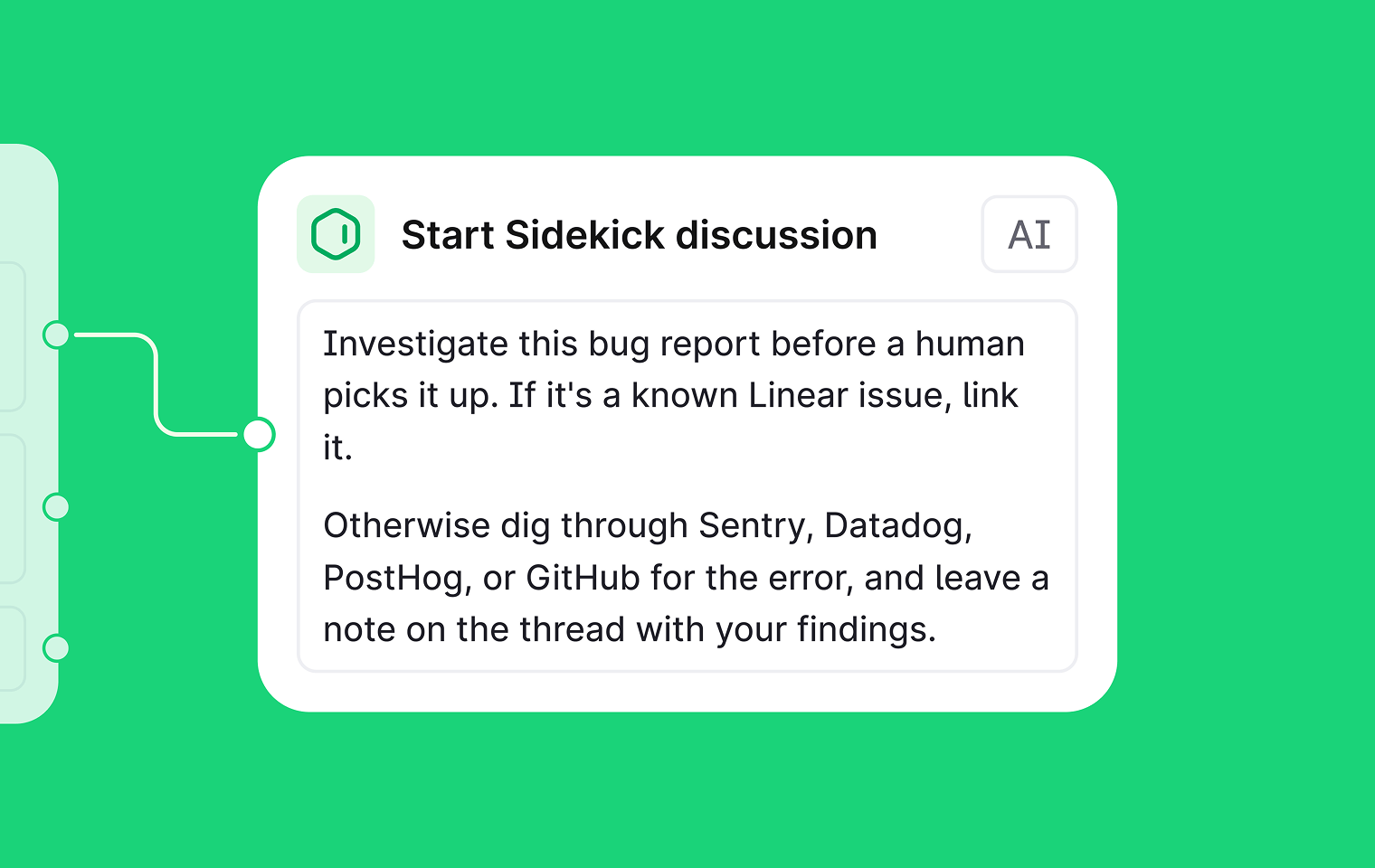
Add a Sidekick action
A Sidekick action runs a task before the workflow continues. You can use it in a workflow triggered by a thread event, run manually, or set to a schedule.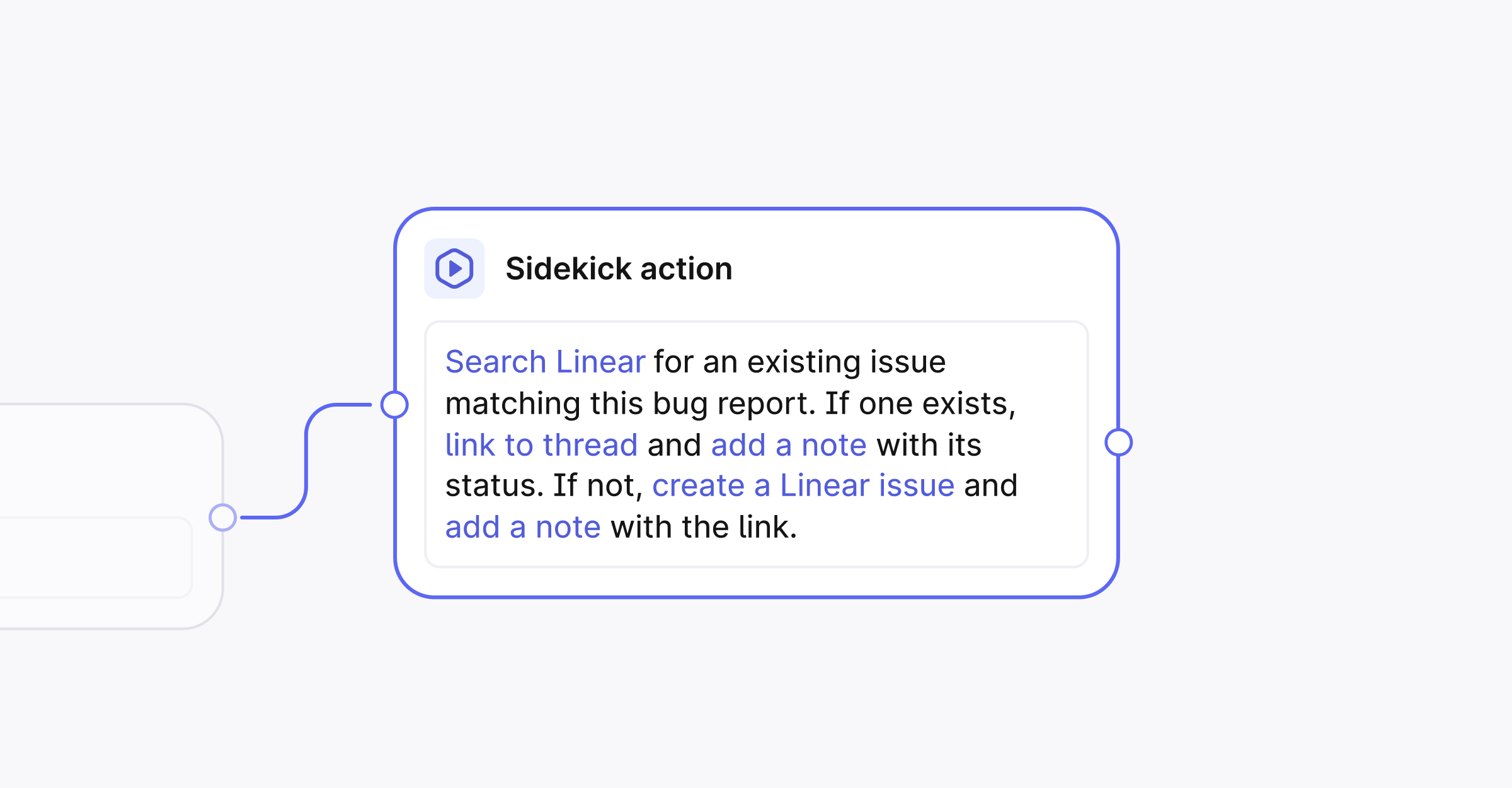
1
Describe the task
Add a Sidekick action step in the workflow builder. Under Task, describe what Sidekick should do and where it should save or send the result.For example: “Search Linear for an existing issue matching this bug report. If one exists, link it to the thread and add a note with its status. If not, create a Linear issue and add a note with the link.”
2
Choose the tools
Under Tools the AI can use, enable the tools the task needs. You can also type @ in the task and select a tool to enable it.Some tools let you limit where Sidekick acts, such as which Slack channels it can post to. To use an external tool, connect its integration first.
3
Connect the next step
Add any steps that should run after Sidekick finishes, then publish the workflow. For example, let Sidekick link the Linear issue before a condition routes the thread to a team.
When the task finishes
The workflow waits until Sidekick reports the task complete, then continues to the next step. If Sidekick can’t complete the task, the run fails and later steps don’t run. Open the workflow run to check the result and its linked Sidekick discussion. Discussions started by workflows are visible to your workspace.Example tasks
Use a thread trigger for work on an individual thread, or a schedule for recurring work:- Investigate a bug: search connected tools for related errors and add an internal note with the findings.
- Add customer context: look up the customer in your CRM and add a note with their plan and account owner.
- Post a weekly digest: summarize the week’s threads and post the report to a selected Slack channel.