

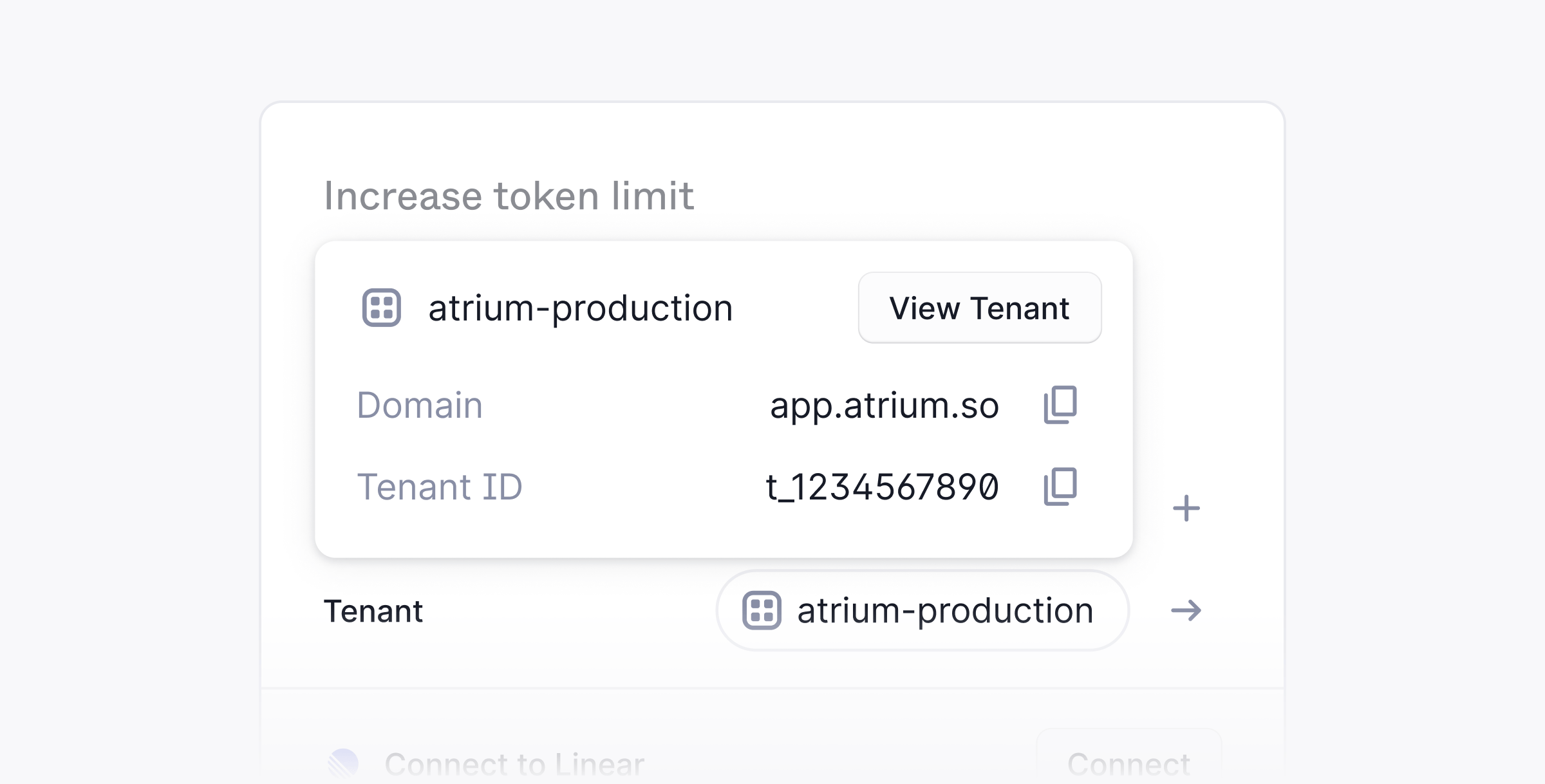
Viewing your tenants in Plain
Each Tenant has a Tenant page in Plain where you can add or see the following information:- Tier
- External ID
- Primary domain
- Alternate domains
- Individual customers
- Open threads
Tenant fields
Once you have tenants set up, Tenant Fields let you add more context to them. Tenant Fields let you bring customer data from your external systems, like your CRM or your own database, directly into Plain. A Tenant represents a customer company or account, and Tenant Fields give you the context you already rely on elsewhere, right where you are working.Why it’s useful
With Tenant Fields, you can provide the right context to every thread: see customer details at a glance without switching tabs, filter queues and reports by data from external systems, and automate workflows based on customer data.How it works
Tenant Fields are a one way sync from your external systems into Plain. They can also be created and updated directly in the UI. You can toggle the visibility of a field by going to Settings → Tenant Fields.Supported field types
- Boolean: true or false
- Text: free form text
- Number: integers or decimals
- Date and time: a specific date and time
- Dropdown (single select): choose one option from a predefined list
- Multi select: choose multiple options from a predefined list
- References: a list of links to users or tenants