

Escalation paths are available on the Horizon and Frontier plans.
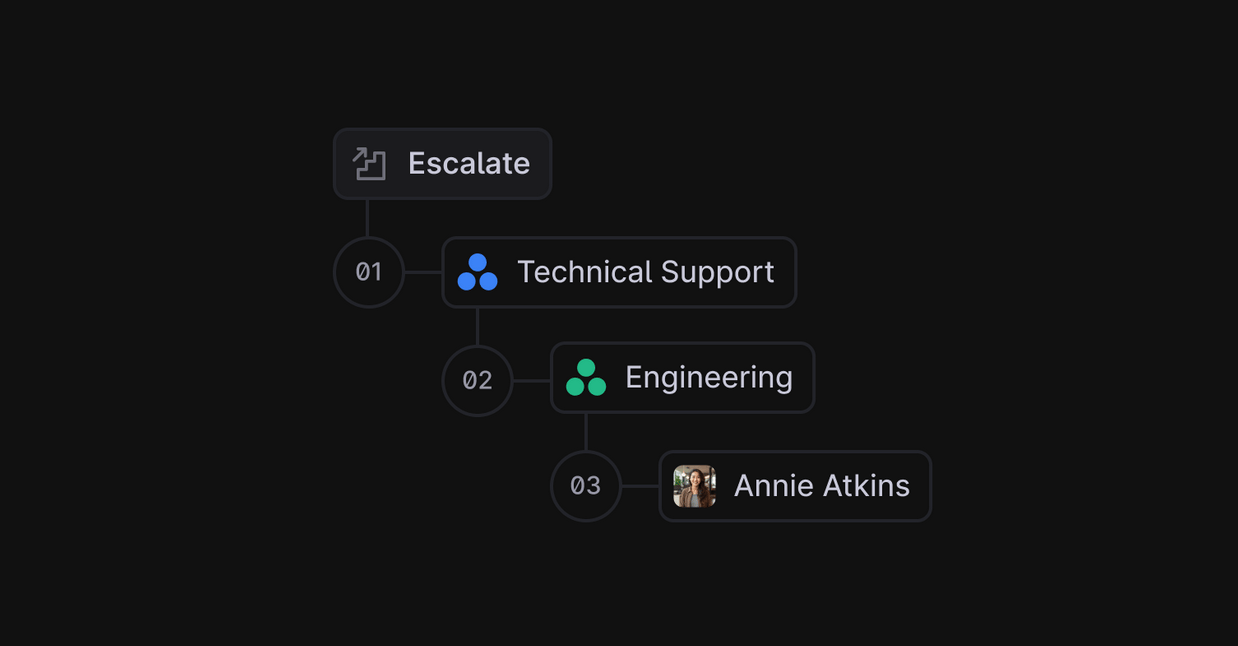
Configuration
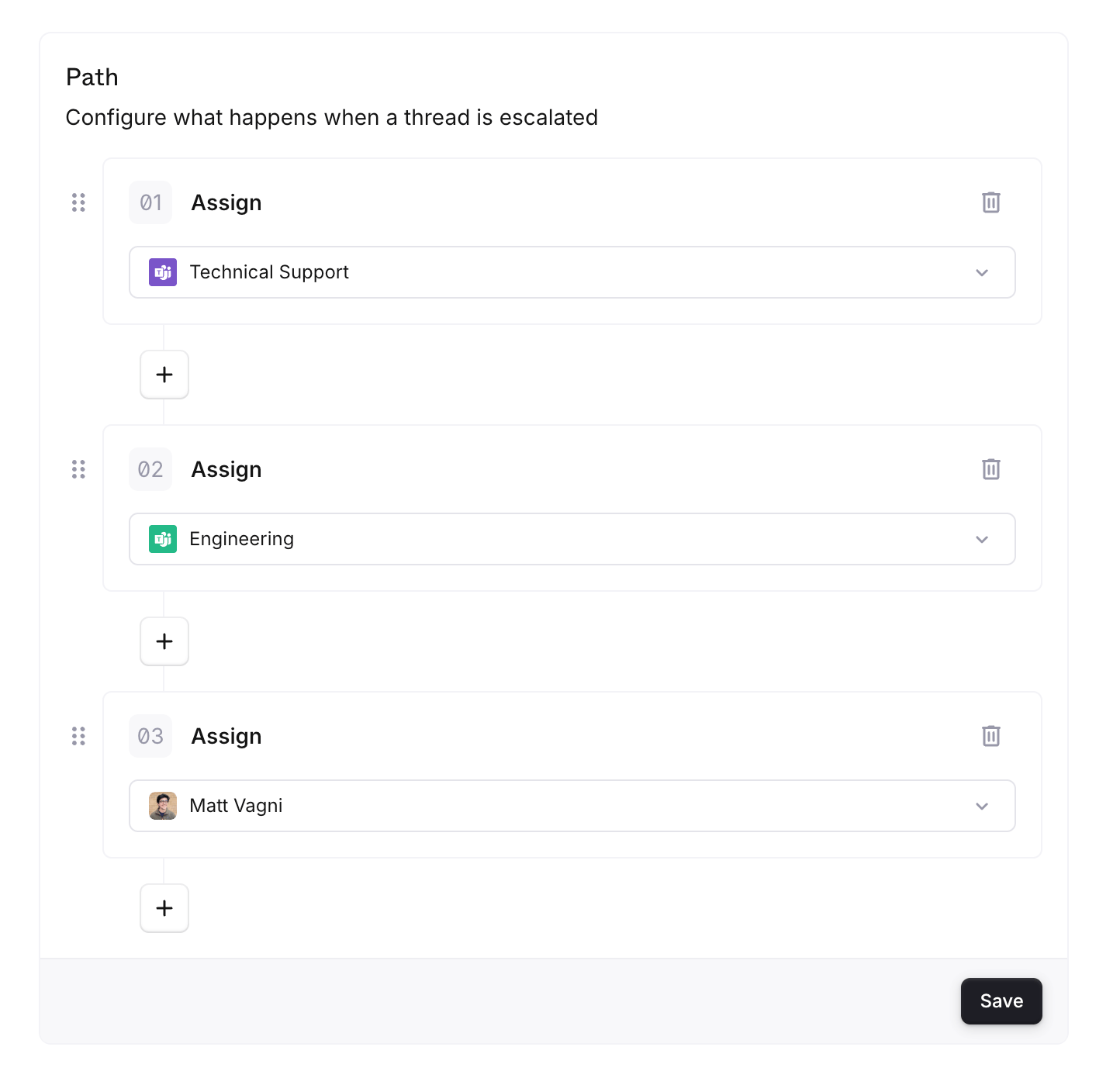
Setting up escalation paths requires two steps:- Define the escalation path (name + levels) in Settings
- Create a workflow in the Workflow Builder to assign threads to that path
Adding an escalation path
- Go to Settings → Escalation paths
- Click “New Escalation Path”
- Set a name and add your defined escalation levels
Setting a thread to use an escalation path
- Go to Workflows and create a new workflow or edit an existing one
- Under Actions, pick Set escalation path
Usage
Escalating a thread
To escalate, click More at the bottom of the thread page, under the composer, then pick EscalateChanging or clearing the escalation path
To manually change which escalation path a thread uses, or to remove it entirely:- Press ⌘ + K to open the Command Palette
- Search for “Update Escalation Path”
Things to know
- When escalating, the currently assigned user is always unassigned
- The currently assigned team label is removed only if it is part of the escalation level being escalated from
- The current escalation level is evaluated at the moment of escalation. Manual user/team assignments can affect which level is considered “current”
Example
At Plain, we use the following escalation path for product questions. It’s assigned via a workflow that triggers on threads fromsupport@plain.com:
- Technical Support (team)
- Engineering (team)
- Staff Engineer (user)
- Founders (team)