

SLA policies are available on the Horizon and Frontier plans.
SLA policies replace the legacy SLAs configured on tiers. If your workspace still uses tier SLAs, see Tier SLAs instead.
How SLA policies work
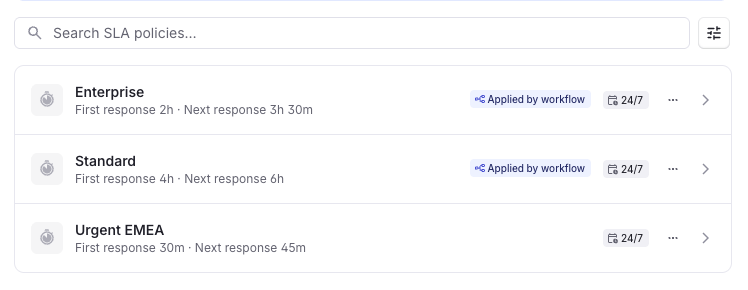
A policy only takes effect once it’s applied to a thread, by a workflow or by a user. From that moment the thread tracks the policy’s targets. A thread has one policy at a time, or none, and a thread without a policy has no SLA. Because the policy is chosen per thread, you decide what each thread is promised. A workflow can apply an Enterprise policy to threads from your largest customers, an Urgent policy to any thread marked Urgent, and a slower policy to everything else. Response time targets only track threads that need a reply from your team. A thread that is Done, or Snoozed as Waiting for customer, has no active response time target. Resolution time targets track a thread from creation until it is marked Done, regardless of who sent the last message.What a policy contains
Every policy has the same five parts:- Name: shown on the thread, in filters, and in group headers. Names are unique within your workspace
- Description: an internal note. Only your team sees it
- Targets: any of first response time, next response time, first resolution time, and total resolution time
- Notification before target: an optional warning period for each target
- Business hours: whether the targets pause outside your business hours schedules
Targets
A policy tracks up to four targets, one of each type. Two measure how fast your team replies, and two measure how fast a thread is marked Done:- First response time: how long your team has to send the first reply after a thread is created. Tracking starts when the thread arrives
- Next response time: how long your team has to reply to each new customer message after the first reply. Tracking restarts with every customer message
- First resolution time: how long your team has to mark the thread Done for the first time
- Total resolution time: how long your team has to resolve a thread. Including active time after the thread is first marked Done. Reopening a thread that has been Done for a long time can breach this target immediately
Notification before a target
Each target can send a warning before its deadline. When the time left falls below the period you set, the SLA status changes to Imminent breach and Plain sends a notification to the channels chosen in Settings → Notifications. The warning period must be shorter than the target itself.Pausing resolution time targets
Each resolution time target has a Pause the clock in these statuses setting, so time spent waiting on the customer doesn’t count against the target. It has four options: Waiting for customer (on by default), Paused for later, Investigating, and Close the loop. While the thread is in a selected status the clock stops, and the thread shows Paused with the time remaining instead of a countdown. When the thread leaves that status the clock resumes with the same time remaining, counted against the policy’s business hours. Leave every option unchecked to keep the clock running in every status. Pausing only applies to resolution time targets. Response time targets cancel or keep running as described in Snoozed threads.Business hours
Each policy has one Pause outside business hours setting, and it covers every target in the policy:- Off: targets tick down around the clock, including weekends and holidays
- On: targets tick down only while one of the business hours schedules you select is open. Outside those hours the timer pauses, and it resumes when the next schedule opens
Create a policy
1
Open SLA policies
Go to Settings → SLA policies and click New SLA policy.
2
Name the policy
Enter a Name, for example
Enterprise EU, and an optional Description.3
Choose the hours
Under Business hours, turn on Pause outside business hours and select one or more Schedules. Leave it off for targets to count around the clock.
4
Choose the targets
Tick any of First response time, Next response time, First resolution time, and Total resolution time, and enter each target in hours and minutes. For a resolution time target, choose the statuses under Pause the clock in these statuses.
5
Add a warning
For each target, set Send a notification before target if you want an Imminent breach warning. Leave it empty to skip the warning.
6
Save
Click Create SLA policy.
Edit or delete a policy
Editing a policy changes the targets for every thread on it, and the change reaches threads differently depending on what you edit:- Changing a target’s time: applies to targets that start after you save. A target already counting down keeps its existing deadline
- Removing a target: stops tracking that target on every thread the policy is applied to, including targets counting down right now
- Changing the business hours setting or schedules: applies to targets that start after you save
Apply a policy to threads
Applying a policy is what starts the clock. Use a workflow so every matching thread gets the right policy without anyone thinking about it, and set or change the policy by hand when a thread needs an exception.With a workflow
Add a Set SLA policy action to a workflow and pick the policy. The workflow’s trigger decides when the policy is applied, and its conditions decide which policy a thread gets. The same action can also remove a policy: pick no policy, and the thread stops tracking SLAs.Apply a policy by tier
The most common setup gives each customer segment its own policy. A thread’s tier can change after it is created, for example when a tenant is put in a tier or tier mapping moves a tenant, so trigger on both events:- Trigger: Automatic, events: Thread created and Tier updated.
-
Condition: Tier equals Enterprise.
- Yes: Set SLA policy to Enterprise.
- No: Set SLA policy to Standard.
From the thread
To set or change the policy on a single thread:- Click the SLA policy row in the thread sidebar and pick a policy from the list. Choose No SLA policy to remove it
- Open the command palette with ⌘ + K and search for Add SLA policy to thread, Change SLA policy on thread, or Remove SLA policy from thread
Follow a policy’s targets on a thread
Once a policy is applied, each of its targets moves through a series of statuses as time passes and your team acts. The thread header and the queue show a countdown to the nearest deadline, and the status is available as a workflow trigger.
Only replies from a user achieve a response time target. A reply from an agent doesn’t count.
Snoozed threads
What happens to a target when you snooze a thread depends on the target type and which snooze status you use:Change or remove a policy on a thread
When a thread is moved from one policy to another, the old policy’s targets that are still counting down are canceled and the new policy’s targets start. The new targets measure from the same point the old ones did: the thread’s creation for first response time and both resolution time targets, and the latest customer message for next response time. A thread that has waited 3 hours already has 3 hours counted against the new policy. Moving a thread to another policy only touches targets still counting down. If your team has already sent the first reply, the new policy doesn’t reopen a first response target, and whether that reply was on time stays as it was. A thread that has already been marked Done doesn’t get a new first resolution target either. Removing the policy from a thread cancels any target still counting down. Every move is recorded on the thread’s timeline, with the policy names as they were at the time. To change the targets in the policy itself rather than which policy a thread is on, see Edit or delete a policy.Find threads by policy
The policy on a thread is available wherever you organize your queue:- Filter: add an SLA policy filter to any view, or to My threads, to see the threads on one or more policies
- Group: in the Display menu, group a view by SLA policy. Threads without a policy appear under No SLA policy
- Board: with a view grouped by policy, drag a thread between columns to change its policy
- Sort: sort a view by Closest to breaching SLA to work the tightest deadlines first