

SLA policies supersede tier SLAs. Existing tier SLAs keep working, and you can still edit or delete them.
SLA types
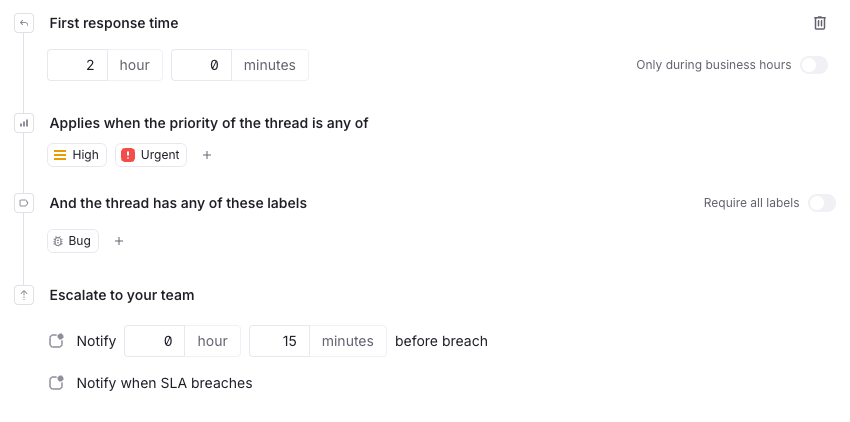
A tier can hold two types of SLA:- First response time: how long your team has to send the first reply to a new thread. The clock starts when the thread is created
- Next response time: how long your team has to reply after a customer responds. The clock restarts with every customer message
Add an SLA to a tier
Tiers and SLAs are available on the Horizon pricing plan and above. To add an SLA:1
Open the tier
Go to Settings → Tiers & SLAs and open the tier.
2
Choose the type
Click Add SLA and pick First response time or Next response time.
3
Set the response time
Enter the time allowed in hours and minutes. Turn on Only during business hours if the clock should pause outside your working hours.
4
Narrow it by priority and labels
Click Add priority or Add label to apply the SLA only to some threads. Leave both empty to apply it to every thread in the tier. See How an SLA is matched to a thread.
5
Set the warning
Under Escalate to your team, enter how long before the deadline Plain should notify you. See Notify before breach.
6
Save
Click Save changes.
How an SLA is matched to a thread
A thread’s tier comes from its company or tenant. Plain looks at that tier’s SLAs and applies the ones whose conditions the thread matches. An SLA with no conditions matches every thread in the tier. Conditions narrow it down:- Priority: the SLA applies only when the thread’s priority is one of the ones you add: Urgent, High, Normal, or Low
- Labels: the SLA applies only when the thread has any of the labels you add. Turn on Require all labels for it to apply only when the thread has every one of them